
How to Reactivate Your Facebook Account: A Step-by-step Guide
Are you looking to reactivate your Facebook account? Maybe you accidentally deactivated it, or perhaps you’re trying to recover a deleted profile. Whatever the reason, we’ve got you covered. In this article, we’ll walk you through the steps to reactivate your Facebook account on both desktop and mobile devices.
Understanding Facebook’s Deactivation Policy
Before we dive into the process, it’s essential to understand how Facebook handles deactivations. When you deactivate your account, Facebook temporarily removes your profile from the site. During this time, you can still access your account settings and reactivate it if needed. However, if more than 30 days have passed since deactivation, Facebook permanently deletes your account.
Reactivating Your Facebook Account on Desktop
- Visit The Facebook Website: Go to www.Facebook.Com and log in with your email address and password.
- Click “Forgot Password”: If you’ve forgotten your password, click on “Forgot Password” to reset it.
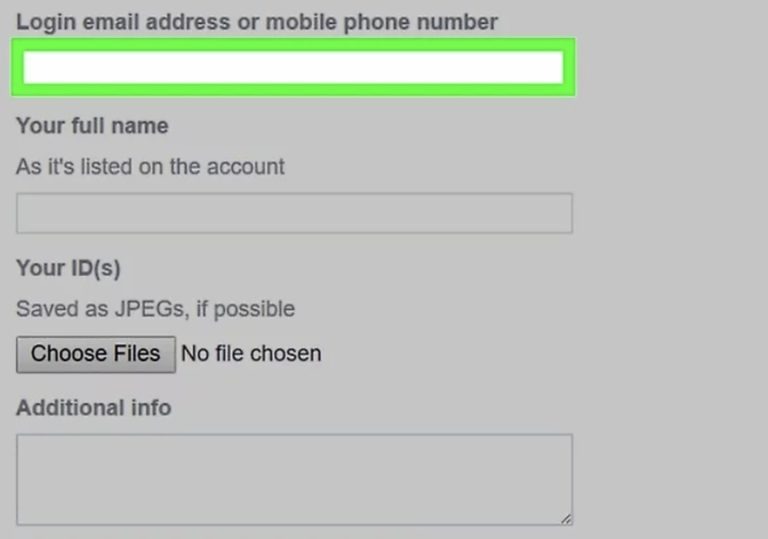
- Enter Your Account Details: Fill out the form with your email address, phone number, or username.
- Click “Recover Account”: Facebook will send a verification code to your registered email address or phone number.
- Enter The Verification Code: Enter the code to complete the recovery process.
Reactivating Your Facebook Account on Mobile
- Open The Facebook App: Launch the Facebook app on your mobile device.
- Tap “Settings”: Tap the three horizontal lines (⋯) in the top right corner and select “Settings.”
- Tap “Account Settings”: Scroll down to the “Help & Support” section and tap “Account Settings.”
- Tap “Recover Account”: Facebook will ask you to enter your account details.
- Follow The Prompts: Complete the recovery process by entering a verification code sent to your registered email address or phone number.
Reactivating Your Facebook Account on Android Devices
- Open The Facebook App: Launch the Facebook app on your Android device.
- Tap “More”: Tap the three horizontal lines (⋯) in the top right corner and select “More.”
- Tap “Account Settings”: Scroll down to the “Help & Support” section and tap “Account Settings.”
- Tap “Recover Account”: Facebook will ask you to enter your account details.
- Follow The Prompts: Complete the recovery process by entering a verification code sent to your registered email address or phone number.
Reactivating Your Facebook Account on Ios Devices
- Open The Facebook App: Launch the Facebook app on your iOS device.
- Tap “Settings”: Tap the three horizontal lines (⋯) in the top right corner and select “Settings.”
- Tap “Account Settings”: Scroll down to the “Help & Support” section and tap “Account Settings.”
- Tap “Recover Account”: Facebook will ask you to enter your account details.
- Follow The Prompts: Complete the recovery process by entering a verification code sent to your registered email address or phone number.
Troubleshooting Common Issues
- Account Not Found: If Facebook says that your account doesn’t exist, try clearing your browser cache and restarting the login process.
- Incorrect Password: Double-check your password and try logging in again.
- Verification Code Issues: If you’re having trouble receiving a verification code, check with your email provider or phone service to see if there are any issues.
Conclusion
Reactivating your Facebook account is a straightforward process that can be completed on both desktop and mobile devices. By following the steps outlined above, you should be able to recover your account and access it once again. Remember to always follow Facebook’s guidelines for deactivation and recovery to avoid any potential issues.
Faqs
- Q: How do I Reactivate my Facebook Account?
A: Follow the step-by-step guide above. - Q: What if I Forgot my Password?
A: Click on “Forgot Password” to reset it. - Q: Can I Recover a Deleted Profile?
A: Unfortunately, no. However, you can create a new profile with your friends’ help. - Q: How do I Reactivate Facebook on Android Devices?
A: Follow the steps outlined above for mobile devices. - Q: What if my Account is Permanently Deleted?
A: You won’t be able to recover it. However, you can create a new profile with your friends’ help. - Q: How do I Troubleshoot Common Issues?
A: Check our troubleshooting guide above. - Q: Can I Use Facebook Without an Email Address?
A: No, you’ll need a valid email address to sign up for Facebook. - Q: What if I’m Having Trouble Receiving a Verification Code?
A: Contact your email provider or phone service to see if there are any issues.
Important Note
Remember that when you deactivate your account, Facebook temporarily removes your profile from the site. However, if more than 30 days have passed since deactivation, Facebook permanently deletes your account. Be sure to follow our guidelines for deactivation and recovery to avoid any potential issues.


