
How to Reinstall Grub: A Step-by-step Guide
Are you tired of dealing with the frustration of not being able to choose which operating system to start on your dual-boot computer? Do you find yourself facing a blank screen when trying to select between Linux and Windows? Don’t worry, this is a common problem, but it’s easily solvable. In this article, we’ll walk you through a step-by-step guide on how to reinstall GRUB, the Grand Unified Bootloader.
What is Grub?
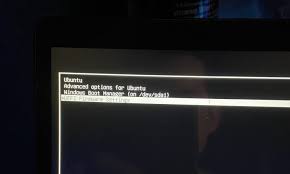
GRUB (short for Grand Unified Bootloader) is a boot loader that manages multiple operating systems installed on your computer. It allows you to choose which operating system to start from the GRUB menu. If you’ve installed Linux and Windows on your computer, GRUB will give you the option to select between them.
Why Do I Need to Reinstall Grub?
You might need to reinstall GRUB if:
- You’ve installed Windows after Linux and can’t choose which operating system to start from the GRUB menu.
- Your GRUB menu is no longer visible or has disappeared altogether.
- You’re experiencing issues with your dual-boot setup.
Step 1: Download a Live Version of Ubuntu
The first step in reinstalling GRUB is to download a live version of Ubuntu. This will give you access to the tools needed to repair your boot loader. You can choose between a 32-bit or 64-bit version, depending on your system requirements. If you’re unsure, go with the 64-bit version.
Step 2: Create a Bootable Usb Drive
Once you’ve downloaded the live version of Ubuntu, create a bootable USB drive using the ISO file. This will allow you to run Ubuntu directly from the USB drive without installing it on your computer. You can use tools like ImgBurn or UNetbootin to create a bootable USB drive.
Step 3: Boot From The Live Version of Ubuntu
Insert the bootable USB drive and restart your computer. Make sure to enter your BIOS settings and set the USB drive as the first boot device. Save the changes and exit the BIOS settings. Your computer should now boot from the live version of Ubuntu.
Step 4: Open a Terminal And Add The Boot Repair Ppa
Once you’re booted into the live version of Ubuntu, open a terminal and add the Boot Repair PPA using the following commands:
Sudo add-apt-repository ppa:Yannubuntu/boot-repair

Sudo apt-get update

Sudo apt-get install -y boot-repair && boot-repair
Step 5: Run Boot Repair And Reinstall Grub
Run Boot Repair from the terminal and select the “Repair GRUB” option. Follow the on-screen instructions to repair your GRUB menu.
Alternative Methods For Windows Users
If you’re using Windows, there are alternative methods to reinstall GRUB:
- Access the UEFI settings by pressing F2 or another designated key.
- Change the boot order to prioritize the GRUB entry.
Alternatively, you can use the command bcdedit /set {bootmgr} path \EFI\ubuntu\grubx64.Efi in the Command Prompt to force Windows to recognize the GRUB bootloader.
Conclusion
Reinstalling GRUB is a relatively simple process that can be completed using a live version of Ubuntu or other tools. If you’re facing issues with your dual-boot setup, follow these steps to get back on track. Remember to always backup your data and take necessary precautions before making any changes to your system.
Frequently Asked Questions
Q: Why is my GRUB menu not visible?
A: This could be due to a variety of reasons, including a corrupted GRUB configuration or an incorrect boot order in the UEFI settings.
Q: How do I convert Linux from BIOS to UEFI mode?
A: You can use Boot Repair to convert your Linux installation from BIOS to UEFI mode. Simply follow the on-screen instructions and select the “Convert Linux to UEFI” option.
Q: Why is my dual-boot setup not working properly?
A: This could be due to a variety of reasons, including an incorrect boot order in the UEFI settings or a corrupted GRUB configuration.
Q: How do I access the UEFI settings on Windows 10?
A: You can access the UEFI settings by clicking on the Start button and selecting the “Settings” app. Then, click on the “Update & Security” option and select the “Recovery” tab. Click on the “Restart now” button to restart your computer in a specific mode.
Q: How do I convert Linux from UEFI to BIOS Legacy mode?
A: You can use Boot Repair to convert your Linux installation from UEFI to BIOS Legacy mode. Simply follow the on-screen instructions and select the “Convert Linux to BIOS Legacy” option.
References
- The official Ubuntu documentation
- The Boot Repair PPA website
- Microsoft’s UEFI settings guide


