
How to Restore Google Play Services on Android Devices
Are you experiencing issues with Google Play Services on your Android device? Have you tried deleting cache and data, but the problem persists? Don’t worry, we’ve got you covered! In this article, we’ll guide you through the step-by-step process of restoring Google Play Services on your Android device.
What Are Google Play Services?
Google Play Services is a crucial component of the Google operating system, responsible for providing updates and features to various Google apps on your device. It’s an essential service that enables features like Google Play Store, Google Maps, and more.
Why do I Need to Restore Google Play Services?
If you’re experiencing issues with Google Play Services, it can impact the functionality of other Google apps on your device. By restoring Google Play Services, you’ll be able to resolve these issues and ensure that your device is running smoothly.
Method 1: Delete Cache And Data
Before we dive into more complex methods, let’s try something simple:
Step 1: Open Settings
Go to your device’s settings app (usually found on the home screen or in the app drawer).
Step 2: Go to Apps
Select “Apps” from the settings menu.
Step 3: Find Google Play Services
Look for the Google Play Services app in the list of installed apps. If you can’t find it, try searching for it using the search bar at the top.
Step 4: Clear Cache And Data
Once you’ve found the app, tap on it to open its settings page. Look for the “Clear cache” and “Clear data” options and select them both.
Step 5: Restart Your Device
Reboot your device to allow the changes to take effect.
Method 2: Reinstall Google Play Services
If deleting cache and data doesn’t resolve the issue, let’s try reinstalling Google Play Services:
Step 1: Open Settings
Go to your device’s settings app (usually found on the home screen or in the app drawer).
Step 2: Go to Apps
Select “Apps” from the settings menu.
Step 3: Find Google Play Services
Look for the Google Play Services app in the list of installed apps. If you can’t find it, try searching for it using the search bar at the top.
Step 4: Uninstall Updates
Tap on the three dots (⋯) next to the app name and select “Uninstall updates.”
Step 5: Reinstall Google Play Services
Go back to the app list and reinstall Google Play Services by selecting it from the available apps.
Method 3: Update Google Play Services
If you’re running an outdated version of Google Play Services, updating it might resolve the issue:
Step 1: Open Settings
Go to your device’s settings app (usually found on the home screen or in the app drawer).
Step 2: Go to Apps
Select “Apps” from the settings menu.
Step 3: Find Google Play Services
Look for the Google Play Services app in the list of installed apps. If you can’t find it, try searching for it using the search bar at the top.
Step 4: Check For Updates
Tap on the three dots (⋯) next to the app name and select “Check for updates.”
Step 5: Update Google Play Services
If an update is available, tap on it to install the latest version of Google Play Services.
Additional Tips
- Make sure you’re running the latest version of your Android operating system.
- Clear cache and data for other Google apps, such as Google Maps or Google Chrome, if they’re also experiencing issues.
- Consider resetting your device to its factory settings if all else fails.
Restoring Google Play Services on Huawei Devices
If you’re using a Huawei device, things might be a bit different. Since Huawei devices don’t come with the Google Play Store pre-installed, we’ll need to explore alternative solutions:
Step 1: Open Settings
Go to your device’s settings app (usually found on the home screen or in the app drawer).
Step 2: Go to Apps
Select “Apps” from the settings menu.
Step 3: Find Google Play Services
Look for the Google Play Services app in the list of installed apps. If you can’t find it, try searching for it using the search bar at the top.
Step 4: Update Google Play Services
Tap on the three dots (⋯) next to the app name and select “Check for updates.”
Step 5: Install Gspace App
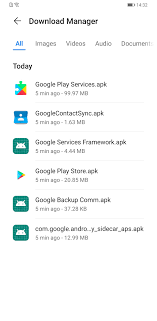
Install the Gspace app from the Huawei AppGallery or download it manually using an APK file. This app will provide a similar experience to Google Play Services.
Conclusion
Restoring Google Play Services on your Android device is relatively straightforward, but it might require some patience and troubleshooting. By following these step-by-step instructions, you should be able to resolve any issues with Google Play Services and get back to enjoying seamless experiences with other Google apps.
Frequently Asked Questions (FAQs)
- What Are The Possible Reasons For Google Play Services Not Working?
Google Play Services might not work due to outdated versions, cache and data issues, or compatibility problems.
- How do I Clear Cache And Data For Google Play Services?
To clear cache and data for Google Play Services, go to Settings > Apps > Google Play Services > Storage > Clear Cache and Data.
- Can I Uninstall Updates For Google Play Services?
Yes, you can uninstall updates for Google Play Services by going to Settings > Apps > Google Play Services > Uninstall Updates.
- How do I Update Google Play Services?
To update Google Play Services, go to Settings > Apps > Google Play Services > Check for Updates.
- What’s The Difference Between Google Play Services And Huawei Appgallery?
Google Play Services is a pre-installed app on Android devices that provides updates and features to various Google apps. The Huawei AppGallery, on the other hand, is an alternative store to the Google Play Store, exclusive to Huawei devices.
- Can I Use Gspace Instead of Google Play Services?
Yes, you can install the Gspace app from the Huawei AppGallery or download it manually using an APK file as a replacement for Google Play Services.
- What Should I do if All Else Fails?
If none of these methods work, consider resetting your device to its factory settings or seeking professional help from a trusted tech expert.


