
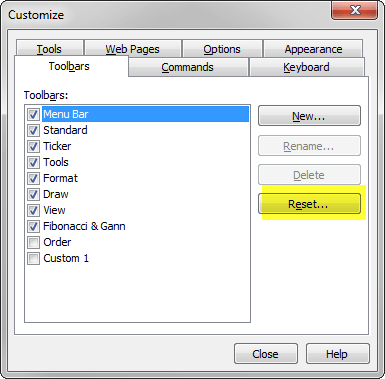
How to Restore The Toolbar of Your Browser or Operating System
Are you tired of searching for the toolbar every time you need it? Do you want to know how to restore it without any hassle? Look no further! In this article, we will guide you through the process of restoring the toolbar in your browser or operating system.
Why is The Toolbar Important?
The toolbar is a crucial part of your browsing experience. It contains all the essential tools and features that make navigating the internet easier and more efficient. Whether you’re using Windows, macOS, Linux, or any other operating system, having a fully functional toolbar can save you time and effort.
How to Restore The Toolbar in Your Browser
Restoring the toolbar in your browser is usually a straightforward process. Here’s how:
For Microsoft Edge:
- Open Microsoft Edge.
- Click on the icon (…) in the top right corner of the browser window.
- Select Settings from the drop-down menu.
- In the sidebar, click on Appearance and scroll down to the section Personalize toolbar.
- You’ll see a list of options for customizing your toolbar. Simply toggle them on or off as desired.
For Google Chrome:
- Open Google Chrome.
- Click on the icon (…) in the top right corner of the browser window.
- Select Settings from the drop-down menu.
- In the sidebar, click on Appearance and scroll down to the section Customize toolbar.
- You can toggle on or off various options for your toolbar.
For Firefox:
- Open Firefox.
- Press Alt on your keyboard to display the menu bar.
- Click on View > Toolbars and select the toolbar you want to restore.
- In the menu, click on Customize toolbar and toggle on the desired options.
How to Restore The Toolbar in Your Operating System
Restoring the toolbar in your operating system may vary depending on your version of Windows or macOS. Here’s how:
For Windows 10 or Windows 11:
- Press the Start button on your keyboard.
- Click on Settings.
- In the sidebar, click on Personalization and scroll down to the section Behaviors.
- Find the option Conceal automatically the bar of applications and toggle off.
For Macos:
- Click on the Apple logo in the top left corner of your screen.
- Select System Preferences from the drop-down menu.
- In the sidebar, click on Dock and Menu Bar.
- Toggle off the options to conceal the dock and menu bar.
How to Restore The Toolbar in Other Software
Restoring the toolbar in other software like Microsoft Word, Excel, Outlook, AutoCAD, Photoshop, or Illustrator may vary depending on your specific version of each program. However, most programs have a similar process:
- Click on the menu icon (three dots) in the top right corner of the window.
- Select Options or Preferences from the drop-down menu.
- In the sidebar, click on Appearance and scroll down to the section Customize toolbar.
- Toggle on or off various options for your toolbar.
Conclusion
Restoring the toolbar is a simple process that can save you time and effort. Whether you’re using a browser or operating system, following these steps will help you get back to browsing as usual. Remember, having a fully functional toolbar is essential for an enjoyable browsing experience!
Frequently Asked Questions (FAQs)
- Q: How do I Restore The Toolbar in my Browser?
A: To restore the toolbar in your browser, follow the specific steps for your browser (Microsoft Edge, Google Chrome, Firefox). - Q: Why is The Toolbar Important?
A: The toolbar contains essential tools and features that make navigating the internet easier and more efficient. - Q: How do I Restore The Toolbar in Windows 10 or Windows 11?
A: Press the Start button on your keyboard and toggle off the option Conceal automatically the bar of applications. - Q: How do I Restore The Toolbar in Macos?
A: Click on the Apple logo, select System Preferences, and toggle off the options to conceal the dock and menu bar. - Q: Can I Customize my Toolbar?
A: Yes, you can customize your toolbar by toggling on or off various options for your browser or operating system. - Q: How do I Restore The Toolbar in Microsoft Word, Excel, Outlook, Autocad, Photoshop, or Illustrator?
A: Follow the specific steps for each program to restore the toolbar.
References
For more information on restoring toolbars and customizing browser settings, please refer to:
- Microsoft Edge documentation
- Google Chrome documentation
- Firefox documentation
- Windows 10 and Windows 11 documentation
- MacOS documentation
I hope this article has been helpful in restoring your toolbar!


