
How to Backup And Recover Whatsapp Chats on Android, Iphone, And PC
Are you worried about losing your important WhatsApp conversations? Do you want to know how to backup and recover them in case of emergency? Look no further! In this article, we will guide you through the process of backing up and recovering WhatsApp chats on Android, iPhone, and PC.
Why Backup Your Whatsapp Chats?
Before we dive into the step-by-step guide, let’s talk about why backing up your WhatsApp chats is important. Imagine losing all your conversations due to a phone crash or formatting the device. It can be devastating! By backing up your WhatsApp chats regularly, you can ensure that your conversations are safe and secure.
Backing Up Whatsapp Chats on Android
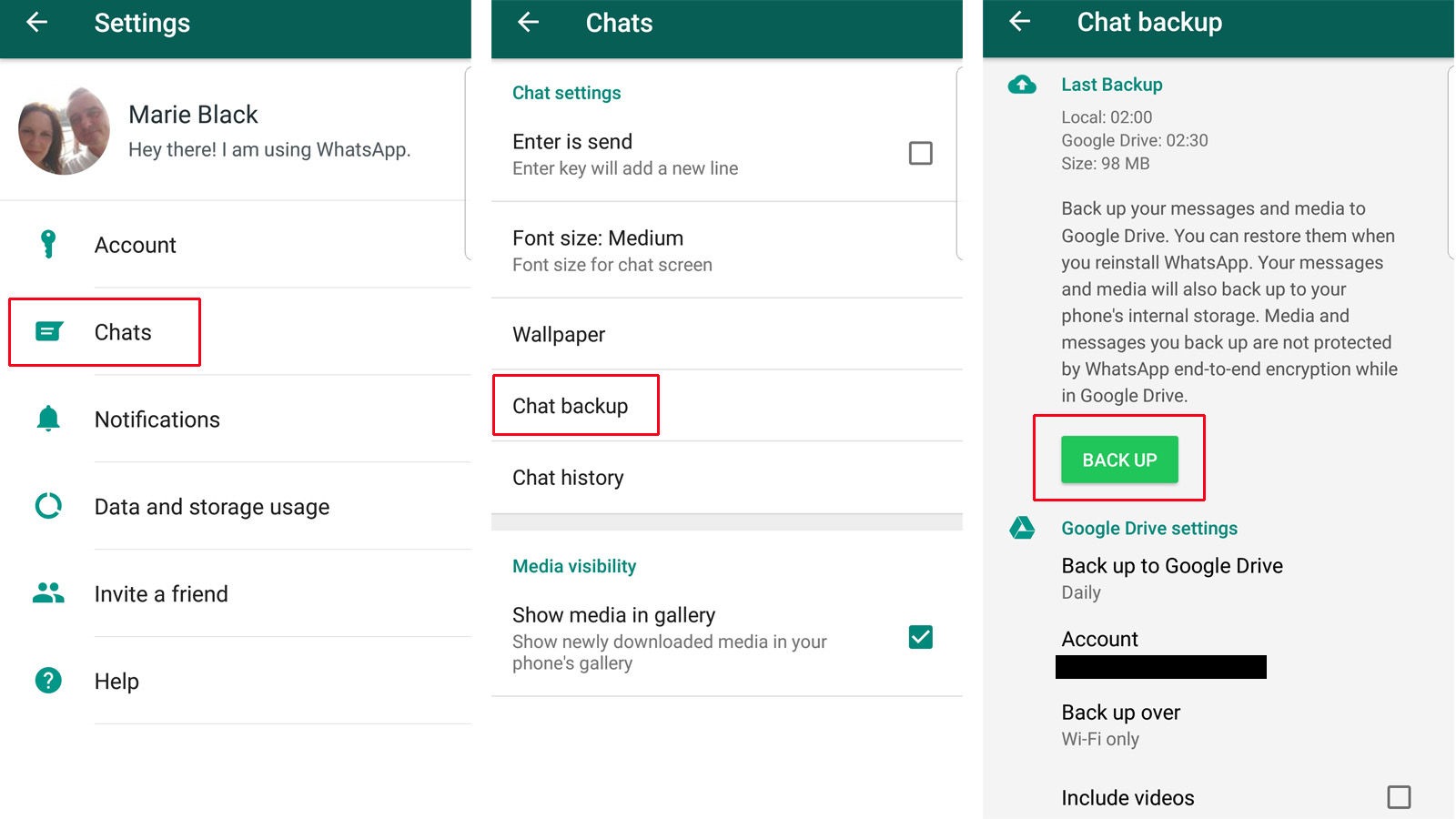
If you use an Android device, you can backup your WhatsApp chats using Google Drive. Here’s how:
- Open WhatsApp and go to Settings.
- Tap on “Chats” and then tap on “Backup chat history”.
- Choose the backup interval (daily, weekly, or monthly) and select Google Drive as the storage location.
- Confirm that you want to enable automatic backups.
Backing Up Whatsapp Chats on Iphone
If you use an iPhone, you can back up your WhatsApp chats using iCloud. Here’s how:
- Open WhatsApp and go to Settings.
- Tap on “Chats” and then tap on “Backup chat history”.
- Choose the backup interval (daily, weekly, or monthly) and select iCloud as the storage location.
- Confirm that you want to enable automatic backups.
Backing Up Whatsapp Chats on PC
If you want to back up your WhatsApp chats on a PC, you can use Wondershare Dr.Fone. Here’s how:
- Download and install Wondershare Dr.Fone on your PC.
- Connect your Android or iPhone device to the PC using a USB cable.
- Launch Wondershare Dr.Fone and select “WhatsApp” as the app to backup.
- Follow the on-screen instructions to complete the backup process.
Recovering Whatsapp Chats
Now that you know how to back up your WhatsApp chats, let’s talk about recovering them in case of emergency. Here are some steps you can follow:
- If you’ve formatted your device or lost your conversations, try using Wondershare Dr.Fone to recover your WhatsApp chats.
- Connect your device to the PC and launch Wondershare Dr.Fone.
- Select “WhatsApp” as the app to recover and follow the on-screen instructions.
Tips And Tricks
Here are some additional tips and tricks to keep in mind:
- Regularly back up your WhatsApp chats to avoid losing them due to phone crashes or formatting.
- Use a password-protected backup to ensure that only you can access your conversations.
- Consider using Wondershare Dr.Fone to transfer your WhatsApp chats from one device to another.
Conclusion
Backing up and recovering WhatsApp chats is easier than you think! By following these steps, you can ensure that your important conversations are safe and secure. Remember to regularly back up your chats and use a password-protected backup for added security.
Frequently Asked Questions (FAQs)
Q: How do I backup my WhatsApp chats on Android?
A: You can backup your WhatsApp chats on Android using Google Drive.
Q: How do I backup my WhatsApp chats on iPhone?
A: You can backup your WhatsApp chats on iPhone using iCloud.
Q: Can I recover my WhatsApp chats if I’ve formatted my device?
A: Yes, you can use Wondershare Dr.Fone to recover your WhatsApp chats even after formatting your device.
Q: Is it possible to transfer my WhatsApp chats from one device to another?
A: Yes, you can use Wondershare Dr.Fone to transfer your WhatsApp chats from one device to another.
Q: How do I ensure that only I can access my WhatsApp chats?
A: You can use a password-protected backup to ensure that only you can access your conversations.
Q: Can I recover my WhatsApp chats if I’ve lost them due to phone crashes?
A: Yes, you can use Wondershare Dr.Fone to recover your WhatsApp chats even after losing them due to phone crashes.
Q: Is it safe to store my WhatsApp chats on a PC?
A: Yes, using Wondershare Dr.Fone to backup and recover your WhatsApp chats on a PC is a safe and secure option.


