
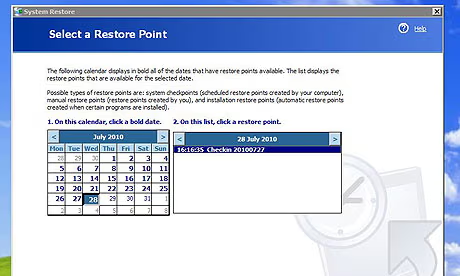
Restoring Windows Xp: A Step-by-step Guide
Are you struggling to restore your old Windows XP computer? Look no further! In this comprehensive guide, we will walk you through the process of restoring your Windows XP operating system, using both formatting and recovery disk methods.
Understanding The Risks
Before we dive into the restoration process, it’s essential to understand that Windows XP is an outdated operating system. Microsoft has stopped providing security updates for XP, making it vulnerable to potential risks and safety hazards. If you’re still using XP, it’s recommended to consider alternative solutions, such as Linux distributions that are lightweight and secure.
Method 1: Formatting
Formatting your computer will erase all data on the hard drive, so it’s crucial to back up any important files before proceeding. To format your Windows XP computer:
- Backup Your Data: Use an external hard drive or cloud storage to backup any essential files.
- Insert The Installation Cd/dvd: Place the Windows XP installation CD/DVD into your computer’s optical drive.
- Restart Your Computer: Reboot your PC and enter the BIOS settings (usually by pressing F2, F12, or Del).
- Set The Cd/dvd Drive as Boot Priority: Ensure that the CD/DVD drive is set as the primary boot device.
- Save Changes And Exit: Save the changes to the BIOS settings and exit.
Method 2: Recovery Disk
Alternatively, you can use a recovery disk to restore your Windows XP operating system. To create a recovery disk:
- Download Winsetupfromusb: Obtain the software from the official website.
- Create a Bootable Usb Drive: Follow the instructions on how to create a bootable USB drive with the Windows XP installation files.
- Reboot Your Computer: Restart your PC and enter the BIOS settings (usually by pressing F2, F12, or Del).
- Set The Usb Drive as Boot Priority: Ensure that the USB drive is set as the primary boot device.
- Save Changes And Exit: Save the changes to the BIOS settings and exit.
Restoring Windows XP
Once you’ve selected your preferred method (formatting or recovery disk), follow these steps:
- Insert The Cd/dvd or Bootable Usb Drive: Place the installation media into your computer’s optical drive or bootable USB drive.
- Restart Your Computer: Reboot your PC and enter the setup process.
- Follow The On-screen Instructions: Carefully follow the instructions provided by the setup program to complete the restoration process.
Post-restoration Steps
After restoring your Windows XP operating system:
- Configure Your Network Settings: Set up your network settings, including your internet connection and local area network (LAN).
- Update Your System: Ensure that your system is updated with the latest security patches.
- Install Essential Software: Install any essential software or drivers required for your computer.
Conclusion
Restoring Windows XP can be a straightforward process if you follow these step-by-step instructions. However, please note that using an outdated operating system may pose risks to your data and security. It’s recommended to consider alternative solutions, such as Linux distributions, for a more secure and stable computing experience.
Frequently Asked Questions (FAQs)
- What is The Difference Between Formatting And Recovery Disk Methods?
The primary difference lies in how they approach the restoration process. Formatting erases all data on the hard drive, while the recovery disk method uses a previously created image of the operating system to restore Windows XP.
- Will I Lose my Files During The Restoration Process?
Yes, if you choose the formatting method, you will lose all data on the hard drive. However, with the recovery disk method, your files should remain intact.
- Can I Use a Third-party Software to Create a Recovery Disk?
Yes, there are various third-party tools available that can help create a recovery disk for Windows XP.
- Will Restoring my Computer Affect Any Installed Programs or Drivers?
No, the restoration process will not delete any installed programs or drivers. However, it’s essential to ensure that your system is updated with the latest security patches and software updates.
- Can I Use This Guide on a Different Version of Windows XP (e.G., Windows XP Home or Windows XP Professional)?
Yes, the steps outlined in this guide are applicable to various versions of Windows XP, including Home and Professional editions.
- Will Restoring my Computer Affect Any Network Settings?
No, the restoration process should not affect your network settings. However, it’s essential to reconfigure your network settings after completing the restoration process.
- Can I Use a Different Operating System (e.G., Windows 10 or Linux) Instead of Restoring Windows Xp?
Yes, you can opt for a more modern and secure operating system like Windows 10 or a lightweight Linux distribution.
- Will Restoring my Computer Affect Any User Data (e.G., Documents, Pictures)?
No, the restoration process should not delete any user data, including documents, pictures, or other essential files.


