
How to Reboot Your PC Like a Pro: A Comprehensive Guide
Are you tired of dealing with a slow and unresponsive computer? Do you wish there was a way to take your PC back in time to its former glory? Look no further! In this article, we will show you how to reboot your PC like a pro using various methods, including the Windows Recovery Environment, cloning hard disks, and more.
Why Reboot Your Pc?
Before we dive into the nitty-gritty of rebooting your PC, let’s first understand why it’s essential. Over time, your computer can accumulate a significant amount of clutter, including:
- Corrupted system files
- Outdated drivers
- Malware infections
These issues can lead to slower performance, crashes, and even complete system failures. Rebooting your PC can help resolve these problems by restoring your system to its previous state.
Method 1: Windows Recovery Environment
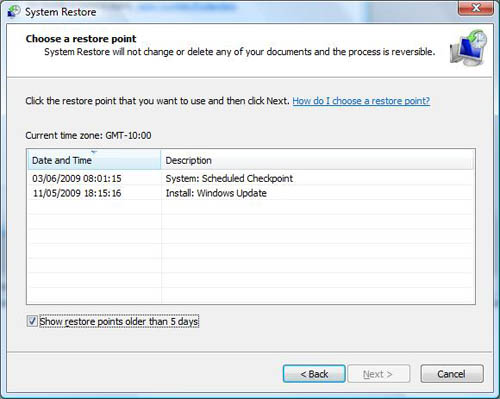
The Windows Recovery Environment (RE) is a built-in feature in Windows that allows you to restore your system to a previously working state. Here’s how to use it:
- Create a System Restore Point: Go to the Control Panel, select “System and Security,” then click on “System.” Click on “System Protection” and create a new restore point.
- Enter Recovery Mode: Restart your PC and repeatedly press the F11 key (or Del, depending on your system) until you reach the Windows RE screen.
- Choose a Restore Point: Select the most recent restore point created in Step 1.
Method 2: Cloning Hard Disks
Cloning your hard disk is another effective way to reboot your PC. This method creates an exact copy of your original hard drive, allowing you to recover from any issues that may have occurred.
- Choose a Cloning Software: You can use software like EaseUS Todo Backup or Clonezilla to clone your hard disk.
- Clone Your Hard Disk: Follow the software’s instructions to create an image of your hard drive.
- Restore Your System: Boot from the cloned hard drive, and you’ll have your system restored to its previous state.
Method 3: Reinstalling Windows
If all else fails, reinstalling Windows is a drastic but effective solution. Here’s how:
- Backup Your Data: Before proceeding, make sure to backup any important files or data.
- Download The Windows Iso: Get the latest Windows version and create an installation media (USB drive or CD/DVD).
- Reinstall Windows: Boot from the installation media and follow the on-screen instructions.
Method 4: Macos Recovery
If you’re a Mac user, don’t worry! You can also use the built-in Time Machine feature to recover your system.
- Create a Backup With Time Machine: Set up Time Machine to create automatic backups of your Mac.
- Restore Your System: Restart your Mac and hold down the Command (⌘) + R keys until you reach the macOS Utilities screen.
- Choose a Restore Point: Select the most recent backup created in Step 1.
Method 5: Reinstalling Macos
If Time Machine isn’t an option, reinstalling macOS is another solution:
- Backup Your Data: Before proceeding, make sure to backup any important files or data.
- Download The Macos Installer: Get the latest macOS version and create an installation media (USB drive).
- Reinstall Macos: Boot from the installation media and follow the on-screen instructions.
Conclusion
Rebooting your PC can be a daunting task, but with these methods, you’ll be able to take your computer back in time to its former glory. Remember to always backup your data before attempting any of these methods.
Frequently Asked Questions (FAQs)
- Q: How Often Should I Reboot my Pc?
A: It’s recommended to reboot your PC every 2-3 months or when experiencing system issues. - Q: Will I Lose Any Data if I Use The Windows Recovery Environment?
A: No, the Windows RE will restore your system to a previously working state without deleting any files. -
Q: Can I Clone my Hard Disk While Still Using It?
A: Yes, you can clone your hard disk while it’s running, but be aware that this method may take some time depending on the size of your drive. -
Q: How Long Does Cloning a Hard Disk Take?
A: The cloning process can take anywhere from 30 minutes to several hours, depending on the size of your drive and the software used. - Q: Will Reinstalling Windows Erase All my Data?
A: Yes, reinstalling Windows will erase all files and programs installed since the last backup. Make sure to back up any important data before proceeding. - Q: How do I Create a Time Machine Backup on my Mac?
A: To create a Time Machine backup, go to System Preferences > Time Machine and select “Backup Now.” - Q: Can I Clone my Hard Disk Using Macos?
A: Yes, you can use software like Carbon Copy Cloner or SuperDuper to clone your hard disk. - Q: How do I Restore my Mac From a Time Machine Backup?
A: To restore your Mac from a Time Machine backup, restart your computer and hold down the Command (⌘) + R keys until you reach the macOS Utilities screen.


