
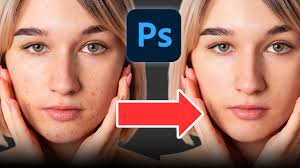
Mastering Photoshop: A Comprehensive Guide
Are you ready to unlock the full potential of your photos? Look no further than Adobe Photoshop, the industry-standard image editing software. In this article, we’ll take you on a journey through the world of Photoshop, covering everything from basic operations to advanced techniques.
Why Use Photoshop?
Photoshop is more than just an image editing tool – it’s a creative powerhouse that can transform your photos into stunning works of art. With its vast array of features and tools, Photoshop allows you to:
- Enhance and perfect your images
- Create complex compositions and effects
- Retouch and restore damaged or faded photos
- Design and edit graphics, logos, and more
Getting Started With Photoshop
To begin, you’ll need to install Photoshop on your computer. Once installed, follow these steps to get started:
- Launch Photoshop and select the “Open” button.
- Choose an image file from your computer or import one directly from a camera or scanner.
- Familiarize yourself with the interface, which consists of various panels and tools.
Basic Operations in Photoshop
Before diving into advanced techniques, let’s cover some basic operations:
- Selecting: Use the Selection tool to choose an area of the image for editing.
- Adjusting: Apply adjustments to brightness, contrast, and color balance using the Adjustments panel.
- Retouching: Remove blemishes and imperfections with the Spot Healing Brush or Clone Stamp tools.
Advanced Techniques in Photoshop
Now that you’ve mastered basic operations, it’s time to explore more advanced techniques:
- Layer Management: Understand how to work with layers, including grouping, merging, and deleting.
- Masking: Learn how to create and apply masks for precise control over image editing.
- Filtering: Discover the various filters available in Photoshop, such as blur, sharpen, and distortion effects.
Tips And Tricks
Here are some expert tips to help you get the most out of Photoshop:
- Use The Undo Feature Frequently to experiment with different edits without losing your original image.
- Save Often to prevent loss of work due to software crashes or other issues.
- Take Advantage of Keyboard Shortcuts to streamline your workflow and increase productivity.
Photoshop Online
In addition to the desktop version, Photoshop also has an online counterpart that allows you to edit images directly in a web browser. This feature is ideal for:
- Quick Edits: Make simple adjustments or retouches without installing software.
- Collaboration: Work with others on projects by sharing access to your edited image.
Photoshop Express
For mobile users, Adobe offers Photoshop Express, a free app available for both Android and iOS devices. This app provides:
- Basic Editing Tools: Crop, adjust, and retouch images using intuitive controls.
- Advanced Features: Access more advanced editing capabilities, such as filters and effects.
Conclusion
Mastering Photoshop takes time and practice, but with this comprehensive guide, you’ll be well on your way to unlocking the full potential of this powerful software. Whether you’re a beginner or an experienced user, remember to experiment, practice patience, and have fun exploring the world of image editing.
Frequently Asked Questions (FAQs)
- Q: What is The Difference Between Photoshop CC And Photoshop Elements?
A: Photoshop CC is the professional version for advanced users, while Photoshop Elements is a more user-friendly version for beginners. - Q: Can I Use Photoshop on my Smartphone or Tablet?
A: Yes, Adobe offers Photoshop Express, a free app for mobile devices, which provides basic editing tools and some advanced features. - Q: How do I Install Photoshop on my Computer?
A: Visit the Adobe website to download and install the software on your Windows or macOS system. - Q: What is The Purpose of Layers in Photoshop?
A: Layers allow you to work with multiple images or elements simultaneously, enabling complex compositions and precise editing control. - Q: Can I Export my Edited Image From Photoshop?
A: Yes, Photoshop allows you to save your edited image in various formats, including JPEG, PNG, and PSD.
Bonus Material
For a more in-depth understanding of Photoshop, check out these additional resources:
- Adobe’s official Photoshop tutorials
- Online courses and workshops on image editing and manipulation
- Books and e-books on advanced Photoshop techniques


