
How to Re-tune Your Philips Tv: A Step-by-step Guide
Are you experiencing issues with your Philips TV not receiving certain channels? Don’t worry, re-tuning your TV is a relatively simple process that can be done in just a few steps. In this article, we will guide you through the process of re-tuning your Philips TV, whether it’s due to a change in location or the addition of new channels.
Why Do You Need to Re-tune Your Tv?
Re-tuning your TV is necessary when you move to a different location or add new channels to your TV. This is because the TV’s reception system may not be able to pick up all the available channels, leading to poor picture quality or no signal at all.
Step 1: Check The Antenna Connection
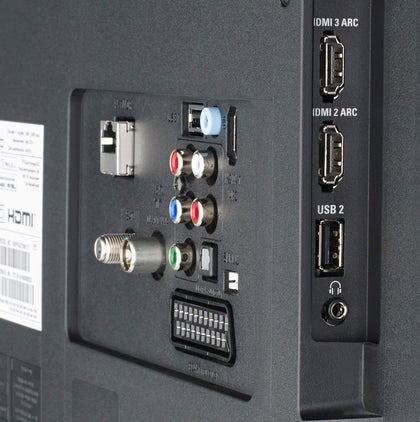
Before re-tuning your TV, make sure that the antenna cable is securely connected to the TV and the wall socket. If the connection is loose, it may not be able to pick up any signals, resulting in a blank screen.
How to Re-tune Your Philips TV
To re-tune your Philips TV, follow these steps:
- Enter The Settings Menu: Press the “Menu” button on your remote control and select the “Settings” option.
- Select Channel Update: Choose the “Channel Update” option from the settings menu.
- Choose The Type of Update: Select either “Update digital channels” or “Reinstall all channels”, depending on your preference.
- Confirm The Update: Press “OK” to confirm the update process.
Re-tuning Your Philips TV Without a Remote
If you don’t have access to the remote control, you can re-tune your TV using the buttons on the TV itself. Follow these steps:
- Press The Menu Button: Use the menu button on the TV to enter the settings menu.
- Select Channel Update: Choose the “Channel Update” option from the settings menu.
- Choose The Type of Update: Select either “Update digital channels” or “Reinstall all channels”, depending on your preference.
- Confirm The Update: Press “OK” to confirm the update process.
Troubleshooting Tips
If you’re still experiencing issues with your TV not receiving certain channels, try the following troubleshooting tips:
- Check The Antenna Connection: Ensure that the antenna cable is securely connected to the TV and the wall socket.
- Restart Your TV: Sometimes, simply restarting your TV can resolve the issue.
- Contact a Technician: If none of the above steps work, it may be best to contact a professional technician for assistance.
Conclusion
Re-tuning your Philips TV is a straightforward process that can be completed in just a few steps. By following the instructions outlined in this article, you should be able to resolve any issues with your TV not receiving certain channels. Remember to check the antenna connection and try restarting your TV before contacting a technician for assistance.
Frequently Asked Questions
Q: Why do I need to re-tune my TV?
A: You may need to re-tune your TV if you’ve moved to a different location or added new channels.
Q: How often should I re-tune my TV?
A: It’s recommended to re-tune your TV every 6-12 months, depending on the type of signal and the number of channels available.
Q: Can I re-tune my TV without a remote control?
A: Yes, you can re-tune your TV using the buttons on the TV itself.
Q: What should I do if my TV is not receiving certain channels?
A: Try checking the antenna connection, restarting your TV, and contacting a technician for assistance if necessary.
Q: Can I use a universal remote to control my Philips TV?
A: Yes, you can use a universal remote to control your Philips TV. However, make sure it’s compatible with your specific model.
Q: How do I update the software on my Philips TV?
A: To update the software on your Philips TV, follow the instructions provided by Philips or contact a technician for assistance.
Q: Can I reset my Philips TV to its factory settings?
A: Yes, you can reset your Philips TV to its factory settings. However, this will delete all saved channels and settings.
Table 1: Re-tuning Your Philips TV – Step-by-step Guide
| Step | Action |
|---|---|
| 1 | Check the antenna connection |
| 2 | Enter the settings menu |
| 3 | Select channel update |
| 4 | Choose the type of update |
| 5 | Confirm the update |
Table 2: Troubleshooting Tips
| Issue | Solution |
|---|---|
| No signal | Check antenna connection and restart TV |
| Poor picture quality | Re-tune your TV or contact a technician for assistance |
| TV not receiving certain channels | Try restarting your TV or contacting a technician for assistance |
Note: The information provided in this article is intended to be general guidance only. If you’re experiencing persistent issues with your Philips TV, it’s recommended to consult the official Philips support website or contact a professional technician for assistance.


