
How to Reunite a Hard Disk Partizionato: A Step-by-step Guide
Are you looking for a way to reunite your hard disk partizionato without losing any data? Look no further! In this article, we will guide you through the process of reunifying your hard disk partizionato on both Windows and macOS.
Understanding The Risks Involved
Before we begin, it’s essential to understand that reunifying a hard disk partizionato implies deleting all the present data in the secondary partitions. This means that before proceeding, you must create a backup of the present data on the secondary partitions to avoid losing any important files. We also recommend creating a backup of the primary partition, as some methods may require erasing it temporarily.
Preliminary Operations
Before starting the tutorial, there are some preliminary operations you need to carry out. As mentioned earlier, creating a backup of your data is crucial before proceeding with the reunification process.
- Backup Your Data: Create a backup of all the present data on the secondary partitions using an external hard disk or cloud storage.
- Backup Primary Partition (Optional): If you’re unsure about the reunification process, create a backup of the primary partition as well to ensure that your data remains safe.
Reuniting a Hard Disk Partizionato on Windows
Now that we’ve covered the preliminary operations, let’s dive into the steps involved in reunifying a hard disk partizionato on Windows.
Using Built-in Utilities
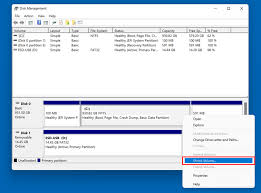
You can use the built-in utility “Manage” to reunify your hard disk partizionato. Here’s how:
- Open Manage: Click on the Start button and type “Manage” in the search bar.
- Select Disk Management: Select “Create and format partitions of the rigid disc” from the list of options.
- Delete Secondary Partitions: Right-click on each secondary partition you want to delete and select “Delete volume.”
- Merge Primary Partition: Right-click on the primary partition and select “Extend volume.”
Using Easeus Partition Master
Another effective way to reunify your hard disk partizionato is by using EASEUS Partition Master.
- Download And Install Easeus Partition Master: Download and install the free version of EASEUS Partition Master.
- Select Primary Partition: Select the primary partition you want to merge with the secondary partitions.
- Add Secondary Partitions: Add the secondary partitions you want to merge with the primary partition.
- Apply Changes: Apply the changes, and EASEUS Partition Master will take care of merging the partitions for you.
Reuniting a Hard Disk Partizionato on Macos
Now that we’ve covered the steps involved in reunifying a hard disk partizionato on Windows, let’s move on to the process of doing so on macOS.
Using Disk Utility
You can use the built-in utility “Disk Utility” to reunify your hard disk partizionato on macOS.
- Open Disk Utility: Open the Disk Utility application.
- Select Secondary Partitions: Select the secondary partitions you want to delete and click the “-” button to remove them.
- Merge Primary Partition: Make sure the primary partition occupies all the available space, then click the “Apply” and “Partition” buttons.
Using Terminal
Another way to reunify your hard disk partizionato on macOS is by using the Terminal app.
- Open Terminal: Open the Terminal application.
- List Partitions: Type
diskutil listand press Enter to view the list of partitions. - Delete Secondary Partition: Type
diskutil deleteContainer <partitionIdentifier>(replace<partitionIdentifier>with the actual identifier) to delete the secondary partition. - Erase Primary Partition: Type
diskutil eraseVolume "Free Space" "" /*dev/<partitionIdentifier>(replace<partitionIdentifier>with the actual identifier) to erase the primary partition. - Expand Primary Partition: Type
diskutil apfs resizeContainer <partitionIdentifier> 0(replace<partitionIdentifier>with the actual identifier) to expand the primary partition using the free space.
Conclusion
Reuniting a hard disk partizionato can be a complex process, but by following these steps, you should be able to do it successfully. Remember to always create backups of your data before proceeding with any major changes to your system.
Frequently Asked Questions (FAQs)
- What is The Difference Between Merging And Expanding a Partition?
Merging involves combining two or more partitions into one, while expanding involves increasing the size of an existing partition using free space. - Can I Merge Partitions With Different File Systems?
No, you can only merge partitions that have the same file system. For example, you cannot merge a partition with the APFS file system and another with the HFS+ file system. - How do I Recover Data From Deleted Partitions?
Unfortunately, once a partition is deleted, its contents are lost forever. However, if you have created backups of your data, you can restore it from those backups. - Can I Use Third-party Software to Merge Partitions?
Yes, there are many third-party software options available that can help you merge partitions. Some popular ones include EaseUS Partition Master and MiniTool Partition Wizard. - How do I Prevent Data Loss When Merging Partitions?
The best way to prevent data loss is by creating backups of your data before proceeding with any major changes to your system. - Can I Merge Partitions on an External Hard Drive?
Yes, you can merge partitions on an external hard drive using the same methods as described above. - How Long Does it Take to Merge Partitions?
The time it takes to merge partitions depends on the size of the partitions and the speed of your system. In general, merging smaller partitions is quicker than merging larger ones.
We hope this article has provided you with a clear understanding of how to reunite a hard disk partizionato on both Windows and macOS. Remember to always follow safety guidelines and create backups before proceeding with any major changes to your system!


