
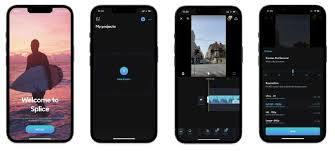
How to Reverse a Video: A Step-by-step Guide
Are you tired of watching videos in the same old direction? Do you want to create a unique and fascinating visual experience for your friends and family? Look no further! In this article, we will show you how to reverse a video on various devices and platforms.
What is Reversing a Video?
Reversing a video means playing it backwards. This can be done with any type of video, including home movies, music videos, or even live-action footage. The process involves taking the original video file and manipulating its audio and visual components to create a new, reverse version.
Why Reverse a Video?
There are several reasons why you might want to reverse a video:
- Creative Expression: Reversing a video can add an element of creativity to your content. By reversing footage, you can create unique and captivating visuals that will stand out from the rest.
- Educational Purposes: In some cases, reversing a video can be useful for educational purposes. For example, if you’re creating a tutorial or how-to guide, reversing footage can help illustrate complex concepts in an easier-to-understand way.
- Social Media Engagement: Reversing a video can also be used to engage your audience on social media platforms like TikTok and YouTube.
How to Reverse a Video on PC
Reversing a video on PC is relatively easy. Here’s how:
- Choose Your Video Editing Software: There are many software options available for video editing, including Adobe Premiere Pro, DaVinci Resolve, and Avidemux.
- Import Your Video File: Import the video file you want to reverse into your chosen software.
- Select The Reverse Option: Look for a “Reverse” or “Invert” option in your software’s menu bar. This will usually be located under the “Edit” tab.
- Apply The Reverse Effect: Once you’ve selected the “Reverse” option, apply it to your video file by clicking on the “Apply” button.
- Export Your Reversed Video: Export your reversed video in a suitable format for sharing.
How to Reverse a Video on Smartphone And Tablet
Reversing a video on smartphone and tablet devices is also relatively easy:
- Download a Video Editing App: There are many apps available that can help you reverse a video, including Film to the Reverse (iOS) and Video Reverse (Android).
- Choose Your Video File: Select the video file you want to reverse from your device’s gallery.
- Reverse The Video: Use the app’s built-in “Reverse” feature to reverse the video.
- Export Your Reversed Video: Export your reversed video in a suitable format for sharing.
How to Reverse a Video on Android
Reversing a video on Android devices is easy with the Film to the Reverse app:
- Download The App: Download the Film to the Reverse app from the Google Play Store.
- Launch The App: Launch the app and select the “Reverse” option.
- Choose Your Video File: Select the video file you want to reverse from your device’s gallery.
- Reverse The Video: Use the app’s built-in “Reverse” feature to reverse the video.
- Export Your Reversed Video: Export your reversed video in a suitable format for sharing.
How to Reverse a Video on Iphone
Reversing a video on iPhone devices is easy with the Video Reverse app:
- Download The App: Download the Video Reverse app from the Apple App Store.
- Launch The App: Launch the app and select the “Reverse” option.
- Choose Your Video File: Select the video file you want to reverse from your device’s album.
- Reverse The Video: Use the app’s built-in “Reverse” feature to reverse the video.
- Export Your Reversed Video: Export your reversed video in a suitable format for sharing.
How to Reverse a Video on Tiktok
Reversing a video on TikTok is also easy:
- Launch The App: Launch the TikTok app and select the “+” icon to create a new video.
- Record or Import Your Video File: Record or import your video file into the app.
- Add Effects And Reverse: Add effects, including reverse, to your video file.
- Export Your Reversed Video: Export your reversed video in a suitable format for sharing.
How to Reverse a Video on Youtube
Unfortunately, YouTube does not have an built-in feature to reverse videos. However, you can use the offline editor (as mentioned earlier) to reverse or rotate the image of the uploaded video before uploading it online.
Conclusion
Reversing a video is an easy process that can be done with various software and apps available on PC, smartphone, and tablet devices. Whether you’re looking to create unique visuals for social media engagement, educational purposes, or simply for fun, reversing a video can add an element of creativity and fascination to your content.
Frequently Asked Questions (FAQs)
- What is The Purpose of Reversing a Video?
Reversing a video can be used for creative expression, educational purposes, social media engagement, and more.
- How do I Reverse a Video on Pc?
To reverse a video on PC, choose your video editing software (such as Adobe Premiere Pro or DaVinci Resolve), import your video file, select the “Reverse” option, apply it to your video file, and export it in a suitable format for sharing.
- How do I Reverse a Video on Smartphone And Tablet?
To reverse a video on smartphone and tablet devices, download a video editing app (such as Film to the Reverse or Video Reverse), choose your video file, select the “Reverse” option, apply it to your video file, and export it in a suitable format for sharing.
- How do I Reverse a Video on Android?
To reverse a video on Android devices, download the Film to the Reverse app, launch it, select the “Reverse” option, choose your video file, reverse the video using the built-in feature, and export it in a suitable format for sharing.
- How do I Reverse a Video on Iphone?
To reverse a video on iPhone devices, download the Video Reverse app, launch it, select the “Reverse” option, choose your video file, reverse the video using the built-in feature, and export it in a suitable format for sharing.
- Can I Reverse a Video on Tiktok?
Yes, you can reverse a video on TikTok by launching the app, creating a new video, recording or importing your video file, adding effects (including reverse), and exporting it in a suitable format for sharing.
- Does Youtube Have an Built-in Feature to Reverse Videos?
Unfortunately, no, YouTube does not have an built-in feature to reverse videos. However, you can use the offline editor (as mentioned earlier) to reverse or rotate the image of the uploaded video before uploading it online.


