
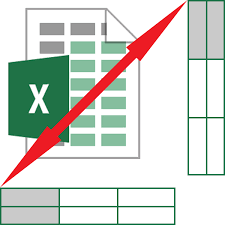
How to Reverse Rows And Columns on Excel: A Step-by-step Guide
Are you tired of working on Excel spreadsheets that are cluttered with rows and columns? Do you wish there was an easier way to reverse them without spending hours manually adjusting each cell? Look no further! In this article, we will guide you through the process of reversing rows and columns on Excel, whether you’re using a PC or Mac, smartphone, or tablet.
Reversing Rows And Columns: Why You Need to Do It
Before we dive into the steps, let’s quickly discuss why reversing rows and columns is essential. In many cases, having your data organized in rows can make it difficult to analyze or present to others. Reversing them allows for a cleaner and more intuitive format that makes it easier to work with.
Reversing Rows And Columns on Pc: Windows And Mac
If you’re using Excel on your PC or Mac, reversing rows and columns is relatively straightforward. Here are the steps:
Step 1: Open Excel And Select Your Data
Open Excel and select the spreadsheet where you want to reverse the rows and columns.
Step 2: Copy Your Data
Click on “Copy” (or press Ctrl+C) to copy the entire row or column.
Step 3: Click Right on a Cell
Right-click on an empty cell where you want to paste your data.
Step 4: Select “Paste Special”
Select “Paste Special” from the dropdown menu.
Step 5: Choose “Transpose”
Choose the “Transpose” option, and Excel will automatically transpose (or reverse) the rows and columns for you.
Reversing Rows And Columns on Pc: Using Matr.Trasposta
Alternatively, you can use the MATR.TRASPOSTA function to transpose your data. Here’s how:
Step 1: Select Empty Cells
Select an empty cell where you want to paste your transposed data. Make sure it has the same number of cells as the original row or column.
Step 2: Type =MATR.TRASPOSTA
Type =MATR.TRASPOSTA in the formula bar and select the range of cells you want to transpose (e.G., A1:D9).
Step 3: Press Enter
Press Enter, and Excel will automatically transpose the data for you.
Reversing Rows And Columns on Smartphone And Tablet
If you’re working with Excel on your smartphone or tablet, things are a bit different. Here’s how to reverse rows and columns:
Step 1: Open Excel And Select Your Data
Open Excel and select the spreadsheet where you want to reverse the rows and columns.
Step 2: Tap on an Empty Cell
Tap on an empty cell where you want to paste your data.
Step 3: Go to The Functions Tab
Go to the “Functions” tab and search for =MATR.TRASPOSTA.
Step 4: Select Your Range of Cells
Select the range of cells you want to transpose (e.G., A1:B9).
Step 5: Tap on “Enter”
Tap on “Enter,” and Excel will automatically transpose the data for you.
Conclusion
Reversing rows and columns on Excel can seem daunting, but it’s actually quite straightforward. Whether you’re using a PC or Mac, smartphone, or tablet, there are various methods to achieve this task. By following these steps, you’ll be able to work with your spreadsheets in a more organized and efficient way.
Frequently Asked Questions (FAQs)
- What is The Best Method For Reversing Rows And Columns on Excel?
The best method depends on your specific needs. Using MATR.TRASPOSTA or transposing data manually are both effective options.
- Can I Reverse Rows And Columns on Excel Online?
Yes, you can use Excel online to transpose data using the “Transpose” function or the MATR.TRASPOSTA formula.
- How do I Use Matr.Trasposta on a PC or Mac?
To use MATR.TRASPOSTA on a PC or Mac, select an empty cell where you want to paste your transposed data, type =MATR.TRASPOSTA, and select the range of cells you want to transpose.
- Can I Reverse Rows And Columns on Excel For Smartphone And Tablet?
Yes, but you’ll need to use the =MATR.TRASPOSTA function in the “Functions” tab.
- How do I Update my Data if it Changes After Transposing?
If your data changes after transposing, you can use MATR.TRASPOSTA or transpose manually again to update the data.
- Can I Transpose Multiple Sheets at Once?
No, Excel doesn’t have a built-in feature for transposing multiple sheets simultaneously. However, you can use VBA scripts or external tools to achieve this task.
- How do I Undo The Transpose Operation if it Was Done Accidentally?
You can simply delete the formula or re-transpose the data manually using MATR.TRASPOSTA.


