
How to Rotate a Video: A Step-by-step Guide
Are you tired of watching videos that are not oriented correctly? Do you want to learn how to rotate a video on your PC, mobile device, or other media player? Look no further! In this article, we will guide you through the process of rotating a video using various software and applications.
Why Rotate a Video?
Rotating a video can be useful in several situations:
- You want to view a video in its original orientation.
- You need to edit or crop a video to remove unwanted parts.
- You want to create a video with a specific rotation for artistic purposes.
Software And Applications For Rotating Videos
There are various software and applications available that can help you rotate a video. Here are some of the most popular ones:
1. Vlc Media Player
VLC is a free and open-source media player that can be used to rotate videos on PC, Mac, and Linux.
- Download and install VLC from its official website.
- Open the video file in VLC and go to “Media” > “Effects” > “Filters”.
- Select the “Transformation” filter and choose the desired rotation angle.
- Apply the changes by clicking “Apply” and then “OK”.
2. Adobe Premiere Pro
Adobe Premiere Pro is a professional video editing software that can be used to rotate videos on PC.
- Open the video file in Premiere Pro and go to the “Timeline” panel.
- Select the video clip and right-click on it to select “Effects” > “Motion”.
- Choose the desired rotation angle from the dropdown menu.
- Apply the changes by clicking “Apply” and then “OK”.
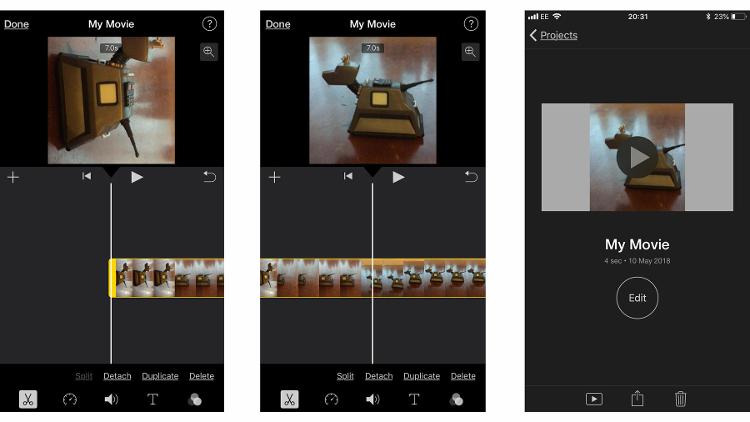
3. Imovie (for Mac)
IMovie is a free video editing software that comes pre-installed with Macs.
- Open the video file in iMovie and go to the “Timeline” panel.
- Select the video clip and right-click on it to select “Rearrange Clip” > “Rotate”.
- Choose the desired rotation angle from the dropdown menu.
- Apply the changes by clicking “Apply” and then “OK”.
4. Google Photos (for Android)
Google Photos is a free photo and video storage service that can be used to rotate videos on Android devices.
- Open the video file in Google Photos and go to the “Edit” panel.
- Select the video clip and tap on it to select “Rotate”.
- Choose the desired rotation angle from the dropdown menu.
- Apply the changes by tapping “Save” and then “OK”.
5. Photo (for Ios)
Photo is a free photo and video storage service that comes pre-installed with iOS devices.
- Open the video file in Photo and go to the “Edit” panel.
- Select the video clip and tap on it to select “Rotate”.
- Choose the desired rotation angle from the dropdown menu.
- Apply the changes by tapping “Save” and then “OK”.
Tips And Tricks
Here are some additional tips and tricks for rotating videos:
- Use a software or application that supports multiple file formats, such as MP4, AVI, and MOV.
- Make sure to save the rotated video in the correct format and resolution to avoid any issues during playback.
- Experiment with different rotation angles and effects to create unique and visually appealing videos.
Conclusion
Rotating a video can be a simple yet effective way to enhance your viewing experience. By using software and applications like VLC, Adobe Premiere Pro, iMovie, Google Photos, and Photo, you can easily rotate videos on PC, Mac, Android, and iOS devices. Remember to follow the instructions carefully and save the rotated video in the correct format and resolution to avoid any issues during playback. Happy editing!
Frequently Asked Questions
Here are some frequently asked questions related to rotating videos:
Q: What is The Best Software For Rotating Videos?
A: The best software for rotating videos depends on your operating system and personal preferences. Some popular options include VLC, Adobe Premiere Pro, iMovie, Google Photos, and Photo.
Q: Can I Rotate a Video on my Mobile Device?
A: Yes, you can rotate a video on your mobile device using apps like Google Photos (for Android) and Photo (for iOS).
Q: How do I Save a Rotated Video in The Correct Format And Resolution?
A: To save a rotated video in the correct format and resolution, make sure to select the correct file format and resolution when saving the video. You can also experiment with different settings to find the perfect balance between quality and file size.
Q: Can I Rotate Multiple Videos at Once?
A: Yes, most software and applications allow you to rotate multiple videos at once. Simply select all the videos you want to rotate and apply the desired rotation angle and effects.
Q: How do I Undo a Rotated Video?
A: To undo a rotated video, simply reopen the original file and re-apply the changes in reverse order. This will restore the video to its original state.
A: Yes, you can share a rotated video with others by saving it in a compatible format and sharing it via email, social media, or other means.


