
How to Rotate a Pdf on Pc, Mac, Android, And Iphone
Are you tired of dealing with PDF files that are not oriented correctly? Do you want to know how to rotate a PDF on your computer, phone, or tablet? Look no further! In this article, we will guide you through the process of rotating a PDF file using various methods, including software, online services, and mobile apps.
Why Rotate a Pdf?
Rotating a PDF can be useful in various situations, such as when you need to view a document in a different orientation or when you want to make sure that images are displayed correctly. Whether you’re working with business documents, educational materials, or creative projects, rotating a PDF can help you achieve your goals.
Method 1: Rotating a Pdf on PC
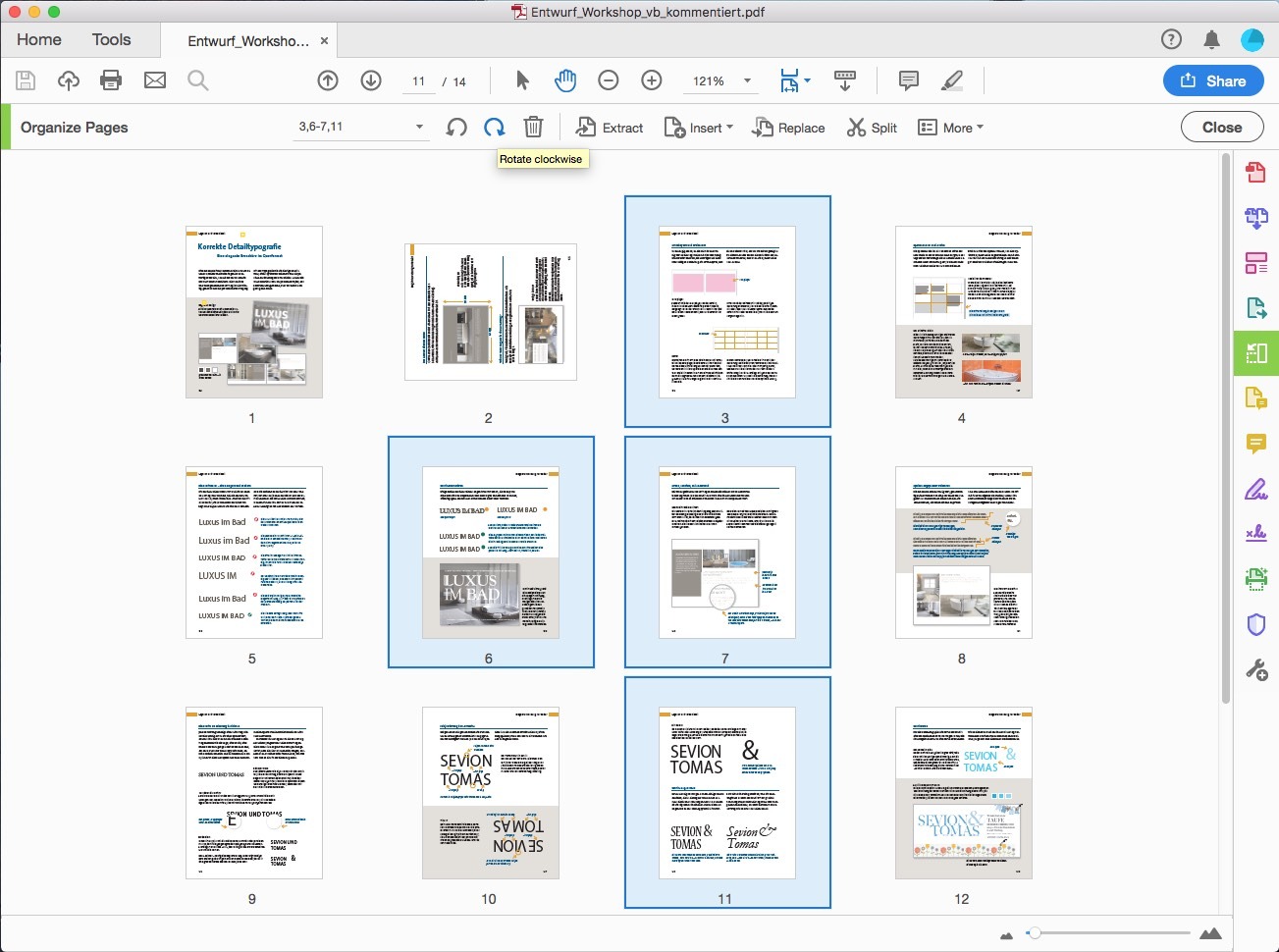
If you’re using a Windows computer, you can rotate a PDF file using Adobe Acrobat Reader. Here’s how:
- Open the PDF file in Adobe Acrobat Reader.
- Click on the “Organize Pages” button in the top-right corner of the window.
- Select the pages you want to rotate and choose the desired rotation option (90 degrees, 180 degrees, or counter-clockwise).
- Click on the “Save As” button to save the rotated PDF file.
Alternatively, you can use a free software called PDFill. Here’s how:
- Download and install PDFill from its official website.
- Open PDFill and select the rotation option (90 degrees, 180 degrees, or counter-clockwise).
- Choose the pages you want to rotate and click on the “Save As” button to save the rotated PDF file.
Method 2: Rotating a Pdf on Mac
If you’re using a Mac computer, you can rotate a PDF file using Adobe Acrobat Reader. Here’s how:
- Open the PDF file in Adobe Acrobat Reader.
- Click on the “Organize Pages” button in the top-right corner of the window.
- Select the pages you want to rotate and choose the desired rotation option (90 degrees, 180 degrees, or counter-clockwise).
- Click on the “Save As” button to save the rotated PDF file.
Alternatively, you can use a free software called Preview. Here’s how:
- Open the PDF file in Preview.
- Select the pages you want to rotate and choose the desired rotation option (90 degrees, 180 degrees, or counter-clockwise).
- Click on the “File” menu and select “Save As” to save the rotated PDF file.
Method 3: Rotating a Pdf Online
If you don’t have access to Adobe Acrobat Reader or other software, you can rotate a PDF file online using various services. Here are a few options:
- RotatePDF: A free service that allows you to rotate PDF files without signing up or logging in.
- SmallPDF: A free service that offers various tools for working with PDF files, including rotation.
- Online2PDF: A free service that allows you to rotate and edit PDF files online.
Method 4: Rotating a Pdf on Android
If you’re using an Android device, you can rotate a PDF file using the Xodo PDF app. Here’s how:
- Download and install Xodo PDF from the Google Play Store.
- Open the PDF file in Xodo PDF.
- Select the pages you want to rotate and choose the desired rotation option (90 degrees, 180 degrees, or counter-clockwise).
- Click on the “Save As” button to save the rotated PDF file.
Method 5: Rotating a Pdf on Iphone
If you’re using an iPhone or iPad, you can rotate a PDF file using the PDF Expert app. Here’s how:
- Download and install PDF Expert from the App Store.
- Open the PDF file in PDF Expert.
- Select the pages you want to rotate and choose the desired rotation option (90 degrees, 180 degrees, or counter-clockwise).
- Click on the “Save As” button to save the rotated PDF file.
In conclusion, rotating a PDF is a simple process that can be accomplished using various methods. Whether you’re working on a PC, Mac, Android device, or iPhone, there are plenty of software and online services available to help you rotate your PDF files.


