
How to Rotate a Video on Your Pc: A Step-by-step Guide
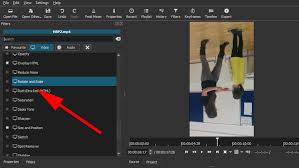
Are you tired of watching videos that are upside down or sideways? Do you want to rotate them back to their original orientation? Look no further! In this article, we will guide you through the process of rotating a video on your PC using various software and online tools.
Why Rotate a Video?
Rotating a video can be useful in several situations:
- You’ve recorded a video holding your smartphone or camera in an unusual position, resulting in an upside-down or sideways orientation.
- You’ve downloaded a video from the internet, but its frame is incorrect, making it difficult to watch.
- You want to edit a video and change its orientation for creative purposes.
Method 1: Using Photo (Windows 10 And Successive)
If you’re using Windows 10 or a successive version, you can use the built-in application called Photo to rotate your video. Here’s how:
- Open the Photo app by clicking on the Start button and searching for “Photo.”
- Click on the video file you want to rotate.
- Select the rotation option from the toolbar or menu.
- Choose the desired orientation (90 degrees, 180 degrees, or 270 degrees).
- Save the rotated video by clicking on the “Save” button.
Method 2: Using Quicktime Player (macOS)
If you’re using a Mac, you can use QuickTime Player to rotate your video. Here’s how:
- Open QuickTime Player by clicking on its icon in the Launchpad.
- Click on the video file you want to rotate.
- Select the “Modification” option from the menu bar.
- Choose the desired rotation (90 degrees, 180 degrees, or 270 degrees).
- Save the rotated video by clicking on the “Save” button.
Method 3: Using Avidemux (Windows/macOS/Linux)
Avidemux is a free and open-source video editing software that can rotate your video. Here’s how:
- Download and install Avidemux from its official website.
- Open Avidemux and select the “Video” menu option.
- Choose the “Filters” option.
- Select the “Rotation” filter.
- Choose the desired rotation (90 degrees, 180 degrees, or 270 degrees).
- Save the rotated video by clicking on the “Save” button.
Method 4: Using Vlc (Windows/macOS/Linux)
VLC is a popular media player that can rotate your video. Here’s how:
- Open VLC and select the “Media” menu option.
- Choose the “Open files” option.
- Select the video file you want to rotate.
- Click on the “Effects and filters” option.
- Choose the “Geometry” option.
- Select the rotation option (90 degrees, 180 degrees, or 270 degrees).
- Save the rotated video by clicking on the “Save” button.
Method 5: Rotating a Video Online
If you don’t want to download and install any software, you can use online tools like RotateMyVideo or Clideo to rotate your video. Here’s how:
- Visit the website of RotateMyVideo or Clideo.
- Click on the “Pick Video” button.
- Select the video file you want to rotate.
- Choose the desired rotation (90 degrees, 180 degrees, or 270 degrees).
- Save the rotated video by clicking on the “Download” button.
Conclusion
Rotating a video can be a useful editing technique that can enhance your viewing experience. Whether you’re using Photo, QuickTime Player, Avidemux, VLC, or online tools like RotateMyVideo or Clideo, rotating a video is a straightforward process that can be accomplished in just a few steps.
Frequently Asked Questions
- Q: Why do I Need to Rotate my Video?
- A: You may need to rotate your video if it was recorded in an unusual position or downloaded with the wrong frame orientation.
- Q: How do I Know Which Method to Use?
- A: Choose the method that best suits your needs and software requirements.
- Q: Can I Rotate a Video on my Phone?
- A: Yes, most smartphones have built-in video editing apps that allow you to rotate your videos.
Recommended Reading
If you want to learn more about video editing and rotation techniques, we recommend reading our other articles:
- “How to Rotate a Video on Your Mac”
- “The Ultimate Guide to Video Editing Software”
By following the methods outlined in this article, you should be able to rotate your videos with ease. Remember to choose the method that best suits your needs and software requirements.


