
Are you tired of typing and formatting text in Microsoft Word, only to find that it’s not exactly what you had in mind? Do you wish you could rotate your text at will, without having to go through a complicated process? Well, wish no more! In this article, we’ll show you how to rotate text in Microsoft Word, using various methods and techniques.
Why Rotate Text in Microsoft Word?
Rotating text can be useful for a variety of purposes. For example, if you’re creating a document with multiple columns or sections, rotating your text can help to improve readability and make the document look more visually appealing. Additionally, rotating text can also be used to create unique and interesting designs, such as diagonal text or text that wraps around an image.
Method 1: Using Text Boxes
One of the most straightforward ways to rotate text in Microsoft Word is by using text boxes. Here’s how:
- Open a new document in Microsoft Word.
- Go to the “Insert” tab and click on “Text Box”.
- Draw out a rectangle where you want your text box to appear.
- Type your text into the text box.
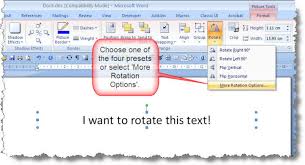
- To rotate the text, select the text box and go to the “Format” tab.
- Click on “Rotate Text” and choose the desired rotation angle.
Method 2: Using Shapes
Another way to rotate text in Microsoft Word is by using shapes. Here’s how:
- Open a new document in Microsoft Word.
- Go to the “Insert” tab and click on “Shape”.
- Choose a shape that you want to use as a container for your text.
- Type your text into the shape.
- To rotate the text, select the shape and go to the “Format” tab.
- Click on “Rotate Text” and choose the desired rotation angle.
Method 3: Using Smartart
If you’re using Microsoft Word 2010 or later, you can use SmartArt to create more complex designs that include rotated text. Here’s how:
- Open a new document in Microsoft Word.
- Go to the “Insert” tab and click on “SmartArt”.
- Choose a layout that includes text boxes.
- Type your text into the text boxes.
- To rotate the text, select the text box and go to the “Format” tab.
- Click on “Rotate Text” and choose the desired rotation angle.
Method 4: Using Online Tools
If you don’t have Microsoft Word installed on your computer, or if you prefer to use online tools, there are several websites that allow you to rotate text. Here are a few options:
- Fliptext: This website allows you to type in some text and then flip it horizontally or vertically.
- Textrotator: This website allows you to enter some text and then choose from various rotation angles.
Method 5: Using Mobile Devices
If you’re using a mobile device, such as an iPhone or Android phone, there are several apps that allow you to rotate text. Here are a few options:
- Word: The Microsoft Word app for iOS and Android devices allows you to create documents with rotated text.
- Google Docs: The Google Docs app for iOS and Android devices also allows you to create documents with rotated text.
Tips And Tricks
Here are a few tips and tricks that can help you get the most out of rotating text in Microsoft Word:
- Use the “Format” tab to adjust the rotation angle of your text.
- Experiment with different shapes and layouts to create unique designs.
- Use online tools or mobile apps if you don’t have access to Microsoft Word.
Conclusion
Rotating text in Microsoft Word can be a useful skill to have, especially when creating documents with multiple columns or sections. By using one of the methods outlined above, you should be able to rotate your text with ease. Remember to experiment with different shapes and layouts to create unique designs, and don’t hesitate to reach out if you have any questions or need further assistance.
Frequently Asked Questions
Here are a few frequently asked questions about rotating text in Microsoft Word:
- Q: How do I Rotate Text in Microsoft Word?
A: To rotate text in Microsoft Word, select the text and go to the “Format” tab. Click on “Rotate Text” and choose the desired rotation angle. - Q: Can I Use Online Tools to Rotate Text?
A: Yes, there are several websites that allow you to rotate text, such as FlipText and TextRotator. - Q: How do I Rotate Text Using a Mobile Device?
A: There are several apps available for iOS and Android devices that allow you to create documents with rotated text, such as Microsoft Word and Google Docs.


