
How to Rotate a Video With Vlc: A Step-by-step Guide
Are you struggling to rotate a video using VLC, but can’t quite seem to get it right? Don’t worry, we’ve got you covered! In this article, we’ll take you through the simple process of rotating a video with VLC on both Windows and Mac operating systems.
Why Rotate a Video?
Rotating a video can be useful in a variety of situations. Perhaps you filmed a video on your smartphone while it was held at an angle, resulting in an unflattering or confusing orientation. Or maybe you’re trying to create a specific visual effect for a project or presentation. Whatever the reason, rotating a video with VLC is a breeze.
How to Rotate a Video With Vlc on Windows
To rotate a video with VLC on Windows, follow these steps:
- Open Vlc: Start by opening VLC on your computer.
- Open The Video: Select the video you want to rotate and click “Open” in the Media menu.
- Access Advanced Options: In the menu bar, select “Media” > “Effects and Filters”.
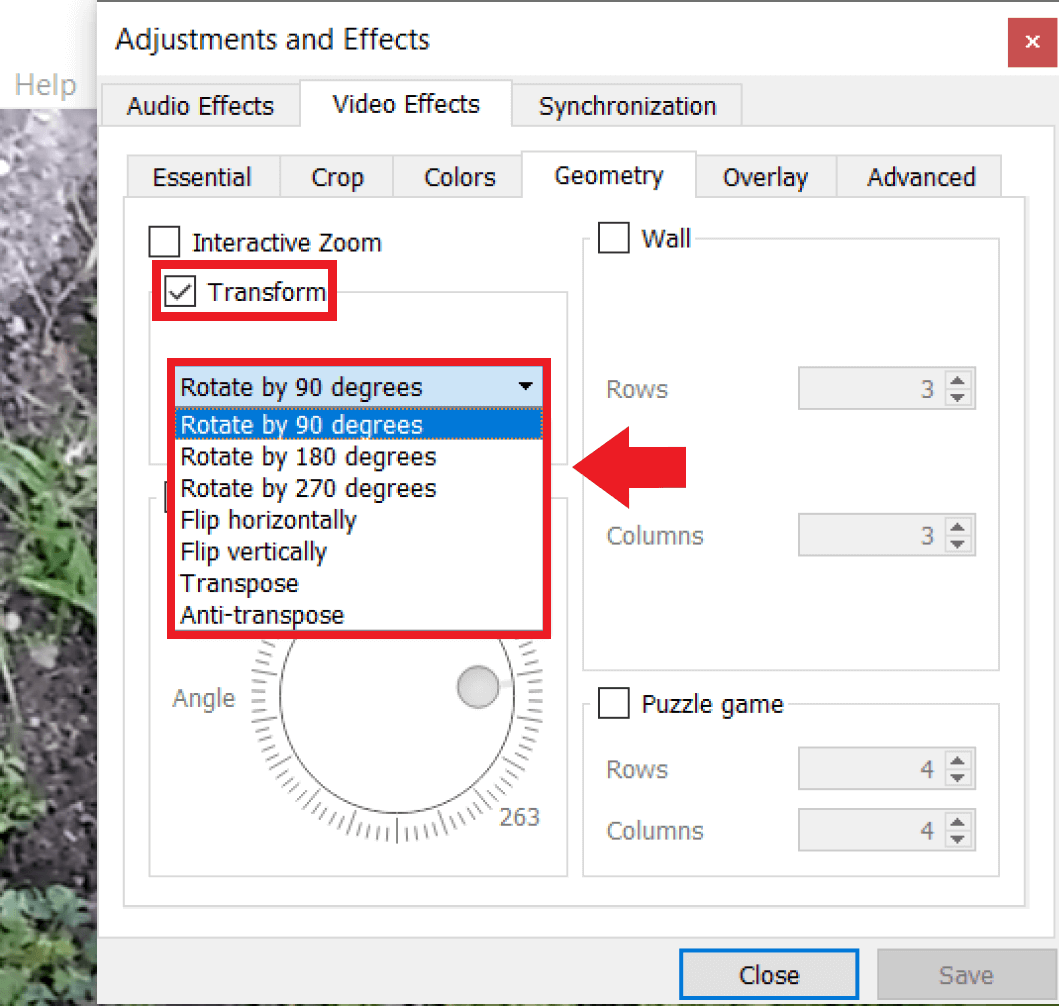
- Apply Rotation: In the new window that opens, select “Video Effects” > “Geometry”. Then, tick the box next to “Transformation” and choose the type of rotation you want to apply (e.G., 90 Degrees, horizontal flip, etc.).
- Save Changes: Click “Close” once you’re satisfied with the rotation.
Tips For Windows Users
- VLC will remember your last settings for video rotation.
- To disable rotation, go back to the Effects and Filters menu and untick the box next to “Transformation”.
How to Rotate a Video With Vlc on Mac
Rotating a video with VLC on Mac is similarly straightforward:
- Open Vlc: Launch VLC on your Mac.
- Open The Video: Select the video you want to rotate and click “Open” in the File menu.
- Access Advanced Options: In the menu bar, select “Window” > “Effects” (this will open a new window).
- Apply Rotation: In the new window that opens, select “Geometry”. Then, tick the box next to “Transformation” and choose the type of rotation you want to apply (e.G., 90 Degrees, horizontal flip, etc.).
Tips For Mac Users
- Unfortunately, the “Rotation” feature is not available on Macs.
- To rotate a video in a permanent manner, use the conversion function or third-party software.
Saving Rotated Videos With Vlc
While rotating a video with VLC doesn’t affect the original file, it can be confusing to see the changes when playing back the video. If you want to save rotated videos with VLC, follow these steps:
- Open Vlc: Launch VLC on your computer.
- Access Advanced Options: In the menu bar, select “Media” > “Preferences” (on Windows) or “VLC media player” > “Settings…” (On Mac).
- Apply Rotation: In the new window that opens, go to “Video” > “Filters” and select the rotation filter.
- Save Changes: Click “Save” to save the modified video.
Troubleshooting Tips
- If VLC seems too limited or slow for your needs, consider using third-party software like Photo of Windows or QuickTime Player on Mac.
- For more information, check out our guides on rotating videos on PC and Mac.
Conclusion
Rotating a video with VLC is an easy process that can be completed in just a few steps. Whether you’re trying to correct an angle issue or create a specific visual effect, we hope this article has helped you navigate the process with confidence. Happy editing!


