
How to Save a Document in Pdf: A Step-by-step Guide
Are you tired of wondering how to save a document in PDF format? Look no further! In this article, we will guide you through the process of saving a document in PDF on your computer, smartphone, and tablet.
Why Save a Document in Pdf?
Saving a document in PDF format is an excellent way to preserve its layout, formatting, and content. It’s perfect for sharing documents with others, as it ensures that the recipient sees the document exactly as you intended.
Saving a Document in Pdf on Your Computer
To save a document in PDF on your computer, follow these steps:
Using Windows
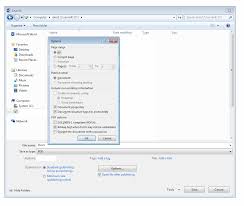
If you’re using Windows 10 or later versions, you can use the built-in virtual printer to save a document in PDF format. Here’s how:
- Open the file you want to save in PDF.
- Click on the “File” menu and select “Print.”
- In the Print dialog box, select the “Microsoft Print to PDF” option as your printer.
- Choose the location where you want to save the PDF file.
- Click on the “Save” button.
Alternatively, you can use the keyboard shortcut Ctrl+P to print the document and then choose the “Save as PDF” option.
Using Macos
If you’re using a Mac, follow these steps:
- Open the file you want to save in PDF.
- Click on the “File” menu and select “Print.”
- In the Print dialog box, select the “PDF” option as your printer.
- Choose the location where you want to save the PDF file.
- Click on the “Save” button.
Saving a Document in Pdf on Your Smartphone or Tablet
If you’re using an Android device, follow these steps:
- Open the document you want to save in PDF.
- Tap on the share icon (usually represented by three dots) and select the “Share” option.
- Choose the “Save as PDF” option from the list of available actions.
- Select the location where you want to save the PDF file.
If you’re using an iOS device, follow these steps:
- Open the document you want to save in PDF.
- Tap on the share icon (usually represented by a box with an arrow) and select the “Save as PDF” option.
- Choose the location where you want to save the PDF file.
Saving a Document in Pdf Online
If you don’t have access to your computer or smartphone, you can save a document in PDF online using services like iLovePDF. Here’s how:
- Go to the iLovePDF website and select the “Convert to PDF” option.
- Choose the file you want to convert from your device.
- Select the output format as PDF.
- Click on the “Convert” button.
Alternatively, you can use other online services like PDF2Go or ZamZar to save a document in PDF format.
Conclusion
Saving a document in PDF format is an essential skill for anyone who works with digital documents. Whether you’re using Windows, macOS, Android, iOS, or working online, we’ve provided you with the steps to follow to save a document in PDF. Remember to always check the formatting and layout of your document before saving it as a PDF.
Frequently Asked Questions (FAQs)
- What is The Difference Between a Pdf And a Word Document?
A PDF document is a portable format that preserves the original layout and formatting of a document, while a Word document is an editable file. - Can I Save a Document in Pdf Using Microsoft Office?
Yes, you can save a document in PDF format using Microsoft Office, but it may not preserve the exact layout and formatting of your document. - What Are The Benefits of Saving a Document in Pdf?
Saving a document in PDF preserves its original layout and formatting, making it perfect for sharing with others or archiving electronic documents. - Can I Save Multiple Files as One Pdf Document?
Yes, you can combine multiple files into one PDF document using online services like iLovePDF or ZamZar. - How do I Edit a Pdf Document?
You can edit a PDF document by converting it to a Word document and then making the necessary changes. - Can I Save a Scanned Document as a Pdf?
Yes, you can scan a document and save it as a PDF file using services like iLovePDF or Adobe Acrobat.
We hope this guide has helped you learn how to save a document in PDF format on your computer, smartphone, and tablet. Happy saving!


