
How to Save a Powerpoint Presentation: A Step-by-step Guide
Are you struggling to save your PowerPoint presentation in the correct format? Look no further! In this article, we will guide you through the process of saving a PowerPoint presentation in various formats, including PPT, MP4, PDF, and more.
Saving a Powerpoint Presentation in Ppt Format
If you need to save your PowerPoint presentation in the classic PPT format, follow these steps:
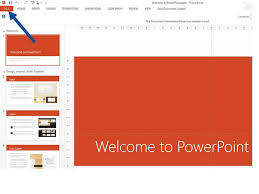
- Click on the “File” menu in the top left corner of the PowerPoint window.
- Select “Save As” from the drop-down menu.
- Choose the location where you want to save the file and select “PPT” as the file type.
- Give your presentation a name and click “Save”.
That’s it! Your presentation should now be saved in the PPT format.
Saving a Powerpoint Presentation in Mp4 Format
If you want to save your PowerPoint presentation as a video, follow these steps:
- Click on the “File” menu in the top left corner of the PowerPoint window.
- Select “Export” from the drop-down menu.
- Choose “Create Video” and select the quality of export (e.G., Ultra HD, Full HD, etc.).
- Decide whether to record intervals and comment audio or not.
- Click on the “Create video” button and choose the location where you want to save the file.
- Select “MP4” as the file type and click “Save”.
Your PowerPoint presentation should now be saved as a video in MP4 format.
Saving a Powerpoint Presentation on a Usb Drive
If you need to save your PowerPoint presentation on a USB drive, follow these steps:
- Connect the USB drive to your computer.
- Click on the “File” menu in the top left corner of the PowerPoint window.
- Select “Save As” from the drop-down menu.
- Choose the location where you want to save the file (i.E., The USB drive).
- Select “PPT” as the file type and click “Save”.
That’s it! Your presentation should now be saved on the USB drive.
Saving a Powerpoint Presentation in Pdf Format
If you need to save your PowerPoint presentation in PDF format, follow these steps:
- Click on the “File” menu in the top left corner of the PowerPoint window.
- Select “Save As” from the drop-down menu.
- Choose the location where you want to save the file and select “PDF” as the file type.
- Give your presentation a name and click “Save”.
Your PowerPoint presentation should now be saved in PDF format.
Saving a Powerpoint Presentation on Google Drive
If you need to save your PowerPoint presentation on Google Drive, follow these steps:
- Connect to Google Drive on your computer.
- Click on the “File” menu in the top left corner of the PowerPoint window.
- Select “Save As” from the drop-down menu.
- Choose the location where you want to save the file (i.E., Google Drive).
- Select “PPT” as the file type and click “Save”.
That’s it! Your presentation should now be saved on Google Drive.
Saving a Powerpoint Presentation With Animations
If you need to save your PowerPoint presentation with animations, follow these steps:
- Click on the “File” menu in the top left corner of the PowerPoint window.
- Select “Save As” from the drop-down menu.
- Choose the location where you want to save the file and select “PPTX” as the file type.
- Make sure that animations are enabled by going to the “Transitions” tab and selecting “Enable Animations”.
Your PowerPoint presentation should now be saved with animations.
Saving a Powerpoint Presentation on Canva
If you need to save your PowerPoint presentation on Canva, follow these steps:
- Go to Canva.Com and sign in.
- Click on the “Create a Design” button.
- Choose the “Presentation” template.
- Select the design that you like and click on the “Download” button.
- Choose the format as “PPTX” and click on the “Save” button.
That’s it! Your presentation should now be saved on Canva.
Conclusion
Saving a PowerPoint presentation can seem daunting, but with these steps, you should be able to save your presentation in various formats. Remember to always check the file type and location before saving your presentation. If you have any further questions or need help with anything else, feel free to ask!
Faqs
- What is The Difference Between Ppt And Pptx?
PPT is an older format that was used in earlier versions of PowerPoint, while PPTX is a newer format that is compatible with most modern devices. - Can I Save my Powerpoint Presentation as a Video?
Yes! You can save your presentation as a video in MP4 format by following the steps outlined above. - How do I Save my Powerpoint Presentation on Google Drive?
You can save your presentation on Google Drive by following the steps outlined above and choosing Google Drive as the location where you want to save the file. - Can I Save my Powerpoint Presentation With Animations?
Yes! You can save your presentation with animations by following the steps outlined above and making sure that animations are enabled. - How do I Save my Powerpoint Presentation on Canva?
You can save your presentation on Canva by following the steps outlined above and choosing a design that you like. - What is The Best Format to Use When Saving a Powerpoint Presentation?
The PPTX format is generally recommended, as it is compatible with most modern devices and allows for animations and other features to be preserved. - Can I Save my Powerpoint Presentation on a Usb Drive?
Yes! You can save your presentation on a USB drive by following the steps outlined above and choosing the USB drive as the location where you want to save the file. - How do I Know if my Powerpoint Presentation is Saved Correctly?
Make sure that you have checked the file type and location before saving your presentation, and test it out to make sure that it works correctly.
References
- Microsoft Support: Saving a Presentation as a Video
- Google Drive Help: Saving Files to Google Drive
- Canva Help: Saving Presentations on Canva


