
How to Save a Web Page as Pdf: A Step-by-step Guide
Are you tired of saving web pages manually by copying and pasting their content? Do you want to save a webpage in its entirety, including images and formatting? Look no further! In this article, we will show you how to save a web page as PDF using various browsers on different operating systems.
Why Save Web Pages as Pdf?
Saving web pages as PDFs is an excellent way to preserve their content and layout. This format allows you to access the saved webpage offline, share it with others, or even print it out. Whether you’re researching for school, saving a recipe, or documenting a website’s content, saving web pages as PDFs is a convenient and efficient solution.
Saving Web Pages as Pdf With PC Windows
If you’re using a PC with Windows 10 or later, you can save web pages as PDFs using the built-in Print to PDF feature. Here’s how:
Step-by-step Instructions For Windows Users
- Open your preferred browser (e.G., Microsoft Edge, Google Chrome, Firefox).
- Navigate to the webpage you want to save.
- Click on the three dots or lines at the top-right corner of the browser window.
- Select “Print” from the menu.
- In the Print dialog box, choose “Microsoft Print to PDF” as your printer.
- Click “Print” to save the webpage as a PDF.
Alternatively, you can use the keyboard shortcut Ctrl + P (Windows) or Cmd + P (Mac).
Why Use Microsoft Print to Pdf?
The Microsoft Print to PDF feature is a convenient and efficient way to save web pages as PDFs. It preserves the original layout and formatting of the webpage, making it perfect for saving content that you want to reference later.
Saving Web Pages as Pdf With Mac
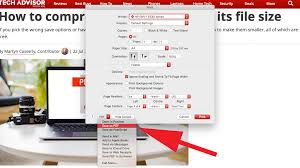
If you’re using a Mac, you can save web pages as PDFs using the built-in Print dialog box. Here’s how:
Step-by-step Instructions For Mac Users
- Open your preferred browser (e.G., Safari).
- Navigate to the webpage you want to save.
- Click on the “Share” icon at the top-right corner of the browser window.
- Select “Export as PDF” from the menu.
- Choose a location to save the PDF and select a filename.
- Click “Save” to complete the process.
Alternatively, you can use the keyboard shortcut Cmd + P (Mac) or Ctrl + P (Windows).
Why Use Export as Pdf?
The Export as PDF feature on Mac preserves the original layout and formatting of the webpage, making it perfect for saving content that you want to reference later.
Saving Web Pages as Pdf With Android
If you’re using an Android device, you can save web pages as PDFs using the built-in Print to PDF feature. Here’s how:
Step-by-step Instructions For Android Users
- Open your preferred browser (e.G., Google Chrome).
- Navigate to the webpage you want to save.
- Tap on the three dots or lines at the top-right corner of the browser window.
- Select “Share” from the menu.
- Choose “Print” and select “Save as PDF” as your printer.
- Choose a location to save the PDF and select a filename.
- Tap “Save” to complete the process.
Alternatively, you can use the keyboard shortcut Ctrl + P (Android) or Cmd + P (Mac).
Why Use Print to Pdf on Android?
The Print to PDF feature on Android preserves the original layout and formatting of the webpage, making it perfect for saving content that you want to reference later.
Saving Web Pages as Pdf With Iphone/ipad
If you’re using an iPhone or iPad, you can save web pages as PDFs using the built-in Share menu. Here’s how:
Step-by-step Instructions For Iphone/ipad Users
- Open your preferred browser (e.G., Safari).
- Navigate to the webpage you want to save.
- Tap on the “Share” icon at the top-right corner of the browser window.
- Select “Print” from the menu.
- Choose “Save as PDF” as your printer.
- Choose a location to save the PDF and select a filename.
- Tap “Save” to complete the process.
Alternatively, you can use the keyboard shortcut Cmd + P (Mac) or Ctrl + P (Windows).
Why Use Save as Pdf on Iphone/ipad?
The Save as PDF feature on iPhone and iPad preserves the original layout and formatting of the webpage, making it perfect for saving content that you want to reference later.
Conclusion
Saving web pages as PDFs is a convenient and efficient way to preserve their content and layout. Whether you’re using a PC with Windows, Mac, Android device, or iPhone/iPad, we’ve shown you how to save web pages as PDFs using the built-in Print to PDF feature. Follow these step-by-step instructions to save your favorite web pages for later reference.
Faqs
- What is The Purpose of Saving a Web Page as Pdf?
Saving a web page as PDF preserves its content and layout, making it perfect for offline access, sharing, or printing. - Which Browsers Support Saving Web Pages as Pdf?
Most popular browsers, including Microsoft Edge, Google Chrome, Firefox, Safari, and Opera, support saving web pages as PDFs. - How do I Save a Web Page as Pdf on Windows?
Open your preferred browser, navigate to the webpage, click on the three dots or lines at the top-right corner, select “Print”, choose “Microsoft Print to PDF” as your printer, and click “Print”. - Can I Use Keyboard Shortcuts to Save Web Pages as Pdfs?
Yes, you can use the keyboard shortcut Ctrl + P (Windows) or Cmd + P (Mac) to print a webpage and save it as a PDF. - Why Should I Use The Print to Pdf Feature on Android?
The Print to PDF feature on Android preserves the original layout and formatting of the webpage, making it perfect for saving content that you want to reference later.
We hope this article has been helpful in showing you how to save web pages as PDFs using various browsers and operating systems. If you have any further questions or need more assistance, feel free to ask!


