
How to Save Your Preferred Chrome Settings
Are you tired of losing your favorite browser settings every time you switch devices or browsers? Do you want to know how to save your preferred Chrome settings on PC, Android, iPhone, and iPad? Look no further! In this article, we’ll guide you through the process of saving your Chrome settings on various platforms.
Why Save Your Preferred Chrome Settings?
Saving your preferred Chrome settings is essential for several reasons:
- Convenience: You won’t have to manually configure your browser every time you switch devices or browsers.
- Consistency: Your favorite bookmarks, passwords, and extensions will be synced across all your devices, ensuring a seamless browsing experience.
- Security: By syncing your Chrome settings with your Google account, you’ll enjoy an added layer of security, as your data will be encrypted and stored in the cloud.
Saving Preferred Chrome Settings on PC
To save your preferred Chrome settings on PC, follow these steps:
- Open Chrome on your Windows, Mac, or Linux device.
- Click on the three vertical dots in the top right corner of the browser window.
- Select “Settings” from the drop-down menu.
- Scroll down to the “Sync and Google services” section.
- Click on “Sign in to Chrome” and enter your Google account credentials.
- Follow the prompts to sync your Chrome settings with your Google account.
Saving Preferred Chrome Settings on Android
To save your preferred Chrome settings on Android, follow these steps:
- Open Chrome on your Android device.
- Tap on the three vertical dots in the top right corner of the browser window.
- Select “Settings” from the drop-down menu.
- Scroll down to the “Sync and Google services” section.
- Tap on “Sign in to Chrome” and enter your Google account credentials.
- Follow the prompts to sync your Chrome settings with your Google account.
Saving Preferred Chrome Settings on Iphone And Ipad
To save your preferred Chrome settings on iPhone or iPad, follow these steps:
- Open Chrome on your iOS device.
- Tap on the three vertical dots in the top right corner of the browser window.
- Select “Settings” from the drop-down menu.
- Scroll down to the “Sync and Google services” section.
- Tap on “Sign in to Chrome” and enter your Google account credentials.
- Follow the prompts to sync your Chrome settings with your Google account.
Exporting Preferred Chrome Settings to Firefox
If you want to export your preferred Chrome settings to Firefox, follow these steps:
- Open Chrome and click on the three vertical dots in the top right corner of the browser window.
- Select “Settings” from the drop-down menu.
- Scroll down to the “Sync and Google services” section.
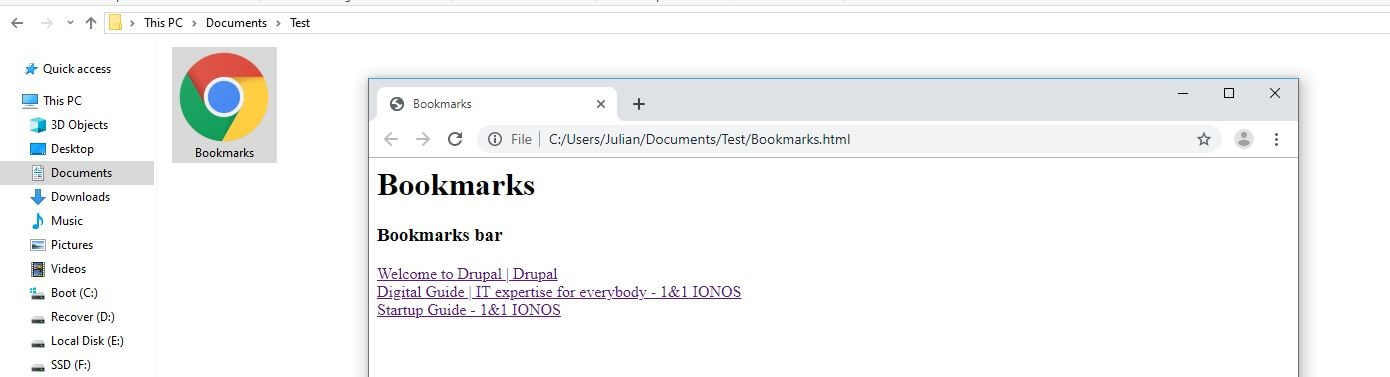
- Click on “Export bookmarks to HTML file.”
- Choose a location to save the exported bookmark file.
- Open Firefox and click on the three horizontal bars in the top right corner of the browser window.
- Select “Bookmarks” from the drop-down menu.
- Click on the “Import Bookmarks from HTML File” button.
- Navigate to the location where you saved the exported bookmark file and select it.
Conclusion
Saving your preferred Chrome settings is a straightforward process that can be completed on various platforms, including PC, Android, iPhone, and iPad. By following the steps outlined in this article, you’ll be able to sync your browser settings with your Google account, ensuring a seamless browsing experience across all your devices.
Frequently Asked Questions
- Q: Why Should I Save my Preferred Chrome Settings?
A: Saving your preferred Chrome settings ensures convenience, consistency, and security across all your devices. - Q: How do I Save my Preferred Chrome Settings on Pc?
A: Open Chrome, click on the three vertical dots in the top right corner, select “Settings,” and follow the prompts to sync with your Google account. - Q: How do I Save my Preferred Chrome Settings on Android?
A: Open Chrome, tap on the three vertical dots in the top right corner, select “Settings,” and follow the prompts to sync with your Google account. - Q: How do I Export my Preferred Chrome Settings to Firefox?
A: Open Chrome, click on the three vertical dots in the top right corner, select “Settings,” export bookmarks to an HTML file, open Firefox, and import the bookmark file. - Q: Can I Save my Preferred Chrome Settings on Iphone or Ipad?
A: Yes, you can save your preferred Chrome settings on iPhone or iPad by following the same steps as on Android.


