
How to Save Contacts on Google: A Comprehensive Guide
Are you tired of manually saving contacts on your phone or computer? Do you want to keep all your contact information in one place, easily accessible from any device? Look no further! In this article, we will guide you through the process of saving contacts on Google, a simple and efficient way to manage your contact list.
Why Save Contacts on Google?
Saving contacts on Google offers numerous benefits. Firstly, it allows you to access your contact list from anywhere, using any device with an internet connection. This means you can easily stay in touch with friends, family, and colleagues, no matter where you are or what device you’re using.
Secondly, saving contacts on Google helps you keep track of your contact information in one place. You can store phone numbers, email addresses, and even physical addresses all in one location, making it easy to find the information you need quickly.
Finally, saving contacts on Google ensures that your contact list is always up-to-date and synchronized across all your devices. This means that if you add a new contact on your phone, it will automatically be saved on your computer and other devices too.
How to Save Contacts on Google
Saving contacts on Google is a straightforward process that can be done on various devices, including Android, iPhone/iPad, PC, and Mac.
Save Contacts on Google With Android
To save contacts on Google using an Android device:
- Go to the Settings app.
- Select Accounts & sync.
- Tap on Add account.
- Choose Google.
- Sign in with your Google account credentials.
- Make sure that the contact synchronization option is turned on.
Save Contacts on Google With Iphone/ipad
To save contacts on Google using an iPhone or iPad:
- Go to Settings.
- Tap on Accounts & Passwords.
- Select Add New Account.
- Choose Google.
- Sign in with your Google account credentials.
- Ensure that the contact synchronization option is enabled.
Save Contacts on Google With Pc
To save contacts on Google using a Windows PC:
- Open the Start menu and click on Settings.
- Select Accounts.
- Click on Add an account.
- Choose Google.
- Sign in with your Google account credentials.
- Verify that the contact synchronization option is turned on.
Save Contacts on Google With Mac
To save contacts on Google using a Mac:
- Open the Apple menu and click on System Preferences.
- Select Internet Accounts.
- Click on Add Other Account.
- Choose Google.
- Sign in with your Google account credentials.
- Ensure that the contact synchronization option is enabled.
How to Save Contacts on Sim Card on Google
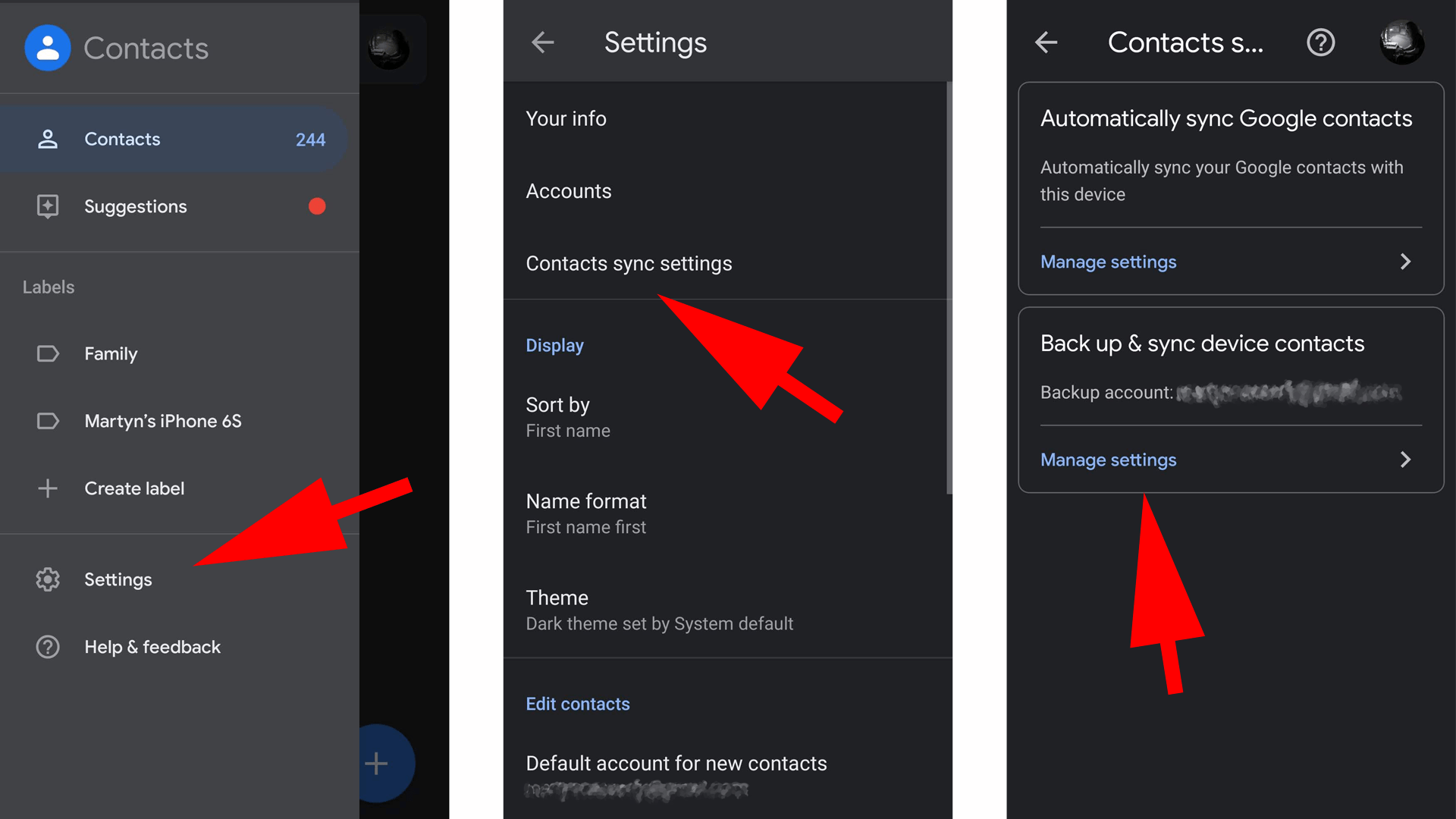
If you have contacts saved on your SIM card, you can transfer them to Google by following these steps:
- Open the Contacts app on your Android device.
- Tap on the three dots at the top-right corner and select Settings.
- Scroll down and tap on Backup & reset.
- Choose Back up my data and ensure that the contact option is selected.
- Follow the prompts to complete the backup process.
Alternatively, you can save contacts from your SIM card directly on Google Drive:
- Open the Contacts app on your Android device.
- Tap on the three dots at the top-right corner and select Settings.
- Scroll down and tap on Backup & reset.
- Choose Back up my data and ensure that the contact option is selected.
- Follow the prompts to complete the backup process.
Saving Contacts on Google Drive
You can save contacts on Google Drive by creating a .Vcf file and exporting it to your Google account:
- Open the Contacts app on your device.
- Tap on the three dots at the top-right corner and select Settings.
- Scroll down and tap on Backup & reset.
- Choose Back up my data and ensure that the contact option is selected.
- Follow the prompts to complete the backup process.
Tips And Tricks
- Make sure you have a Google account set up before attempting to save contacts on Google.
- Ensure that your device’s contact synchronization option is turned on.
- You can save multiple contacts at once by selecting the “Add new” option in the Contacts app.
- If you encounter any issues while saving contacts on Google, try restarting your device and retrying the process.
Conclusion
Saving contacts on Google offers numerous benefits, including easy access to your contact list from anywhere, automatic synchronization across all devices, and a centralized location for storing contact information. By following the steps outlined in this article, you can easily save contacts on Google using various devices, including Android, iPhone/iPad, PC, and Mac.
Frequently Asked Questions
- Q: Can I Save Contacts on Google Without an Internet Connection?
A: No, saving contacts on Google requires an active internet connection. - Q: How do I Access my Saved Contacts on Google?
A: You can access your saved contacts on Google by signing in to your account on the Google Contacts website or through the Google Contacts app on your device. - Q: Can I Save Multiple Contacts at Once on Google?
A: Yes, you can save multiple contacts at once by selecting the “Add new” option in the Contacts app and entering the contact information for each person. - Q: How do I Transfer Contacts From my Sim Card to Google?
A: You can transfer contacts from your SIM card to Google by following the steps outlined in this article. - Q: Can I Save Contacts on Google Without a Google Account?
A: No, saving contacts on Google requires a valid Google account.


