
How to Save Your Designs on Canva: A Step-by-step Guide
Are you tired of losing your designs due to computer crashes or forgotten passwords? Look no further! In this article, we’ll show you how to save your designs on Canva, whether you’re using a computer, smartphone, or tablet.
What is Canva?
Canva is a graphic design platform that allows users to create professional-looking images and videos without needing extensive design experience. With millions of users worldwide, Canva has become the go-to tool for designers, marketers, and small business owners looking to create engaging visual content.
Saving Your Designs on Canva: Computer Version
To save your designs on Canva using a computer, follow these steps:
- Open Canva: Log in to your Canva account and access the design platform.
- Edit Your Design: Make any necessary changes to your design by adding elements, modifying text, or adjusting images.
- Automatic Save: Canva will automatically save your design every time you make a change. You can check this by looking for the icon in the top-right corner of the screen, which indicates that your design is being saved.
- Manual Save: If you want to be extra sure that your design is saved, click on “Rows” in the top menu and select “Save.” This will save a copy of your design to your Canva account.
Saving Your Designs on Canva: Mobile Version
If you’re using a smartphone or tablet, saving your designs on Canva is just as easy. Here’s how:
- Open Canva: Download the Canva app and log in to your account.
- Edit Your Design: Make any necessary changes to your design by adding elements, modifying text, or adjusting images.
- Automatic Save: Like the computer version, Canva will automatically save your design every time you make a change. You can check this by looking for the three horizontal dots in the top-right corner of the screen, which indicates that your design is being saved.
- Manual Save: If you want to be extra sure that your design is saved, tap on the three horizontal dots and select “Save.” This will save a copy of your design to your Canva account.
Downloading Your Designs
If you want to download your designs from Canva, follow these steps:
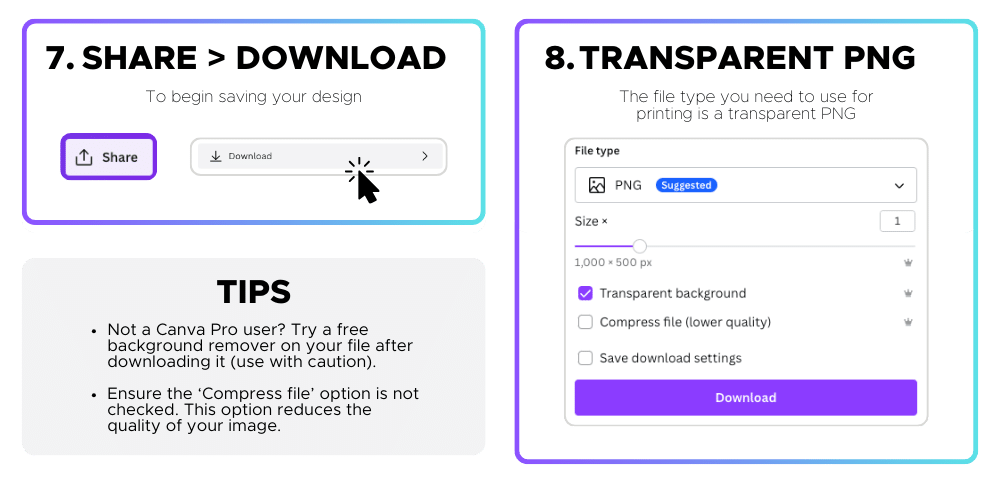
- Computer Version: Click on the share button in the top-right corner of the screen and select “Download.”
- Mobile Version: Tap on the share button and select “Download.” Choose the format you want to save your design in (e.G., JPG, PNG, or PDF).
Saving Your Curriculum Vitae on Canva
Canva isn’t just for creating visual content – it’s also a great tool for creating professional-looking curriculum vitae. To save your CV on Canva:
- Computer Version: Click on the share button and select “Download.” Choose the format you want to save your CV in (e.G., PDF or Word document).
- Mobile Version: Tap on the share button and select “Download.” Choose the format you want to save your CV in (e.G., PDF or Word document).
Saving Your Powerpoint Presentations on Canva
Canva allows you to create professional-looking PowerPoint presentations without needing Microsoft Office. To save your presentation:
- Computer Version: Click on the share button and select “Download.” Choose the format you want to save your presentation in (e.G., PPTX or PDF).
- Mobile Version: Tap on the share button and select “Download.” Choose the format you want to save your presentation in (e.G., PPTX or PDF).
Conclusion
Saving your designs, curriculum vitae, and PowerPoint presentations on Canva is a breeze, whether you’re using a computer, smartphone, or tablet. With automatic and manual saving options available, you can rest assured that your work will be safe even in the event of a computer crash or forgotten password.
Frequently Asked Questions
- Q: How do I Save my Designs on Canva?
A: You can save your designs on Canva by clicking on the “Rows” menu and selecting “Save.” Alternatively, you can let Canva automatically save your design every time you make a change. - Q: Can I Download my Designs From Canva?
A: Yes, you can download your designs from Canva by clicking on the share button and selecting “Download.” - Q: How do I Save my Curriculum Vitae on Canva?
A: You can save your CV on Canva by clicking on the share button and selecting “Download.” Choose the format you want to save your CV in (e.G., PDF or Word document). - Q: Can I Create a Powerpoint Presentation on Canva?
A: Yes, you can create a PowerPoint presentation on Canva using the PPTX template. - Q: How do I Access my Saved Designs on Canva?
A: You can access your saved designs on Canva by logging in to your account and clicking on the “Blueprints” tab. - Q: What Formats Are Available For Downloading Designs From Canva?
A: Canva allows you to download your designs in various formats, including JPG, PNG, PDF, PPTX, and more. - Q: Is it Possible to Collaborate With Others on a Design Project Using Canva?
A: Yes, Canva offers collaboration features that allow multiple users to work on the same design project simultaneously. - Q: What is The Cost of Using Canva’s Premium Features?
A: Canva’s premium features are available at an additional cost, with plans starting at $11.99/Month or $109.99/Year for individuals and teams.


