
How to Save a Pdf on Iphone: A Step-by-step Guide
Are you tired of not knowing how to save a PDF on your iPhone? Do you want to be able to access your favorite documents offline, without having to worry about internet connectivity? Well, you’re in luck! In this article, we’ll show you exactly how to do it.
What You Need to Know Before We Begin
Before we dive into the nitty-gritty details, let’s make sure you have a basic understanding of what a PDF is and why you might want to save one on your iPhone. A PDF (Portable Document Format) file is a type of digital document that can contain text, images, and other types of content. Saving a PDF on your iPhone allows you to access it offline, making it perfect for situations where you don’t have internet connectivity.
Method 1: Using The Built-in Files App
The first method we’ll cover involves using the built-in Files app on your iPhone. This is probably the simplest way to save a PDF on your device.
Step-by-step Instructions
- Open The Files App: Tap on the “Files” icon on your home screen.
- Find The Pdf File: Browse through your files and find the PDF you want to save.
- Tap on The File: Select the PDF file by tapping on it.
- Select The Location: Choose where you want to save the file, such as “On My iPhone” or iCloud Drive.
- Save The File: Tap on the “Save” button to save the file.
That’s it! You’ve successfully saved a PDF on your iPhone using the built-in Files app.
Method 2: Using Third-party Apps
If you want more advanced features, such as converting images to PDF or scanning documents, there are several third-party apps available that can help. Let’s take a look at some of them:
Pdf Expert
- Convert images to PDF
- Scan documents
- Edit and annotate PDFs
You can download the app from the App Store.
Genius Scan
- Automatically detect and correct text in scanned documents
- Convert scanned documents to PDF
- Export documents to cloud services like iCloud Drive or Google Drive
You can download the app from the App Store.
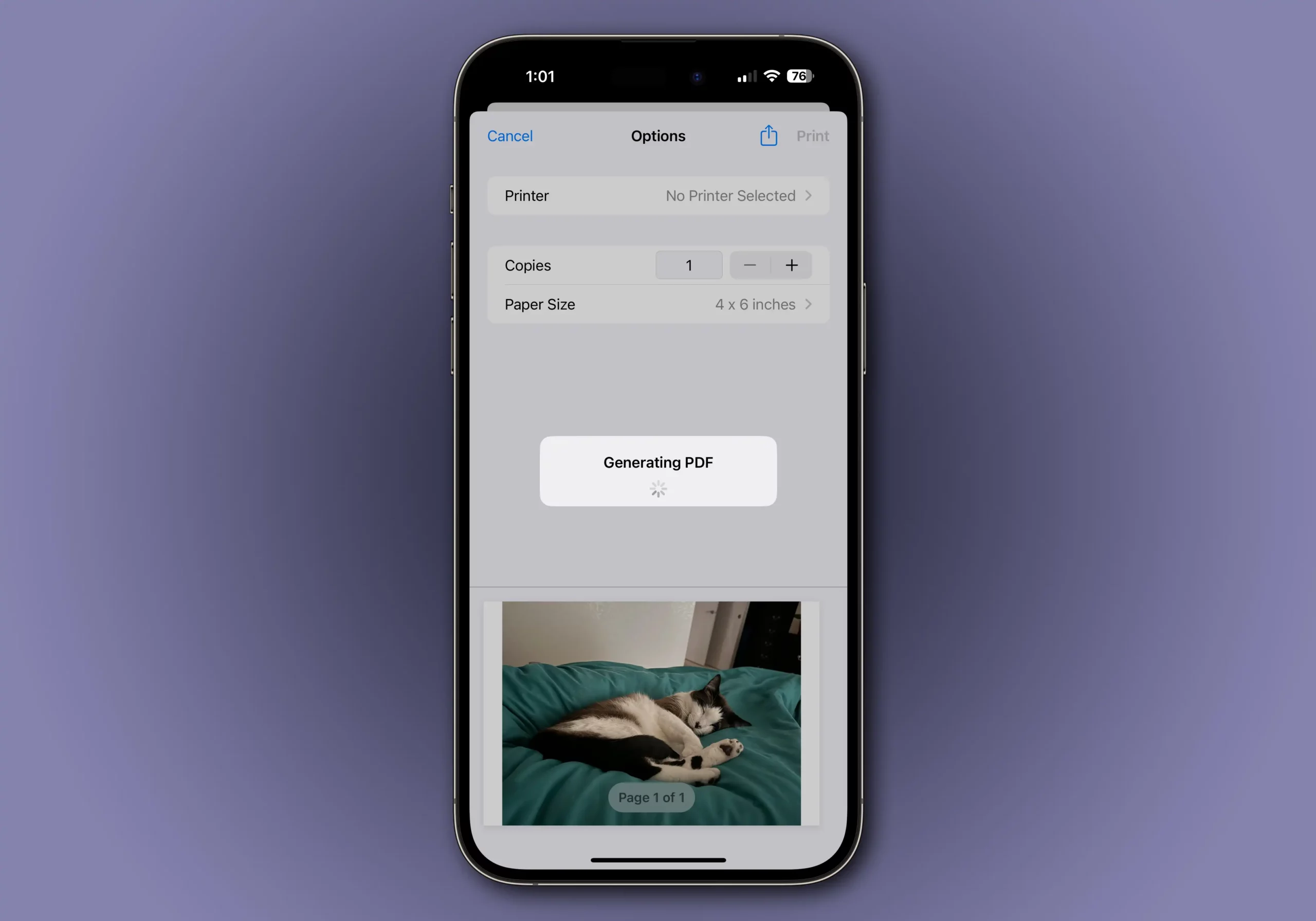
Method 3: Using The Printer Option
Another way to save a PDF on your iPhone is by using the printer option. This method involves converting an image or document into a PDF file, which you can then print out or share with others.
Step-by-step Instructions
- Open The App: Choose the app that has the content you want to convert to a PDF.
- Share The Content: Tap on the “Share” button and select the option to create a PDF file.
- Print The Pdf: Print out the PDF or share it with others.
That’s it! You’ve successfully converted an image or document into a PDF using the printer option.
Conclusion
Saving a PDF on your iPhone is easier than you might think. Whether you use the built-in Files app, third-party apps like PDF Expert or Genius Scan, or the printer option, there are plenty of ways to get the job done. Just remember to follow these steps and you’ll be well on your way to saving your favorite documents for offline access.
Frequently Asked Questions (FAQs)
- Q: Can I Save a Pdf on my Iphone if It’s Not in an App?
- A: Yes, you can save a PDF on your iPhone even if it’s not in an app. Just open the Files app and select “Save” to save the file.
- Q: How do I Convert an Image to Pdf Using The Printer Option?
- A: To convert an image to PDF using the printer option, open the app that has the content you want to convert, tap on the “Share” button, and select the option to create a PDF file.
- Q: Can I Use Third-party Apps to Save Pdfs on my Iphone?
- A: Yes, there are several third-party apps available that can help you save PDFs on your iPhone. Some popular options include PDF Expert, Genius Scan, and SwiftScan.
Conclusion
Saving a PDF on your iPhone is easier than you might think. Whether you use the built-in Files app, third-party apps like PDF Expert or Genius Scan, or the printer option, there are plenty of ways to get the job done. Just remember to follow these steps and you’ll be well on your way to saving your favorite documents for offline access.
References
- “How to Save a PDF on iPhone”. Https://Www.Techopedia.Com
- “PDF Expert Review: A Comprehensive Guide”. Https://Www.Macworld.Com
- “Genius Scan Review: The Best Scanner App for iPhone”. Https://Www.Cnet.Com


