
How to Save QR Codes on Phone: A Step-by-step Guide
Are you tired of struggling to save QR codes on your phone? Do you find yourself wondering how to access the information contained within these square codes? Well, wonder no more! In this article, we’ll show you how to save QR codes on your phone with ease.
What Are QR Codes?
QR codes, or Quick Response codes, are two-dimensional barcodes that can be scanned using a smartphone’s camera. They contain information such as URLs, text, and even videos. When you scan a QR code, it will take you directly to the associated website, video, or file.
Why Save QR Codes on Phone?
Saving QR codes on your phone allows you to access them later when needed. You can save QR codes for various reasons, such as:
- Accessing online content
- Saving business cards
- Collecting coupons and discounts
- Storing information about products
How to Save QR Codes on Android Phone
If you have an Android phone, here’s how to manually save a QR code:
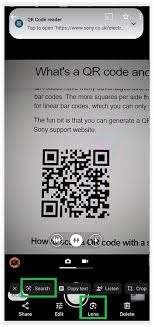
- Take a Screenshot: Press the Power button and the Home button simultaneously (or the Volume Down button if your device doesn’t have a Home button). This will take a screenshot of the QR code.
- Save Image: Hold down on the image icon in the bottom left corner, select the “Save image” option, and choose where you want to save it.
How to Save QR Codes Automatically
If you prefer not to manually save QR codes, there are apps available that can do this for you! One popular app is QR & Barcode Scanner, which allows you to scan QR codes and automatically saves them in your phone’s gallery. Here’s how:
- Download And Install: Download the QR & Barcode Scanner app from the Google Play Store.
- Grant Permissions: Open the app and grant it permission to access your camera.
- Scan QR Code: Scan the QR code using your device’s camera.
- Save in Gallery: The app will automatically save the scanned QR code in your phone’s gallery.
Alternative Apps For Saving QR Codes
There are other apps available that can help you save QR codes on your Android phone. Some of these apps include:
- QR Tails Reader
- Avira QR Scan
- Qrafter
These apps offer various features, such as the ability to read and share QR codes, access the chronology of scanned QR codes, and even create your own QR tails.
How to Save QR Codes on Iphone
If you have an iPhone, here’s how to manually save a QR code:
- Take a Screenshot: Press the Sleep/Wake button and the Home button simultaneously (or the Volume Down button if your device doesn’t have a Home button). This will take a screenshot of the QR code.
- Save Image: Hold down on the image icon in the bottom left corner, select the “Save image” option, and choose where you want to save it.
Using The QR & Barcode Scanner App on Iphone
If you prefer not to manually save QR codes, there’s also an app available for iPhone called QR & Barcode Scanner. Here’s how to use it:
- Download And Install: Download the QR & Barcode Scanner app from the App Store.
- Grant Permissions: Open the app and grant it permission to access your camera.
- Scan QR Code: Scan the QR code using your device’s camera.
- Save in Gallery: The app will automatically save the scanned QR code in your phone’s gallery.
Conclusion
Saving QR codes on your phone is a simple process that can be achieved manually or automatically with the help of apps. Whether you’re accessing online content, saving business cards, collecting coupons and discounts, or storing information about products, saving QR codes can be incredibly useful. With these steps, you’ll be able to save QR codes like a pro!
Faqs
- Q: What is The Purpose of Saving QR Codes on Phone?
A: Saving QR codes allows you to access them later when needed. - Q: How do I Manually Save a QR Code on Android?
A: You can take a screenshot or save the image directly from your gallery. - Q: Which App is Best For Saving QR Codes on Android?
A: The QR & Barcode Scanner app is a popular choice, but other apps like QR Tails Reader and Avira QR Scan are also available. - Q: Can I Save QR Codes Automatically Using an App?
A: Yes, there are several apps that allow you to scan QR codes and automatically save them in your phone’s gallery. - Q: How do I Use The QR & Barcode Scanner App on Iphone?
A: You can download and install the app from the App Store, grant it permission to access your camera, scan a QR code, and save it in your gallery. - Q: Are There Other Apps Available For Saving QR Codes on Iphone?
A: Yes, there are other apps like Qrafter and Avira QR Scan that can help you save QR codes on your iPhone.
By following these steps and using the right app, you’ll be able to save QR codes with ease!


