
How to Save Your Phone’s Contacts: A Step-by-step Guide
Are you worried about losing your phone’s contacts in case it gets lost or damaged? Do you want to transfer your contacts from an old SIM card to a new phone? Look no further! In this article, we’ll show you how to save your phone’s contacts on both Android and iPhone devices.
Saving Contacts on Android
If you’re using an Android device, saving your contacts is a straightforward process. Here’s what you need to do:
1. Add Manual Contacts
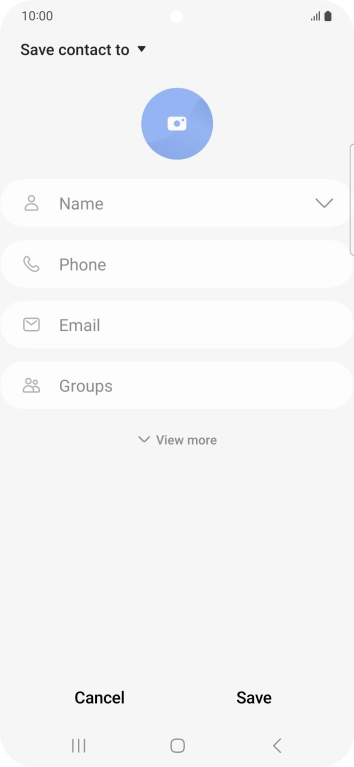
To add manual contacts, open the Google Contacts app (which comes pre-installed on most Android devices). Tap on the “+” icon in the top-right corner and select “Save contact”. Fill in the required details, such as name, phone number, and email address.
2. Synchronize With Google Cloud
To synchronize your contacts with Google’s cloud service, open the Settings app and go to “Account” > “Google” > “Synchronize contacts”. Make sure the toggle is turned on. This will sync all your contacts across all your devices that are linked to your Google account.
3. Export Contacts as Vcf
To export your contacts as a VCF file, open the Google Contacts app and go to “Adjust and manage” > “Export contacts”. Select the desired format (VCF or CSV) and choose where you want to save the file.
Saving Contacts on Iphone
If you’re using an iPhone, saving your contacts is also quite easy. Here’s how:
1. Add Manual Contacts
To add manual contacts, open the Phone app and tap on the “+” icon in the top-right corner. Select “Create new contact” and fill in the required details.
2. Synchronize With Icloud
If you have an Apple ID set up on your iPhone, your contacts will be synced automatically with iCloud. To check this, go to Settings > [Your Name] > iCloud. Make sure the toggle next to “Contacts” is turned on.
3. Export Contacts as Vcf
To export your contacts as a VCF file, open the Contacts app and tap on the icon in the top-right corner. Select “All Contacts” and then “Export”. Choose where you want to save the file.
Saving Contacts With Google Account
If you have a Google account set up on your device (either Android or iPhone), you can sync your contacts with your Google account. To do this:
- On Android, go to Settings > Account > Google > Synchronize contacts.
- On iPhone, go to Settings > [Your Name] > iCloud and turn off the toggle next to “Contacts”. Then, go to Settings > Mail > Contacts > Account > Add Account > Google and sign in with your Google account.
Saving Contacts on Computer
If you want to sync your phone’s contacts with your computer, follow these steps:
- On Android (using Google account), add your Google account to Windows 11 or Windows 10.
- On iPhone (using iCloud), add your Apple ID to Windows 11 or Windows 10.
- On Mac, add your Apple ID to System Preferences > ID > Start using iCloud.
Saving Contacts in Excel
Yes, you can even save your phone’s contacts in an Excel spreadsheet!
- Export your contacts as a VCF file (following the steps above).
- Open Microsoft Excel and import the VCF file into a new sheet.
- Save the sheet with a desired name and location.
Conclusion
Saving your phone’s contacts is easier than you think! Whether you’re using Android or iPhone, syncing your contacts with Google Cloud or iCloud, or even saving them in Excel, we’ve got you covered.


