
How to Save Videos From Instagram: A Step-by-step Guide
Are you tired of saving videos from Instagram, only to have them disappear into thin air? Do you wish there was a way to save your favorite videos without having to download them first? Look no further! In this article, we’ll show you how to save videos from Instagram using various methods, including software, online services, and even the official Instagram app.
Method 1: Using Jdownloader on PC
If you’re looking for a reliable way to save videos from Instagram on your PC, look no further than JDownloader. This free, open-source download manager is capable of downloading any type of file from the internet, including videos from Instagram. Here’s how to use it:
- Download And Install Jdownloader: Head over to the JDownloader website and download the software for your operating system (Windows, macOS, or Linux).
- Configure Jdownloader: Once installed, open JDownloader and configure it according to your needs.
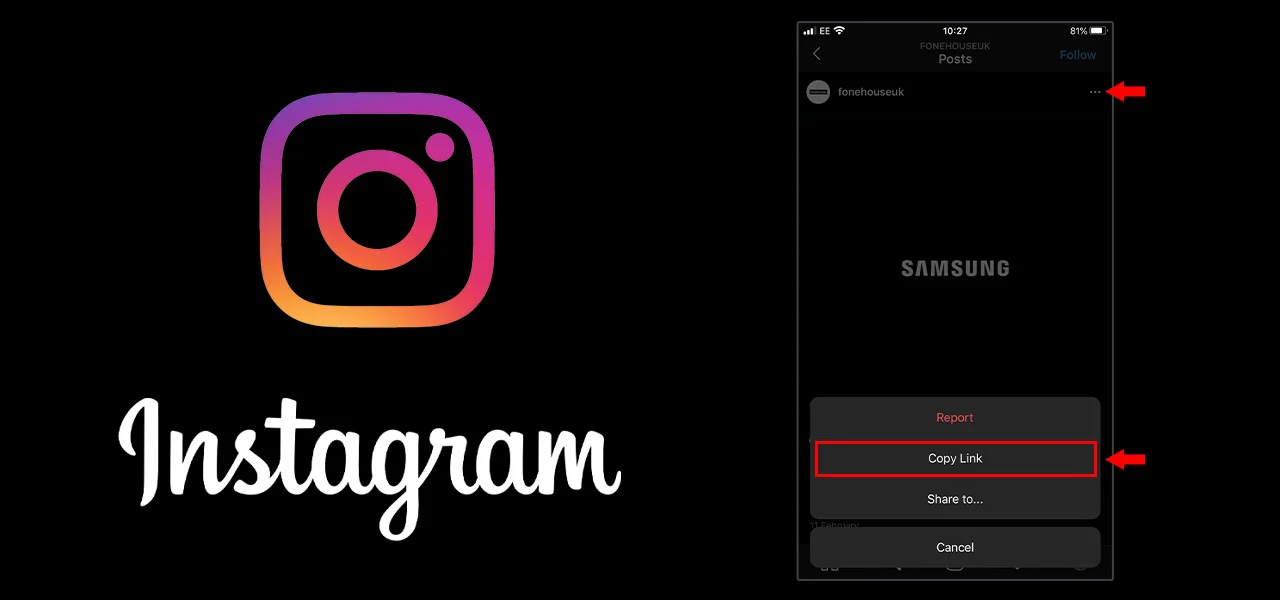
- Copy Video Link: Copy the link of the video you want to save from Instagram into the clipboard.
- Add Video Link to Jdownloader: Open JDownloader and add the copied link to the program by clicking on “Add new links Web” in the menu.
- Start Downloading: Click on the (+) icon next to the video title to initiate the download.
Method 2: Using Snapinsta Online
If you don’t want to download and install software on your PC, there’s a handy online service called SnapInsta that can help you save videos from Instagram without any hassle. Here’s how it works:
- Copy Video Link: Copy the link of the video you want to save from Instagram into the clipboard.
- Visit Snapinsta Website: Head over to the SnapInsta website and paste the copied link in the designated field.
- Click Download: Click on the “Download” button to initiate the download.
Method 3: Using Total on Mobile
If you’re using an Android or iOS device, there’s a handy app called Total that can help you save videos from Instagram directly on your mobile device. Here’s how it works:
- Download And Install Total: Download and install Total from the Play Store (Android) or App Store (iOS).
- Copy Video Link: Copy the link of the video you want to save from Instagram into the clipboard.
- Open Total: Open Total and paste the copied link in the designated field.
- Click Download: Click on the download button to initiate the download.
Method 4: Using Amerigo App
Another app that can help you save videos from Instagram is called Amerigo. This app has a built-in browser and file manager, making it easy to save videos directly to your device’s gallery. Here’s how it works:
- Download And Install Amerigo: Download and install Amerigo from the Play Store (Android) or App Store (iOS).
- Copy Video Link: Copy the link of the video you want to save from Instagram into the clipboard.
- Open Amerigo: Open Amerigo and paste the copied link in the designated field.
- Click Download: Click on the download button to initiate the download.
Method 5: Using Firefox Browser Extension
If you’re using a desktop browser like Chrome or Firefox, there’s a handy extension called Video DownloadHelper that can help you save videos from Instagram directly within your browser. Here’s how it works:
- Install Video Downloadhelper: Install Video DownloadHelper as an extension in your browser.
- Copy Video Link: Copy the link of the video you want to save from Instagram into the clipboard.
- Click on Download Button: Click on the download button within the Video DownloadHelper extension to initiate the download.
Tips And Tricks
Here are some additional tips and tricks to keep in mind when saving videos from Instagram:
- Always copy the link of the video you want to save before attempting to download it.
- Use a reliable internet connection to avoid any interruptions during the download process.
- Consider using a download manager like JDownloader to ensure that your downloads are saved correctly.
Conclusion
Saving videos from Instagram can be a bit tricky, but with these methods, you’ll be able to do so in no time! Whether you’re using software on PC or apps on mobile, we’ve got you covered. Remember to always copy the link of the video before attempting to download it, and use a reliable internet connection for smooth downloads.
Frequently Asked Questions
Here are some frequently asked questions about saving videos from Instagram:
- Q: What if I Don’t Want to Download Software on my Pc?
A: No problem! You can use online services like SnapInsta or Video DownloadHelper, which allow you to save videos without installing any software. - Q: Can I Save Videos Directly From Instagram’s Official App?
A: Yes, you can! On mobile devices, the Instagram app has a built-in feature that allows you to download Reels and other videos directly to your device’s gallery. -
Q: What if I Encounter Any Issues During The Download Process?
A: Don’t worry! If you experience any issues during the download process, feel free to reach out to our support team for assistance. -
Q: Can I save videos from Instagram Stories?
- A: Yes, you can! To save stories, follow the same steps as saving Reels.
- Q: What if I want to save a video with music?
- A: You can use SnapInsta or Video DownloadHelper to save videos with music.
Save Videos From Instagram


