
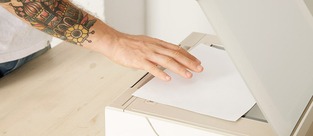
How to Scan a Document With Your Canon Printer: A Step-by-step Guide
Are you looking for ways to scan documents using your Canon printer? Look no further! This article will guide you through the process of scanning a document with your Canon printer on Windows, Mac, and even on your smartphone or tablet.
Before we dive into the instructions, let’s first understand what “scannerizzare” means. Scannerizzare is an Italian term that refers to the act of scanning a document using a device such as a printer or a scanner. In this article, we will show you how to scan a document using your Canon printer.
Preliminary Operations
Before you can start scanning a document with your Canon printer, there are some preliminary operations that need to be performed. These include:
- Configuring The Printer: Make sure your printer is configured correctly and has been installed on your computer.
- Checking For Drivers: Ensure that the necessary drivers for your printer have been installed on your computer.
- Connecting The Printer: Connect your printer to your computer using a USB cable or wirelessly via Wi-Fi.
Scanning a Document With Your Canon Printer on Windows
If you’re using a Windows operating system, follow these steps:
- Light The Printer: Turn on your printer and make sure it’s connected to your computer.
- Open Fax And Scan: Click on the “Start” button and type “fax and scan windows” in the search bar. Open the program and click on the “New” button to start a new scanning session.
- Select The Printer: Choose your Canon printer from the list of available printers.
- Adjust Settings: Adjust the settings as needed, such as image resolution and contrast.
- Scan The Document: Place the document you want to scan on the scanner glass and click “OK” to start the scanning process.
Scanning a Document With Your Canon Printer on Mac
If you’re using a Mac operating system, follow these steps:
- Light The Printer: Turn on your printer and make sure it’s connected to your computer.
- Open System Preferences: Click on the apple logo in the top left corner of your screen and select “System Preferences.”
- Click on Printers & Scanners: Select “Printers & Scanners” from the list of available options.
- Select The Printer: Choose your Canon printer from the list of available printers.
- Scan The Document: Place the document you want to scan on the scanner glass and click “OK” to start the scanning process.
Scanning a Document With Your Canon Printer on Smartphone or Tablet
If you’re using a smartphone or tablet, follow these steps:
- Download The Canon Print Inkjet/selphy App: Download the Canon PRINT Inkjet/SELPHY app from the App Store (for iOS devices) or Google Play Store (for Android devices).
- Connect to Wi-fi: Connect your device to the same Wi-Fi network as your printer.
- Open The App: Open the Canon PRINT Inkjet/SELPHY app and select “Scan” from the menu.
- Adjust Settings: Adjust the settings as needed, such as image resolution and contrast.
- Scan The Document: Place the document you want to scan on the scanner glass and click “OK” to start the scanning process.
Extracting Text From Scanned Documents (OCR)
If you need to extract text from scanned documents, you can use the OCR feature in your Canon printer or a third-party app. Here’s how:
- Use The Canon Print Inkjet/selphy App: If you’re using the Canon PRINT Inkjet/SELPHY app on your smartphone or tablet, you can enable the OCR feature to extract text from scanned documents.
- Use Third-party Apps: There are also third-party apps available that offer OCR functionality, such as Scanbot Pro.
Conclusion
Scanning a document with your Canon printer is a straightforward process that requires some preliminary operations to be performed first. Whether you’re using a Windows or Mac operating system or a smartphone or tablet, the steps remain largely the same. By following these instructions, you should be able to scan documents with your Canon printer like a pro!
Frequently Asked Questions
- Q: How do I Configure my Canon Printer?
A: Make sure your printer is configured correctly and has been installed on your computer. - Q: What Drivers do I Need For my Canon Printer?
A: Ensure that the necessary drivers for your printer have been installed on your computer. - Q: How do I Connect my Canon Printer to my Computer?
A: Connect your printer to your computer using a USB cable or wirelessly via Wi-Fi.


