
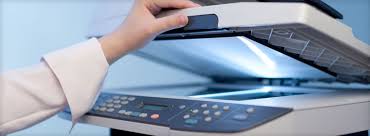
How to Scan a Document With a Multifunction Printer: A Step-by-step Guide
Are you tired of dealing with cluttered desks and scattered documents? Do you want to digitize your papers and free up some space? Look no further! In this article, we will show you how to scan a document with a multifunction printer, using various methods and devices.
Why Scan Documents?
Scanning documents is an excellent way to digitize your papers and make them easily accessible. With a multifunction printer, you can not only print but also scan documents, saving you time and effort. Plus, digitized documents take up much less space than physical copies, making it easier to organize and manage your files.
Method 1: Using The Printer’s Integrated Functionality
If you have a multifunction printer with an integrated scanner, you can use it to scan documents directly onto a USB drive or microSD card. This is a convenient way to save scanned documents without having to transfer them to a computer.
- Connect the USB drive or microSD card to the printer.
- Place the document to be scanned in the printer’s scanning tray.
- Select the scanning option on the printer’s control panel.
- Choose the desired resolution and color settings.
- Save the scanned document to the connected device.
Method 2: Using a Smartphone or Tablet
You can also use your smartphone or tablet to scan documents using various apps. Here are a few popular options:
- Microsoft Office Lens: This app allows you to scan documents, whiteboards, and other surfaces directly into Microsoft Office formats.
- Scanbot: This app enables you to scan documents, photos, and other images, with the option to use OCR (Optical Character Recognition) for text recognition.
- Grades: If you have an iPhone or iPad, you can use the built-in Grades app to scan documents using a simple tap gesture.
Step-by-step Instructions For Each Method
Below are detailed step-by-step instructions for each method:
Using The Printer’s Integrated Functionality
- Connect the USB drive or microSD card to the printer.
- Place the document to be scanned in the printer’s scanning tray.
- Select the scanning option on the printer’s control panel.
- Choose the desired resolution and color settings.
- Save the scanned document to the connected device.
Using a Smartphone or Tablet
Microsoft Office Lens
- Download and install Microsoft Office Lens on your smartphone or tablet.
- Open the app and select the document type (e.G., Blackboard, document).
- Position the camera over the document and take a photo.
- Adjust the image as needed using the editing tools.
- Save the scanned document in the desired format.
Scanbot
- Download and install Scanbot on your smartphone or tablet.
- Open the app and select the scanning option.
- Position the camera over the document and take a photo.
- Use the editing tools to adjust the image as needed.
- Save the scanned document in the desired format.
Grades
- Open the Grades app on your iPhone or iPad.
- Select the “Scan Document” option.
- Place the camera over the document and tap to scan.
- Adjust the image as needed using the editing tools.
- Save the scanned document in the desired format.
Tips And Variations
- Use a tripod or stabilizer to ensure steady camera footage when scanning documents.
- Experiment with different resolutions and color settings for optimal results.
- Consider using OCR software to extract text from scanned images.
- Use cloud storage services like Google Drive, Dropbox, or Microsoft OneDrive to store and share scanned documents.
Conclusion
Scanning documents with a multifunction printer is a convenient and efficient way to digitize your papers. With various methods and devices available, you can choose the one that best suits your needs. Remember to follow the step-by-step instructions provided for each method, and don’t hesitate to experiment with different settings and features to achieve optimal results.
Frequently Asked Questions
- Q: What is The Difference Between Scanning a Document And Taking a Photo?
A: Scanning a document involves using a scanner or camera to digitize the contents of a physical page, whereas taking a photo involves capturing an image for artistic or aesthetic purposes. - Q: Can I Use Any Smartphone or Tablet to Scan Documents?
A: Yes, but it’s recommended to use devices with high-quality cameras and editing capabilities for optimal results. - Q: How do I Extract Text From Scanned Images Using Ocr Software?
A: This typically involves selecting the OCR option within your chosen scanning app, specifying the desired language, and adjusting any necessary settings. - Q: Can I Save Scanned Documents to Cloud Storage Services?
A: Yes, you can store and share scanned documents on popular cloud platforms like Google Drive, Dropbox, or Microsoft OneDrive. - Q: What Are Some Potential Issues to Consider When Scanning Documents With a Multifunction Printer?
A: Potential issues may include paper jams, misaligned scans, or poor image quality due to camera settings or document condition.
Conclusion
In conclusion, scanning documents is an essential skill in today’s digital age. With the methods and devices outlined above, you can efficiently digitize your papers and make them easily accessible. Remember to follow proper procedures, experiment with different settings, and consider potential issues when scanning documents with a multifunction printer or smartphone/tablet. Happy scanning!


