
The Ultimate Guide to Scanning QR Codes For Cie (Card of Electronic Identity)
Are you struggling to scan the QR code on your CIE (Card of Electronic Identity) to access online services from Public Administration? Look no further! In this comprehensive guide, we’ll walk you through the step-by-step process of scanning the QR code using the CieID app on your smartphone.
What is a QR Code And How Does it Work?
A QR code, short for Quick Response code, is a two-dimensional barcode that contains information about the encoded data. It can be scanned by a smartphone or tablet using an app to access various services, including online payments, login credentials, and more. The CIE card, also known as the Card of Electronic Identity, uses a QR code to authenticate users and grant access to online services.
How to Scan a QR Code With Your Smartphone
To scan a QR code on your CIE card using your smartphone, you’ll need to:
- Qualify The Nfc: Make sure your smartphone supports NFC (Near Field Communication) technology.
- On Android devices: Open Settings > Devices connected > NFC and toggle it to ON.
- On Samsung devices: Go to Connections > NFC.
- On Xiaomi devices: Navigate to Settings > Connection and sharing > NFC.
- On HUAWEI devices: Access Settings > Connection device > NFC.
- Download The Cieid App: Get the CieID app from the Google Play Store or Apple App Store, depending on your smartphone’s operating system.
Step-by-step Guide to Scanning a QR Code With Cieid
To scan a QR code using the CieID app:
- Open the CieID app and go to the login screen.
- Tap on the “Access with CIE” button.
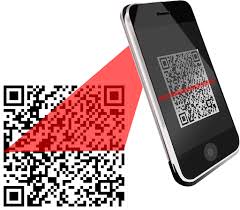
- Scan the QR code on your CIE card using the camera feature in the app.
- Enter the last 4 digits of your PIN code when prompted.
- Authenticate by approaching your CIE card to the smartphone’s NFC sensor.
- Confirm the authentication process and enter the One-Time Password (OTP) displayed on your computer or mobile device.
Troubleshooting Common Issues
If you encounter any issues during the scanning process, refer to our troubleshooting guide below:
- Nfc Not Qualified: Check if NFC is enabled on your smartphone and try requalifying it.
- QR Code Not Scanned Correctly: Ensure the QR code is visible and centered in the camera viewfinder. Try taking a new scan or adjusting the light conditions.
- Authentication Failed: Verify that you’ve entered the correct PIN code and tried authenticating again.
Conclusion
Scanning a QR code on your CIE card using the CieID app is a straightforward process. By following these steps and troubleshooting common issues, you’ll be able to access online services from Public Administration with ease. Remember to keep your smartphone’s NFC technology enabled and ensure you have the latest version of the CieID app installed.
Frequently Asked Questions (FAQs)
- What is a QR Code?
A QR code, short for Quick Response code, is a two-dimensional barcode that contains information about the encoded data. - How Does Scanning a QR Code Work?
Scanning a QR code using your smartphone’s camera feature and CieID app allows you to access various services, including online payments, login credentials, and more. - What is Nfc Technology?
NFC (Near Field Communication) technology enables wireless communication between two devices in close proximity, allowing for the transfer of small amounts of data. - How do I Qualify my Smartphone’s Nfc Technology?
Check your smartphone’s settings to ensure NFC is enabled. Follow specific steps for different device models and operating systems. - What Should I do if Authentication Fails?
Verify that you’ve entered the correct PIN code, try authenticating again, or consult our troubleshooting guide for further assistance. -
Can I Use my Cie Card With Other Services?
Yes, your CIE card can be used to access various online services from Public Administration and other approved providers. -
Is my Data Secure When Using The Cieid App?
The CieID app uses advanced security protocols to protect your sensitive information and ensure a safe authentication process. -
How Often Should I Update The Cieid App?
Regularly check for updates in the Google Play Store or Apple App Store to ensure you have the latest version of the CieID app installed. -
Can I Use The Cieid App on my Tablet or Computer?
Currently, the CieID app is designed for smartphone usage only. However, you can access some online services directly from your browser using a one-time password (OTP) generated through the app. -
Who Can Assist me With Technical Issues Related to The Cieid App?
For any technical concerns or assistance with using the CieID app, please refer to our comprehensive guide for troubleshooting tips and contact information for support services.


