
Digitalize Your Documents: A Step-by-step Guide to Scanning With Windows 10
Are you tired of dealing with stacks of paper documents, only to have them get lost or damaged? Do you want to keep your important papers organized and easily accessible? Look no further! In this article, we’ll show you how to scan your documents with ease using Windows 10.
Why Scan Your Documents?
Scanning your documents can be a lifesaver in many ways. Not only does it help you free up physical space by digitizing your important papers, but it also makes them easily searchable and accessible from anywhere. Whether you’re looking to declutter your office or simply want to have a digital backup of your important documents, scanning with Windows 10 is the perfect solution.
Installing The Necessary Driver
Before we dive into the nitty-gritty of scanning, let’s first talk about installing the necessary driver for your printer or scanner. This step is crucial in ensuring that your device works seamlessly with Windows 10. To install the driver:
- Insert the installation disk or connect the USB drive provided with your device.
- Follow the on-screen instructions to complete the installation process.
- Once installed, plug in your printer or scanner using a USB cable, Ethernet cable, or wirelessly via Wi-Fi.
Using Fax And Scan of Windows
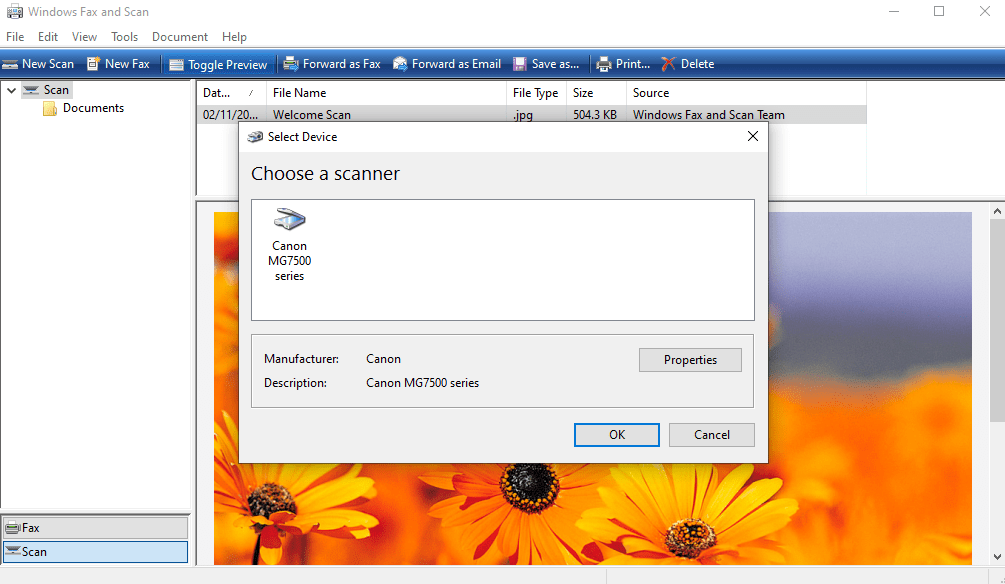
Now that we have our driver installed, let’s talk about one of the most user-friendly scanning tools built into Windows 10: Fax and Scan of Windows. This program allows you to scan documents easily and digitize them with just a few clicks.
To use Fax and Scan of Windows:
- Open the Start menu and click on Accessories.
- Click on Fax and Scan of Windows.
- Select New Digitalization from the menu bar.
- Choose your device from the list and select OK.
- Configure the settings according to your needs, such as resolution, color depth, and file type.
Other Programs For Scanning With Windows 10
While Fax and Scan of Windows is a great tool, there are other programs available that can enhance your scanning experience even further. Some popular options include:
- NAPS2: A free software program that allows you to scan documents, photos, and other items, including text recognition capabilities.
- HP Scan and Capture: A proprietary program from HP that allows for easy scanning of documents and photos.
- Samsung Printer Experience: A program specifically designed for Samsung printers, allowing for seamless scanning and printing.
Scanning a Document in Pdf With Windows 10
If you need to scan a document in PDF format with Windows 10, don’t worry! We’ve got you covered. You can use any of the programs mentioned above or even use the built-in printer virtualization feature to print your scanned documents as PDF files.
Conclusion
Scanning with Windows 10 is easier than ever before. With just a few clicks and some basic settings configurations, you can digitize your important papers and keep them organized and easily accessible. Whether you’re using Fax and Scan of Windows or one of the other programs mentioned above, we hope this guide has helped you navigate the world of scanning with confidence.
Faqs
- What is The Best Program For Scanning Documents in Pdf Format?
You can use any of the programs mentioned above, including NAPS2, HP Scan and Capture, Samsung Printer Experience, or even Fax and Scan of Windows. - How do I Install The Driver For my Printer or Scanner?
Insert the installation disk or connect the USB drive provided with your device. Follow the on-screen instructions to complete the installation process. - What is Naps2, And How Does it Work?
NAPS2 is a free software program that allows you to scan documents, photos, and other items, including text recognition capabilities. Simply download and install the software, configure the settings as needed, and start scanning! - Can I Use Windows 10’s Built-in Printer Virtualization Feature to Print my Scanned Documents in Pdf Format?
Yes! You can use this feature to print your scanned documents as PDF files. - What is The Best Resolution For Scanning Documents?
A higher resolution (typically 300 dpi or higher) will result in a better-defined document with more detailed text and images. - Can I Scan Multiple Documents at Once Using Windows 10’s Fax And Scan Program?
Yes! You can select multiple documents to scan by holding down the Ctrl key on your keyboard while selecting each item. - How do I Configure The Settings For my Scanner or Printer in Windows 10?
You can access the settings for your device through the Device Manager, which can be found in the Control Panel under Hardware and Sound. - Can I Use a Third-party Program to Scan Documents With Windows 10?
Yes! There are many third-party programs available that can enhance your scanning experience even further, such as NAPS2, HP Scan and Capture, or Samsung Printer Experience.


