
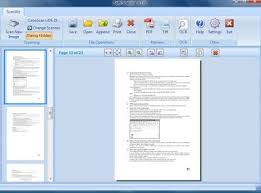
Are you looking for a way to scan your documents and transfer old photos on your PC with Windows 7? Do not know how to configure it? Fear not, my friend! With this tutorial, I will guide you through the process of setting up your scan device and scanning your documents and photos.
Preliminary Operations
Before we dive into the world of scanning, there are some preliminary operations that need to be accomplished. Specifically, we need to connect the scan device to the computer and configure the relative driver.
- Connect The Scan Device: Connect the scan device to the computer using the provided cable. Make sure it is plugged in properly.
- Install The Driver: Install the driver for your scan device on your PC. This can usually be found on the CD or DVD that came with the device, or you can download it from the manufacturer’s website.
Configuring The Scan Device
If you are having trouble installing the driver, I have written specific guides on how to download and install the drivers for various manufacturers, including HP, Samsung, Epson, and Canon. You can find these guides in my previous articles.
Once the driver is installed, follow these steps:
- Add The Scan Device: Go to the Control Panel, click on “Devices and Printers,” and then add a new device.
- Select The Scan Device: Choose the scan device from the list of available devices.
- Configure The Settings: Follow the prompts to configure the settings for your scan device.
Scanning With Windows 7
Now that we have our scan device set up, it’s time to scan! We can use the built-in “Fax and Scan” utility in Windows 7 to acquire documents in digital format.
- Open Fax And Scan: Go to the Start menu and search for “Fax and Scan.”
- Create a New Digitalization: Click on “New Digitalization” and select the type of document you want to scan (document or photo).
- Choose The Scanning Options: Select the scanning options, including the resolution, color depth, and format.
- Scan Your Document: Place your document under the scan device and click “Digitalize” to initiate the scanning process.
Alternative Programs
If the built-in “Fax and Scan” utility doesn’t meet your needs, there are alternative programs available that can help you scan with Windows 7. Here are a few options:
- Naps2: A free program that allows you to scan documents and photographs.
- Freeocr: A free software that includes the technology OCR (Optical Character Recognition) for extracting text from scanned documents.
- Winscan2pdf: A free software that converts scans into PDF format.
Using Alternative Programs
Here’s how to use each of these alternative programs:
- Naps2: Download and install NAPS2, then follow the prompts to scan your document.
- Freeocr: Download and install FreeOCR, then place your document under the scan device and click “Scan” to initiate the scanning process.
- Winscan2pdf: Download and install WinScan2PDF, then select the scanning options and click “Scan” to convert your scan into a PDF file.
Conclusion
In conclusion, scanning with Windows 7 is a straightforward process that requires some preliminary operations and configuration of the scan device. Once you have set up your device, you can use the built-in “Fax and Scan” utility or alternative programs like NAPS2, FreeOCR, or WinScan2PDF to scan your documents and photos.
Faqs
Here are some frequently asked questions about scanning with Windows 7:
- Q: What is The Difference Between Scanning And Digitalizing?
A: Scanning refers to the process of converting physical documents into a digital format, while digitalizing refers to the process of converting existing digital files into different formats. - Q: Can I Use my Scan Device With Other Operating Systems Besides Windows 7?
A: Yes, most scan devices can be used with other operating systems like Windows 10, macOS, and Linux. - Q: What is Ocr Technology And How Does it Work?
A: OCR (Optical Character Recognition) technology allows you to extract text from scanned documents by recognizing the characters on the page. - Q: Can I Save my Scans in Different Formats Besides Pdf?
A: Yes, most scan programs allow you to save your scans in various formats, including JPEG, PNG, and TIFF. - Q: How do I Troubleshoot Issues With my Scan Device or Software?
A: Check the manufacturer’s website for troubleshooting guides or contact their support team for assistance.


