
How to Program Forward Mail Outlook: A Comprehensive Guide
As a busy professional, managing email can be a daunting task. With an overwhelming quantity of emails to attend to, it’s essential to have efficient tools to help you stay on top of your communication game. If you’re like many professionals who use Microsoft Outlook as their go-to email client, you’ll find this guide particularly helpful.
Understanding The Basics
Before diving into programming forward mail, let’s first understand the concept. Programming forward mail allows you to schedule emails to be sent at a later time or date, even when your computer is turned off. This feature can save you a significant amount of time and effort in managing your email communications.
Programming Forward Mail Outlook: Windows
If you’re using Microsoft Outlook on Windows, follow these steps:
- Initiate The Software: Start by opening Outlook as you normally would.
- Create a New Message: Compose a new email by clicking the “New Email” button in the top left corner.
- Complete The Message: Fill out the email with the necessary details, including the recipient, subject, body, and any attachments.
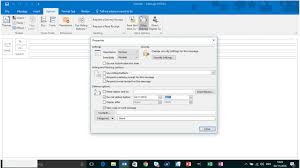
- Recipients Options: In the “Message” tab, click on the “Options” button and then select “No reminder before forwarding”.
- Schedule Forward: Click on the “Forward” button and choose the option to schedule forward.
Programming Forward Mail Outlook: Web
If you prefer using the web version of Outlook, follow these steps:
- Sign in: Log in to your Outlook account via the web browser.
- Compose a New Message: Click on the “New Email” button and fill out the email with the necessary details.
- Schedule Forward: In the top right corner, click on the arrow icon next to the “Forward” button and select the option to schedule forward.
Programming Forward Mail Outlook: Mac
If you’re using Microsoft Outlook on a Mac, follow these steps:
- Check Your Version: Ensure that you have at least Outlook 2016 for Mac 15.36.1 Or later versions.
- Start The Software: Launch Outlook as you normally would.
- Compose a New Message: Click on the “New Email” button and fill out the email with the necessary details.
- Schedule Forward: In the top right corner, click on the arrow icon next to the “Forward” button and select the option to schedule forward.
Programming Forward Mail Outlook: Android
If you’re using Microsoft Outlook on an Android device, follow these steps:
- Compose a New Message: Tap on the three dots in the bottom left corner and select the option to compose a new email.
- Fill Out The Email: Fill out the email with the necessary details, including the recipient, subject, body, and any attachments.
- Schedule Forward: Tap on the “Forward” button and choose the option to schedule forward.
Programming Forward Mail Outlook: Iphone
If you’re using Microsoft Outlook on an iPhone or iPad, follow these steps:
- Compose a New Message: Tap on the pencil icon in the bottom left corner and select the option to compose a new email.
- Fill Out The Email: Fill out the email with the necessary details, including the recipient, subject, body, and any attachments.
- Schedule Forward: Tap on the “Forward” button and choose the option to schedule forward.
Alternatives
If you don’t meet the requirements for programming forward mail in Microsoft Outlook, consider using online services like Later.Io or Boomerang, which offer similar features.


