
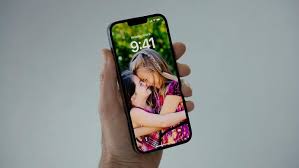
How to Take a Screenshot on Iphone 13: A Step-by-step Guide
Are you new to the world of iPhones and wondering how to take a screenshot? Look no further! In this article, we’ll guide you through the process of taking a screenshot on your iPhone 13. Whether you’re using an iPhone 13, iPhone 13 Pro, or iPhone 13 Mini, the steps are the same.
Why Take a Screenshot on Iphone 13?
Taking a screenshot on your iPhone 13 can be useful in various situations. You might want to capture a moment from a conversation, save a web page for later, or share a funny meme with friends. Whatever the reason, taking a screenshot is a breeze on the iPhone 13.
How to Take a Screenshot on Iphone 13
There are several ways to take a screenshot on your iPhone 13. We’ll cover each method in detail below.
Method 1: Using The Side Buttons
This is the most common way to take a screenshot on your iPhone 13.
- Open The Screen You Want to Capture: This can be any app, web page, or document.
- Press And Hold The Volume Up Button (located on the left side of the phone) and the Side button (located on the right side of the phone) simultaneously.
- Release The Buttons When You Hear The Camera Shutter Sound.
Your screenshot will be saved automatically to the Photos app, in the Screenshots album.
Method 2: Using Assistivetouch
If the above method doesn’t work for you, or if you prefer a different approach, you can use AssistiveTouch.
- Go to Settings > Accessibility > Touch > Assistivetouch.
- Turn on Assistivetouch.
- Tap The Assistivetouch Icon (a circular shape with three lines) and select Device > More > Screenshot.
- Take Your Screenshot by tapping the icon again.
Method 3: Using Third-party Apps
There are several third-party apps available that can help you take screenshots on your iPhone 13. Some popular options include:
- Picsew (free, with in-app purchases)
- Tailor (free, with watermark)
- Stitch It (free, with ads and limitations)
- StitchPics (paid, with additional features)
These apps can help you customize and edit your screenshots as well.
How to Take a Long Screenshot on Iphone 13
If you need to take a screenshot of an entire web page or document, follow these steps:
- Open Safari or The App where you want to capture the content.
- Press And Hold The Volume Up Button and the Side button simultaneously.
- Tap The “Entire Page” Option when it appears at the bottom left corner of the screen.
- Save Your Screenshot by tapping the “Save PDF to Files” or “Save Image to Photos” option.
How to Take a Screenshot on Iphone 13 Pro And Iphone 13 Mini
The procedures for taking screenshots on iPhone 13 Pro, iPhone 13 Pro Max, and iPhone 13 Mini are identical to those described above. You can follow the same steps as outlined in Method 1 or Method 2.
Conclusion
Taking a screenshot on your iPhone 13 is a straightforward process that can be completed using various methods. Whether you prefer using the side buttons, AssistiveTouch, or third-party apps, there’s an approach that suits your needs. We hope this article has been helpful in guiding you through the process of taking screenshots on your iPhone 13.
Frequently Asked Questions
- Q: How do I Take a Screenshot Without Using The Home Button?
A: You can use AssistiveTouch to take a screenshot without using the Home button. - Q: Can I Edit my Screenshot After Taking It?
A: Yes, you can edit your screenshot using third-party apps or built-in photo editing tools. - Q: How do I Save my Screenshot to Icloud Drive?
A: You can save your screenshot to iCloud Drive by tapping the “Save to Files” option and selecting iCloud Drive as the destination. - Q: Can I Take a Screenshot of a Video?
A: Yes, you can take a screenshot of a video playing on your iPhone 13. - Q: How do I Share my Screenshot With Others?
A: You can share your screenshot by tapping the “Share” option and selecting the desired sharing method (e.G., Via email, messaging app, or social media). - Q: Can I Take a Screenshot of a Locked Screen?
A: Yes, you can take a screenshot of a locked screen using AssistiveTouch.
We hope this article has answered your questions about taking screenshots on iPhone 13!


