
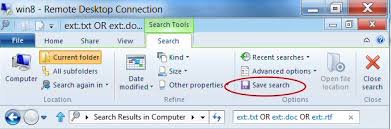
How to Search a File on Your PC
Are you tired of searching for files on your computer like finding a needle in a haystack? Do you wish there was an easier way to find that one document or file you need? Well, you’re in luck! In this article, we’ll show you how to search a file on your PC using various methods.
Understanding The Basics
Before we dive into the details, it’s essential to understand the basics of searching files on your computer. When you try to find a file on your PC, Windows or macOS will scan through all the folders and files on your device to locate what you’re looking for. The search process can be time-consuming, especially if you have a large collection of files.
Searching Files on Windows
To search a file on Windows 10, follow these steps:
- Click on the Start button and select System > Search bar.
- Type in the name of the file or folder you’re looking for in the search bar.
- Press Enter to execute the search.
- The results will be displayed on your screen. You can click on a result to open it.
Tips And Tricks
Here are some additional tips to help you search files more efficiently:
- Use specific keywords: When searching for a file, use specific keywords related to its content or name.
- Filter by date: If you’re looking for a file created within a certain time frame, filter the results by date.
- Use folders: Organize your files into folders and subfolders to make it easier to find what you need.
Searching Files on Macos
To search a file on macOS, follow these steps:
- Click on the Spotlight icon in the top right corner of your screen.
- Type in the name of the file or folder you’re looking for in the Spotlight search bar.
- Press Enter to execute the search.
- The results will be displayed on your screen. You can click on a result to open it.
Searching Files on Linux
To search a file on Linux, follow these steps:
- Click on the Files icon in the top left corner of your screen.
- Type in the name of the file or folder you’re looking for in the search bar.
- Press Enter to execute the search.
- The results will be displayed on your screen. You can click on a result to open it.
Searching Files on Google
To search files on Google, follow these steps:
- Go to the Google homepage and click on the Search icon.
- Type in the name of the file or folder you’re looking for in the search bar.
- Press Enter to execute the search.
- The results will be displayed on your screen. You can click on a result to open it.
Searching Files on Android
To search files on an Android device, follow these steps:
- Open the Google Drive app and tap on the menu icon (three horizontal lines).
- Tap on “Search” and type in the name of the file or folder you’re looking for.
- Press Enter to execute the search.
- The results will be displayed on your screen. You can click on a result to open it.
Searching Files on Iphone
To search files on an iPhone, follow these steps:
- Open the Files app and tap on the menu icon (three horizontal lines).
- Tap on “Search” and type in the name of the file or folder you’re looking for.
- Press Enter to execute the search.
- The results will be displayed on your screen. You can click on a result to open it.
Conclusion
Searching files on your PC can be a daunting task, but with the right tools and techniques, it becomes much easier. In this article, we’ve shown you how to search files on Windows, macOS, Linux, Google, Android, and iPhone devices. By following these steps and tips, you’ll be able to find what you need quickly and efficiently.
Frequently Asked Questions
- Q: How do I Search For a File That’s Not in my Computer?
A: If the file is not on your device, try searching online using Google or other search engines. - Q: Can I Search For Files by Date Created?
A: Yes, you can filter the results by date created when searching for files. - Q: How do I Search For Files in a Specific Folder?
A: You can search for files within a specific folder by typing its name in the search bar along with the file name. - Q: Can I Use Keywords to Search For Files?
A: Yes, using specific keywords related to the content or name of the file can help you find what you need quickly. - Q: How do I Order my Search Results?
A: You can order your search results by date created, size, and type. - Q: Can I Use a Third-party App to Search For Files?
A: Yes, there are several third-party apps available that can help you search for files on your device. -
Q: How do I Delete Unnecessary Files From my Search Results?
A: You can delete unnecessary files by clicking on the “Trash” icon in the top right corner of your screen. -
Q: Can I Save my Search History?
A: Yes, you can save your search history to refer back to later.


