
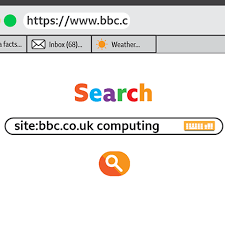
How to Search a Word on a Website: A Step-by-step Guide
Are you tired of searching for a specific word or phrase on a website, only to end up with irrelevant results? Look no further! In this article, we will show you how to search a word on a website using various browsers and devices.
Searching a Word on a PC Website
If you are using a PC, searching for a word on a website is relatively straightforward. Here’s how:
Google Chrome
To search for a word on a Google Chrome browser, follow these steps:
- Open The Website: Open the website where you want to search for a word.
- Click on The Three Dots: Click on the three dots in the top right corner of the browser window.
- Select “Find”: Select the option that says “Find”.
- Type Your Search Term: Type the word or phrase you are looking for in the search bar.
- Hit Enter: Hit enter to start the search.
Tips And Variations
- If you want to highlight all instances of a word, select the “Highlight” option.
- To search for entire words only, select the “Words” option.
- You can also use keyboard shortcuts to access the search bar: Ctrl + F (Windows) or Command + F (Mac).
Microsoft Edge
If you are using Microsoft Edge, searching for a word on a website is very similar to Google Chrome:
- Open The Website: Open the website where you want to search for a word.
- Click on The Three Dots: Click on the three dots in the top right corner of the browser window.
- Select “Find”: Select the option that says “Find”.
- Type Your Search Term: Type the word or phrase you are looking for in the search bar.
- Hit Enter: Hit enter to start the search.
Mozilla Firefox
To search for a word on a Mozilla Firefox browser, follow these steps:
- Open The Website: Open the website where you want to search for a word.
- Click on The Three Dots: Click on the three dots in the top right corner of the browser window.
- Select “Find”: Select the option that says “Find”.
- Type Your Search Term: Type the word or phrase you are looking for in the search bar.
- Hit Enter: Hit enter to start the search.
Safari
If you are using Safari on a Mac, searching for a word on a website is slightly different:
- Open The Website: Open the website where you want to search for a word.
- Click on “Modify”: Click on the “Modify” menu option in the top bar of the browser window.
- Select “Search”: Select the “Search” option from the dropdown menu.
- Type Your Search Term: Type the word or phrase you are looking for in the search bar.
- Hit Enter: Hit enter to start the search.
Searching a Word on an Android Device
If you are using an Android device, searching for a word on a website is relatively straightforward:
Google Chrome
To search for a word on a Google Chrome browser on an Android device, follow these steps:
- Open The Website: Open the website where you want to search for a word.
- Tap The Three Dots: Tap the three dots in the top right corner of the browser window.
- Select “Find”: Select the option that says “Find”.
- Type Your Search Term: Type the word or phrase you are looking for in the search bar.
- Hit Enter: Hit enter to start the search.
Mozilla Firefox
To search for a word on a Mozilla Firefox browser on an Android device, follow these steps:
- Open The Website: Open the website where you want to search for a word.
- Tap The Three Dots: Tap the three dots in the top right corner of the browser window.
- Select “Find”: Select the option that says “Find”.
- Type Your Search Term: Type the word or phrase you are looking for in the search bar.
- Hit Enter: Hit enter to start the search.
Searching a Word on an Iphone
If you are using an iPhone, searching for a word on a website is relatively straightforward:
Safari
To search for a word on a Safari browser on an iPhone, follow these steps:
- Open The Website: Open the website where you want to search for a word.
- Tap The “Share” Button: Tap the “Share” button in the top right corner of the browser window.
- Select “Find”: Select the option that says “Find”.
- Type Your Search Term: Type the word or phrase you are looking for in the search bar.
- Hit Enter: Hit enter to start the search.
Conclusion
Searching a word on a website can be a simple process if you know how to do it. Whether you’re using Google Chrome, Microsoft Edge, Mozilla Firefox, Safari, or an Android device, the steps are relatively straightforward. Remember to use keyboard shortcuts, select options like “Find” and “Highlight”, and use the “site” operator with Google to get accurate results.
Frequently Asked Questions
- Q: How do I Search For a Word on a Website Using Google Chrome?
A: To search for a word on a website using Google Chrome, click on the three dots in the top right corner of the browser window and select “Find”. - Q: Can I Use Keyboard Shortcuts to Access The Search Bar?
A: Yes, you can use keyboard shortcuts like Ctrl + F (Windows) or Command + F (Mac) to access the search bar. - Q: How do I Highlight All Instances of a Word on a Website?
A: To highlight all instances of a word on a website, select the “Highlight” option when searching for a word. - Q: Can I Use Google to Search a Word on a Website?
A: Yes, you can use Google to search a word on a website by using the “site” operator followed by the address of the website where you want to search for the word.


