
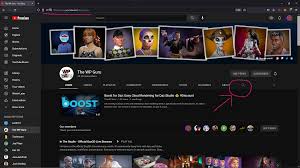
How to Search on Youtube: A Comprehensive Guide
Are you tired of searching for videos on YouTube only to find yourself lost in a sea of irrelevant results? Do you struggle to remember which channel or video you were looking for? Look no further! In this article, we’ll show you how to search like a pro on YouTube.
Understanding The Youtube Search Bar
The first step to effective searching on YouTube is to understand the search bar. Located at the top of the page, the search bar allows you to input keywords related to your query. Simply type in what you’re looking for and press enter. But that’s not all – the search bar also offers suggestions as you type, making it easier to find what you want.
Searching For Videos on Youtube
To search for a specific video on YouTube, follow these steps:
- Open the YouTube app or website.
- Tap on the search icon (magnifying glass) at the top of the screen.
- Type in the name of the video or channel you’re looking for.
- Press enter to see a list of related videos.
Filtering Search Results
But what if you want to narrow down your search results? That’s where filtering comes in. On YouTube, you can filter search results by:
- Date (newest first or oldest first)
- Relevance
- View count
- Rating
To access these filters, tap on the “Filters” button and select your desired options.
Searching For Channels on Youtube
But what if you’re not looking for a specific video? Maybe you want to search for channels related to a particular topic. Here’s how:
- Open the YouTube app or website.
- Tap on the search icon (magnifying glass) at the top of the screen.
- Type in the name of the channel or topic you’re interested in.
- Press enter to see a list of related channels.
Searching For Playlists on Youtube
But what about searching for playlists? Here’s how:
- Open the YouTube app or website.
- Tap on the search icon (magnifying glass) at the top of the screen.
- Type in the name of the playlist you’re interested in.
- Press enter to see a list of related playlists.
Searching For Shorts on Youtube
But what about searching for shorts? Shorts are short videos that can be up to 60 seconds long. Here’s how to search for them:
- Open the YouTube app or website.
- Tap on the “Shorts” tab at the bottom of the screen (on mobile devices).
- Type in the name of the short you’re interested in.
- Press enter to see a list of related shorts.
Searching For Movies on Youtube
But what about searching for movies? Here’s how:
- Open the YouTube app or website.
- Tap on the “Movies” tab at the bottom of the screen (on mobile devices).
- Type in the name of the movie you’re interested in.
- Press enter to see a list of related movies.
Searching by Chronology
But what if you want to search for videos you’ve already watched? Here’s how:
- Open the YouTube app or website.
- Tap on your profile picture at the top right corner of the screen (on mobile devices).
- Select “Chronology” from the menu.
- Type in the name of the video you’re looking for.
Conclusion
And there you have it – a comprehensive guide to searching on YouTube. Whether you’re looking for videos, channels, playlists, or shorts, we’ve got you covered. Remember to use specific keywords and filters to narrow down your search results. Happy searching!
Faqs
- Q: How do I Search For Videos on Youtube?
A: Simply type in the name of the video or channel you’re looking for in the search bar. - Q: Can I Filter Search Results on Youtube?
A: Yes, you can filter search results by date, relevance, view count, and rating. - Q: How do I Search For Channels on Youtube?
A: Type in the name of the channel or topic you’re interested in and press enter to see a list of related channels. - Q: Can I Search For Playlists on Youtube?
A: Yes, type in the name of the playlist you’re interested in and press enter to see a list of related playlists. - Q: How do I Search For Shorts on Youtube?
A: Open the YouTube app or website and tap on the “Shorts” tab at the bottom of the screen (on mobile devices). - Q: Can I Search For Movies on Youtube?
A: Yes, type in the name of the movie you’re interested in and press enter to see a list of related movies. - Q: How do I Search by Chronology on Youtube?
A: Tap on your profile picture at the top right corner of the screen (on mobile devices) and select “Chronology” from the menu.


