
Unlocking The Secrets of Facebook Groups: A Comprehensive Guide
Are you curious about how to see the clusters of a person on Facebook? Do you want to discover which groups your friends are part of? Look no further! In this article, we will guide you through the process of visualizing Facebook groups from both smartphones and computers.
Understanding Facebook Clusters
Before diving into the procedure, it’s essential to understand what Facebook clusters are. A cluster is a group of people who share similar interests or hobbies. These groups can be public or private, and they play a significant role in connecting people on the platform. However, not all clusters are visible to everyone.
Why Can’t I See All Facebook Clusters?
As you may have noticed, Facebook has changed its policies regarding cluster visibility. While it’s possible to see the list of pages followed by a user, it’s no longer allowed to visualize the list of clusters they’re enrolled in. This limitation applies to both public and private clusters.
But There’s an Alternative!
Fortunately, there is a workaround that allows you to discover which clusters a person is part of. This method involves accessing the cluster section on Facebook, where you can find the groups the user has joined or been added to by others. Keep in mind that this procedure only works for public clusters and private clusters with specific settings.
How to See Clusters on Facebook From Your Smartphone
To access your clusters on Facebook using a smartphone, follow these steps:
- Open the Facebook app on your Android or iOS device.
- Tap on the three horizontal lines (☰) at the top-right corner of the screen.
- Select “Clusters” from the menu.
- Choose “Your Clusters” to view the groups you’ve created or are part of as an administrator/moderator.
- To modify cluster settings, tap on the “Fissati” option and select “Modify.”
- You can also adjust notification preferences by tapping on the three dots (⋯) next to each cluster.
How to See Clusters on Facebook From Your Computer
To access your clusters on Facebook using a computer:
- Log in to your Facebook account.
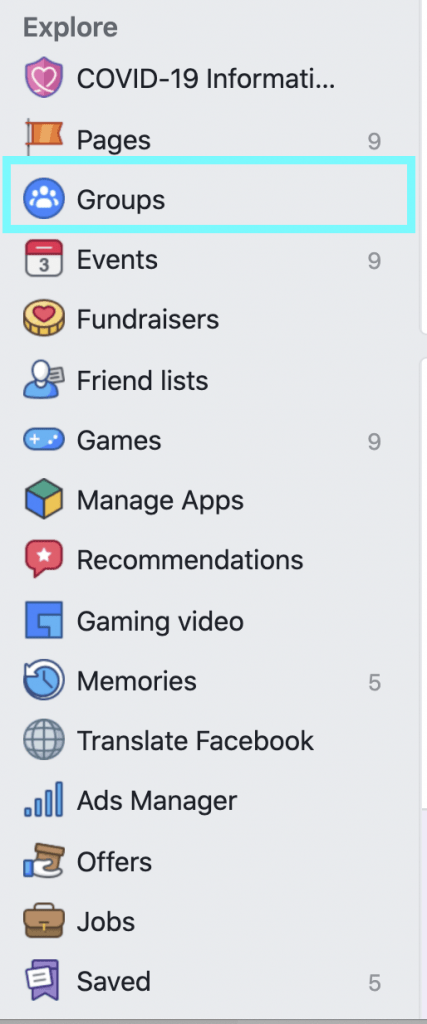
- Click on the “Clusters” option in the left-hand menu or click on the square icon (????) and select “Clusters.”
- Choose “Your Clusters” to view the groups you’ve created or are part of as an administrator/moderator.
- To modify cluster settings, click on each individual cluster and adjust preferences as needed.
How to See Clusters of Friends on Facebook
If you want to see which clusters your friends are part of:
- Open the Facebook app on your smartphone.
- Tap on the three horizontal lines (☰) at the top-right corner of the screen.
- Select “Clusters” and choose “Suggested.”
- Scroll down to find the “Clusters of Friends” section.
- Click on the “#Display all” option to view the complete list of friends enrolled in each cluster.
Can I See Clusters if They’re Private?
Unfortunately, private clusters are not visible unless you’ve been added as a member or have specific permission from the cluster administrators.
Conclusion
In conclusion, while it’s not possible to see all Facebook clusters due to platform limitations, there is a workaround that allows you to discover which groups your friends and acquaintances are part of. By following these steps, you can unlock the secrets of Facebook clusters and stay connected with people who share similar interests.
Frequently Asked Questions
Q: Can I see all Facebook clusters?
A: No, due to platform limitations, it’s not possible to see all Facebook clusters.
Q: How do I discover which clusters my friends are part of?
A: You can access the “Clusters of Friends” section on Facebook and view the complete list of friends enrolled in each cluster.
Q: Can I see private Facebook clusters?
A: Only if you’ve been added as a member or have specific permission from the cluster administrators.
Q: How do I modify cluster settings?
A: On smartphones, tap on “Fissati” and select “Modify.” On computers, click on each individual cluster and adjust preferences as needed.
Q: Can I adjust notification preferences for clusters?
A: Yes, you can modify notification preferences by tapping on the three dots (⋯) next to each cluster.
Q: How do I leave a Facebook cluster?
A: On smartphones, tap on the cluster name and select “Leave Cluster.” On computers, click on the cluster name and select “Abandon Cluster.”
Q: Can I join a private Facebook cluster?
A: No, unless you’ve been specifically invited by the cluster administrators.
Q: How do I request to join a private Facebook cluster?
A: Click on the “Join Cluster” button and wait for the cluster administrators to review your request.


