
Understanding Active Subscriptions on Your Iphone
As a proud owner of an iPhone, it’s essential to be aware of the subscriptions you’ve made through the App Store or other services. Not knowing what subscriptions you have can lead to unexpected charges or expired subscriptions. In this guide, we’ll walk you through how to view and manage your active subscriptions on your iPhone.
Preliminary Information
Before diving into the step-by-step process, it’s crucial to understand that there are different types of subscriptions available on the App Store. These include:
- Subscriptions Billed Directly by Apple: These are services like Apple Music, Apple TV+, and iCloud+.
- Subscriptions Managed Through External Platforms: These can be third-party apps or services that you’ve subscribed to.
Managing Subscriptions in The App Store
To view your active subscriptions on the App Store:
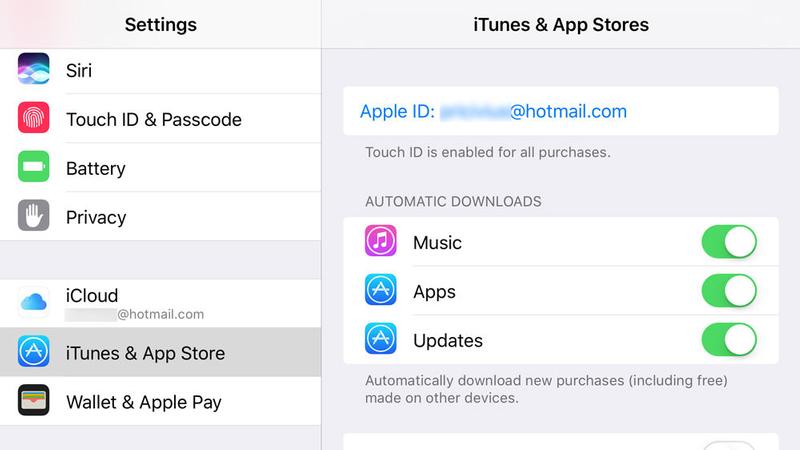
- Open the Settings app on your iPhone.
- Tap on your profile picture at the top of the screen.
- Select “Subscriptions” from the menu.
- You’ll see a list of all your active and pending subscriptions.
Viewing Icloud Subscriptions
To view your iCloud subscription:
- Open the Settings app on your iPhone.
- Tap on “iCloud.”
- Select “Manage Storage” or “Settings” to view your current storage plan and available space.
- If you have an active iCloud+ subscription, it will be displayed with its monthly cost and renewal date.
Managing Subscriptions in External Platforms
If you’ve subscribed to a service through an external platform:
- Open the app or website associated with your subscription.
- Log in to your account.
- Look for the “Subscription” or “Account” section, where you’ll find information about your active subscription.
Troubleshooting Common Issues
If you’re experiencing difficulties viewing or managing your subscriptions:
- Check if there are any issues with the App Store or external platform’s servers.
- Ensure that you have the latest version of iOS installed on your iPhone.
- If you’re still having trouble, consider contacting Apple Support for assistance.
Conclusion
Managing your active subscriptions on your iPhone is a straightforward process. By following these steps and tips, you can ensure that you stay up-to-date with your subscriptions and avoid any unwanted charges or expired services.
Frequently Asked Questions (FAQs)
- Q: How do I Cancel an Apple Music Subscription?
A: To cancel your Apple Music subscription, go to Settings > [Your Name] > Subscriptions, then tap on the “Cancel Subscription” button. - Q: Can I View my Icloud Storage Usage Without a Paid Subscription?
A: Yes, you can view your iCloud storage usage and available space by going to Settings > iCloud > Manage Storage. - Q: How do I Contact Apple Support For Help With Managing Subscriptions?
A: You can reach out to Apple Support through their website, phone number, or in-person at an Apple Store.


