
How to See Battery Airpods on Iphone: A Step-by-step Guide
Are you an Apple fan who’s wondering how to check the battery level of your AirPods? Look no further! In this article, we’ll guide you through the process of checking the battery level of your AirPods using your iPhone.
What You Need to Know About Airpods Battery Life
Before we dive into the nitty-gritty of how to see the battery level of your AirPods, let’s quickly discuss what you need to know about their battery life. The AirPods are designed to be used wirelessly, and they can last up to 24 hours on a single charge, depending on usage. Each earbud has its own battery that can last up to 4.5 Hours of listening time or 3.5 Hours of talk time. If you’re using the AirPods Pro, you can get an additional hour of listening time by simply placing them in their charging case for 5 minutes.
Method 1: Checking Battery Level Using The Charging Case
The first method to check the battery level of your AirPods is by using their charging case. Here’s how:
- Open the charging case near your iPhone.
- A pop-up window will appear on your iPhone screen showing the battery level of the charging case and each earbud.
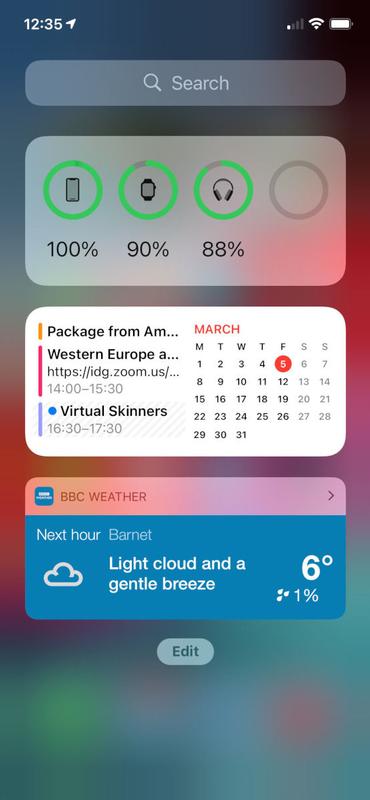
Method 2: Using The Batteries Widget
If you want to keep an eye on the battery level of your AirPods without having to open their charging case, you can use the Batteries widget. Here’s how:
- Swipe right from the home screen or lock screen to access the Today view.
- Tap on the “Batteries” widget.
- You’ll see a list of devices connected to your iPhone, including your AirPods, along with their battery levels.
Method 3: Using Siri
If you don’t want to physically interact with your iPhone or charging case, you can use Siri to check the battery level of your AirPods. Here’s how:
- Activate Siri by saying “Hey Siri” (or double-clicking on an earbud for older models).
- Ask Siri to tell you the battery level of your AirPods.
Method 4: Checking Battery Level Without Iphone
If you don’t have access to your iPhone, you can still check the battery level of your AirPods using their charging case or a third-party app on an Android device. Here’s how:
- Look at the indicator light on the front of the charging case.
- If it’s green, the AirPods are fully charged. If it’s yellow, they’re running low.
Frequently Asked Questions (FAQs)
Here are some frequently asked questions about checking the battery level of your AirPods:
- Q: How Long Does it Take to Charge my Airpods?
A: It takes around 15 minutes to get an hour’s worth of listening time with the AirPods Pro, and 5 minutes to get an additional hour of listening time. - Q: Can I Use my Airpods Without a Charging Case?
A: Yes, you can use your AirPods without a charging case, but they will only last for around 4-5 hours on a single charge. - Q: How do I Know When my Airpods Are Fully Charged?
A: The indicator light on the front of the charging case will turn green when your AirPods are fully charged.
Conclusion
In conclusion, checking the battery level of your AirPods is easier than you think! Whether you use the charging case method, Batteries widget, Siri, or a third-party app, you can stay informed about their battery life. We hope this article has helped you understand how to see battery AirPods on iPhone.


