
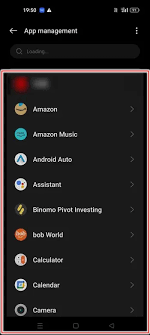
How to See All Apps Downloaded on Your Device
Are you curious about what apps are taking up space on your smartphone or tablet? Do you want to know which ones you can uninstall to free up storage space? Look no further! In this article, we’ll show you how to see all the apps downloaded on your device, regardless of whether it’s an Android, iOS, Windows, or macOS device.
Why See All Apps Downloaded is Important
With so many apps available for download, it’s easy to lose track of which ones you’ve actually installed. Seeing all the apps downloaded on your device can help you:
- Identify which apps are taking up storage space
- Decide which apps to uninstall to free up space
- Keep track of your app usage and preferences
How to See All Apps Downloaded on Android
To see all the apps downloaded on your Android device, follow these steps:
- Open the Google Play Store app.
- Tap the menu icon (three horizontal lines) in the top left corner.
- Select “My apps & games” from the dropdown menu.
- Tap on the “Installed” tab to view a list of all installed apps.
- To see a list of uninstalled apps, tap on the “Not installed” tab.
How to See All Apps Downloaded on Ios/ipados
To see all the apps downloaded on your iOS or iPadOS device, follow these steps:
- Open the App Store app.
- Tap on your profile icon in the top right corner.
- Select “Purchased” from the dropdown menu.
- Tap on the “Not on this iPhone/iPad” tab to view a list of all apps purchased but not installed.
How to See All Apps Downloaded on Windows
To see all the apps downloaded on your Windows device, follow these steps:
- Open the Microsoft Store app.
- Click on the menu icon (three horizontal lines) in the top left corner.
- Select “Account” from the dropdown menu.
- Click on the “Purchased” tab to view a list of all purchased apps.
How to See All Apps Downloaded on Macos
To see all the apps downloaded on your macOS device, follow these steps:
- Open the App Store app.
- Click on your profile icon in the top right corner.
- Select “Purchased” from the dropdown menu.
- Click on the “Not installed” tab to view a list of all purchased but not installed apps.
Troubleshooting Tips
If you’re having trouble seeing all the apps downloaded on your device, try these troubleshooting tips:
- Make sure you’re logged in with the correct account (Google, Apple, or Microsoft).
- Check if you have any issues with your internet connection.
- Try restarting your device and then checking again.
Conclusion
Seeing all the apps downloaded on your device is an easy way to keep track of your app usage and preferences. Whether you’re using an Android, iOS, Windows, or macOS device, following the steps outlined in this article will help you see a complete list of installed and uninstalled apps. Remember to regularly review and clean up your app library to ensure a smooth user experience.
Frequently Asked Questions
-
Q: How do I See All The Apps Downloaded on my Android Device?
A: To see all the apps downloaded on your Android device, open the Google Play Store app, tap the menu icon, select “My apps & games,” and then tap on the “Installed” tab. -
Q: Can I See a List of Uninstalled Apps on my Ios Device?
A: Yes, you can see a list of uninstalled apps by tapping on your profile icon in the App Store app, selecting “Purchased,” and then tapping on the “Not on this iPhone/iPad” tab. -
Q: How do I See All The Apps Downloaded on my Windows Device?
A: To see all the apps downloaded on your Windows device, open the Microsoft Store app, click on the menu icon, select “Account,” and then click on the “Purchased” tab. -
Q: Can I See a List of Uninstalled Apps on my Macos Device?
A: Yes, you can see a list of uninstalled apps by clicking on your profile icon in the App Store app, selecting “Purchased,” and then clicking on the “Not installed” tab. -
Q: What if I’m Having Trouble Seeing All The Apps Downloaded on my Device?
A: Try troubleshooting tips such as checking your internet connection, restarting your device, or logging out and back into your account. -
Q: How Often Should I Review And Clean up my App Library?
A: It’s a good idea to regularly review and clean up your app library every few months to ensure a smooth user experience. -
Q: Can I See All The Apps Downloaded on my Device Even if It’s Not Connected to Wi-fi?
A: Yes, you can still see all the apps downloaded on your device even if it’s not connected to Wi-Fi. -
Q: How do I Uninstall an App That Won’t Uninstall?
A: Try restarting your device or contacting the app developer for assistance with uninstalling the app.


