
How to See Your Amazon Balance: A Step-by-step Guide
Are you wondering how to check your Amazon balance? Look no further! In this article, we will guide you through the process of checking your Amazon balance using various devices, including smartphones, tablets, and computers.
Why Check Your Amazon Balance?
Before we dive into the step-by-step instructions, let’s quickly explain why it’s essential to keep an eye on your Amazon balance. By monitoring your account regularly, you can:
- Track the status of your refunds
- Check the remaining balance of your gift cards
- Keep track of your purchase history
Checking Your Amazon Balance From a Smartphone or Tablet
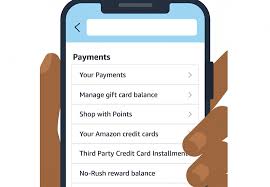
To check your Amazon balance using your smartphone or tablet, follow these steps:
- Access Your Amazon Account: Open the Amazon app on your device and log in to your account.
- Tap on The Menu Icon: Tap on the three horizontal lines (or menu icon) at the top left corner of the screen.
- Scroll Down to Balance: Scroll down to the “Balance” section, which is usually located under “Account & Lists.”
- View Your Balance: You should now see your current balance displayed on the screen.
Checking Your Amazon Balance From a Computer
If you prefer to check your Amazon balance using a computer, follow these steps:
- Access Your Amazon Account: Log in to your Amazon account on a web browser.
- Click on “Account & Lists”: Click on “Account & Lists” at the top right corner of the screen.
- Select “My Account”: Select “My Account” from the drop-down menu.
- View Your Balance: You should now see your current balance displayed on the screen.
Checking The Status of Refunds
If you’ve requested a refund for a purchase, follow these steps to check its status:
- Access Your Amazon Account: Log in to your Amazon account using a computer or mobile device.
- Click on “Account & Lists”: Click on “Account & Lists” at the top right corner of the screen (or tap on the menu icon).
- Select “My Commands”: Select “My Commands” from the drop-down menu.
- View Refund Status: Look for the refund status in the corresponding section.
Checking Your Educational Card Balance
If you’re a teacher or educator, you can check your Amazon balance using your educational card:
- Access Your Educational Card Account: Log in to your educational card account on the Amazon website.
- View Your Balance: You should now see your current balance displayed on the screen.
Checking Your 18app Amazon Balance
If you’re using the 18app service, follow these steps to check your Amazon balance:
- Access Your 18app Account: Log in to your 18app account using a computer or mobile device.
- View Your Balance: You should now see your current balance displayed on the screen.
Conclusion
In conclusion, checking your Amazon balance is a straightforward process that can be completed using various devices and services. By following these step-by-step instructions, you’ll be able to keep track of your account activity, including refunds and gift card balances.
Frequently Asked Questions (FAQs)
- Q: How do I Check my Amazon Balance?
A: You can check your Amazon balance using a smartphone, tablet, or computer by accessing your Amazon account. - Q: Can I Track The Status of my Refunds?
A: Yes, you can check the status of your refunds by logging in to your Amazon account and viewing the corresponding section. - Q: How do I Check my Educational Card Balance?
A: You can check your educational card balance by logging in to your educational card account on the Amazon website. - Q: Can I Use The 18app Service to Check my Amazon Balance?
A: Yes, you can use the 18app service to check your Amazon balance.
We hope this article has been helpful in answering your questions about checking your Amazon balance!


