
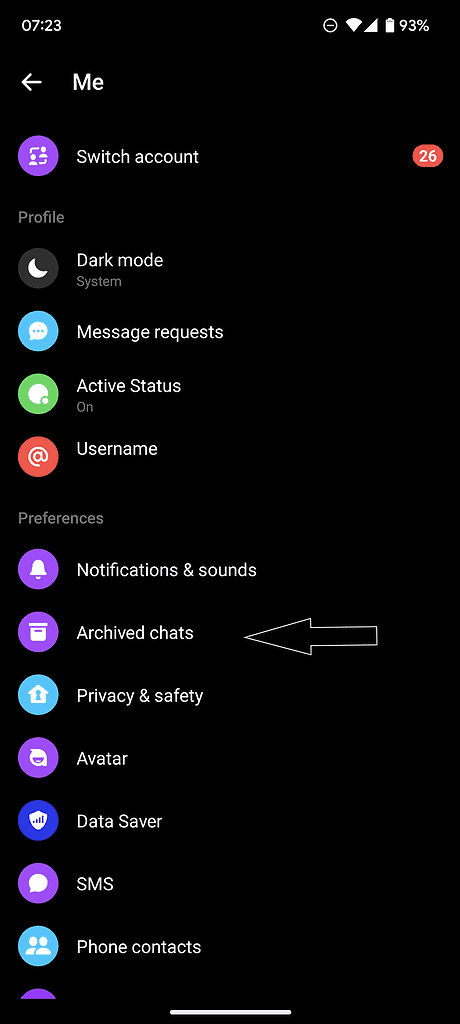
How to See Filed Chats on Messenger
Are you tired of losing track of important conversations on Messenger? Do you want to know how to see filed chats on your device? Look no further! In this article, we will guide you through the steps to view filed chats on Messenger, whether you’re using an Android or iPhone.
Understanding Filed Chats
Before we dive into the instructions, let’s understand what filed chats are. When you file a chat on Messenger, it means that conversation is moved from the “Chat” section to the “File” section. This allows you to keep conversations organized and easily accessible when needed.
Step-by-step Guide For Android Users
To see filed chats on your Android device:
- Launch The Messenger App: Open the Messenger app on your smartphone or tablet.
- Tap on Your Profile Picture: Tap on your profile picture in the top left corner of the screen.
- Select “Chat Filed”: From the menu, select “Chat Filed.”
- View Filed Chats: You will now see a list of all your filed chats. You can tap on any conversation to view its messages and send new ones.
Step-by-step Guide For Iphone Users
To see filed chats on your iPhone:
- Launch The Messenger App: Open the Messenger app on your smartphone.
- Tap on Your Profile Picture: Tap on your profile picture in the top left corner of the screen.
- Select “Chat Filed”: From the menu, select “Chat Filed.”
- View Filed Chats: You will now see a list of all your filed chats. To view a conversation, tap on it and scroll through its messages.
Step-by-step Guide For PC Users
To see filed chats on your computer:
- Open Messenger in Your Browser: Open the Facebook website and navigate to the Messenger section.
- Click on “See All”: Click on the “See All” button next to the Messenger icon.
- Select “Chat Filed”: From the menu, select “Chat Filed.”
- View Filed Chats: You will now see a list of all your filed chats. To view a conversation, click on it and scroll through its messages.
How to Delete a Filed Chat
If you want to delete a filed chat, follow these steps:
- Launch The Messenger App: Open the Messenger app on your device.
- Tap on Your Profile Picture: Tap on your profile picture in the top left corner of the screen.
- Select “Chat Filed”: From the menu, select “Chat Filed.”
- Long Press on a Conversation: Long press on the conversation you want to delete.
- Select “Delete”: Select “Delete” from the menu.
- Confirm Deletion: Confirm that you want to delete the chat.
How to Unfile a Chat
If you want to unfile a chat, follow these steps:
- Launch The Messenger App: Open the Messenger app on your device.
- Tap on Your Profile Picture: Tap on your profile picture in the top left corner of the screen.
- Select “Chat Filed”: From the menu, select “Chat Filed.”
- Long Press on a Conversation: Long press on the conversation you want to unfile.
- Select “Cancel Storage”: Select “Cancel Storage” from the menu.
Conclusion
Seeing filed chats on Messenger is a straightforward process that can be completed in just a few steps, regardless of whether you’re using an Android or iPhone device. We hope this guide has been helpful in answering your questions about filed chats and how to manage them on Messenger.
Frequently Asked Questions (FAQs)
- Q: What is The Difference Between a Filed Chat And a Regular Chat?
A: A filed chat is a conversation that has been moved from the “Chat” section to the “File” section for organization purposes. - Q: How do I File a Chat on Messenger?
A: To file a chat, long press on the conversation you want to file and select “File” from the menu. - Q: Can I Delete a Filed Chat?
A: Yes, you can delete a filed chat by following the steps outlined in this article. - Q: How do I Unfile a Chat on Messenger?
A: To unfile a chat, long press on the conversation and select “Cancel Storage” from the menu.


