
How to Recover a Deleted Post on Instagram: A Step-by-step Guide
Are you worried that you might have accidentally deleted a post on Instagram, and now it’s nowhere to be found? Don’t panic! In this article, we’ll show you how to recover a deleted post on Instagram using both your smartphone and computer.
Understanding The File Section on Instagram
Before we dive into the step-by-step guide, let’s quickly understand the File section on Instagram. The File section is where all your posts, including those that have been deleted, are stored. It’s like a digital archive of all your content.
Recovering a Deleted Post on Instagram Using Your Smartphone
To recover a deleted post on Instagram using your smartphone, follow these steps:
Step 1: Open The Instagram App
Open the Instagram app and log in to your account.
Step 2: Access The File Section
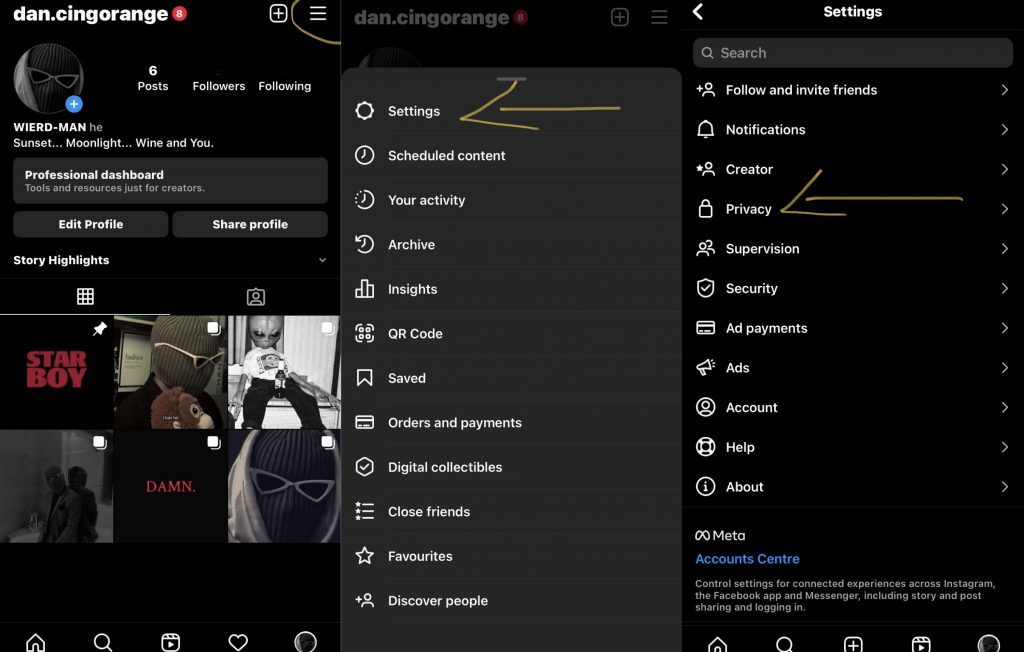
Tap on the three horizontal lines (☰) in the top-right corner of the screen. From the menu that appears, select “File”.
Step 3: Find Your Deleted Post
In the File section, you’ll see a list of all your posts, including those that have been deleted. Scroll through the list to find the post you want to recover.
Step 4: Recover Your Post
Tap on the post you want to recover and select “Display in profile” from the menu.
Recovering a Deleted Post on Instagram Using Your Computer
If you’re using your computer, you can recover a deleted post on Instagram by following these steps:
Step 1: Access The Instagram Website or App
Go to the Instagram website or open the app on your Windows computer.
Step 2: Access The Settings Menu
Click on the three dots (⋯) in the top-right corner of the screen. From the menu that appears, select “Settings” > “Privacy and safety”.
Step 3: Download Your Data
In the Privacy and safety section, click on the “Request download” option.
Step 4: Enter an Email Address
Enter an email address where you’d like to receive the download link. Instagram will send you a link to download your data, including deleted posts.
Step 5: Download Your Data
Click on the download link and select the format in which you want to receive your data (HTML or JSON).
Step 6: Access Your Deleted Post
Once you’ve downloaded your data, open the ZIP file and navigate to the “Archived posts” folder. You’ll find all your deleted posts there.
How to Re-post a Recovered Post on Instagram
If you’ve recovered a post that you want to re-post, follow these steps:
Step 1: Access The File Section
Open the Instagram app and access the File section as described above.
Step 2: Find Your Recovered Post
Find the post you want to re-post in the File section.
Step 3: Re-post Your Content
Tap on the post, select “Display in profile” from the menu, and your post will be re-published on your Instagram account.
How to Delete a Post on Instagram
If you’ve decided that you no longer want to keep a post on Instagram, follow these steps:
Step 1: Access The File Section
Open the Instagram app and access the File section as described above.
Step 2: Find Your Post
Find the post you want to delete in the File section.
Step 3: Delete Your Post
Tap on the post, select “Delete” from the menu, and confirm that you want to delete the post.
Conclusion:
Recovering a deleted post on Instagram is easier than you think. By following these simple steps, you can recover your post using either your smartphone or computer. Remember to always be careful when deleting posts, as they may be lost forever if not recovered in time.


