
Managing Background Processes on Your Device: A Comprehensive Guide
As a computer user, it’s essential to understand what processes are running in the background on your device. This knowledge can help you optimize performance, troubleshoot issues, and even prevent security threats.
What Are Background Processes?
Background processes are programs that run behind the scenes on your device without visible windows or interfaces. These processes can be necessary for system operations, such as updating software or maintaining connectivity, but they can also consume resources like CPU, memory, and disk space.
Why Should You Care About Background Processes?
Ignoring background processes can lead to:
- Performance Issues: Running too many background processes can slow down your device.
- Security Risks: Malicious processes can compromise your data or exploit vulnerabilities.
- Battery Drain: Unnecessary processes can consume battery life.
Managing Background Processes on Windows
Windows provides a built-in utility called Task Manager to manage background processes. Here’s how to use it:
- Press
Ctrl + Shift + Escto open Task Manager. - Click on the “Details” tab to view running processes.
- Sort processes by CPU, memory, or disk usage to identify resource-intensive programs.
- Right-click on a process and select “End task” to terminate it.
Managing Background Processes on Mac
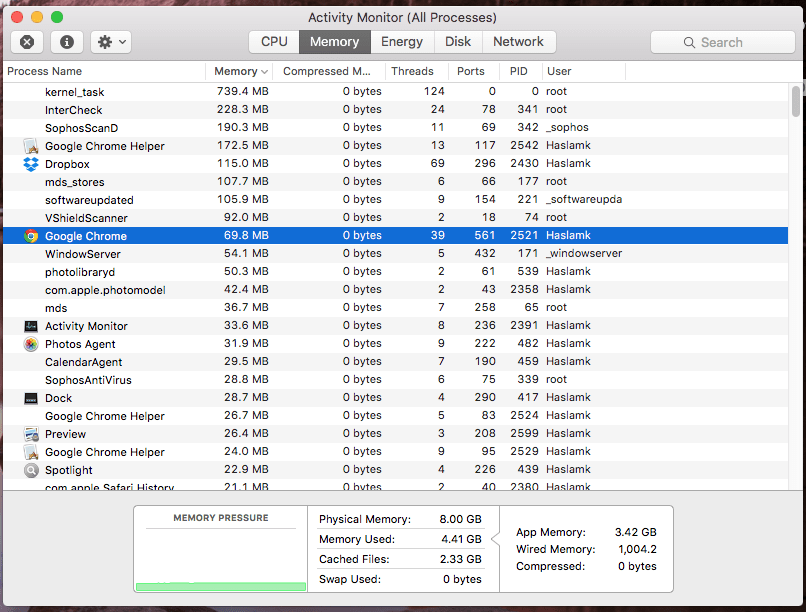
MacOS has its own utility called Activity Monitor for managing background processes:
- Click on the Apple menu and select “About This Mac.”
- Click on “System Report” and then select “Software” from the left menu.
- Find the “Activity Monitor” option and click on it.
- View running processes, including CPU, memory, and disk usage.
- Select a process and click on the “Quit Process” button to terminate it.
Managing Background Processes on Android
Android has two methods for managing background processes:
- Recent Apps: Long-press the Home button (or swipe up on newer devices) to view running apps.
- System Monitor: Download a third-party app like System Monitor to view and manage background processes.
Managing Background Processes on Iphone
IOS has no built-in utility for managing background processes directly, but you can:
- Use The App Switcher: Double-tap the Home button (or swipe left on newer devices) to view running apps.
- Close Unnecessary Apps: Swipe up on an app’s preview to close it.
Best Practices For Managing Background Processes
- Regularly check Task Manager or Activity Monitor to identify resource-intensive processes.
- Close unnecessary apps and background processes to free up resources.
- Be cautious when terminating system processes, as this can lead to instability or crashes.
By following these guidelines, you can effectively manage background processes on your device, ensuring optimal performance, security, and battery life.


