
How to See List Numbers Blocked on Android: A Step-by-step Guide
Are you tired of receiving unwanted calls from numbers that have been blocked on your Android device? Do you want to know how to see the list of numbers that have been blocked on your phone? Look no further! In this article, we will guide you through a step-by-step process on how to view and unblock numbers blocked on your Android smartphone.
Why Block Numbers on Your Android Device?
Blocking unwanted calls can be frustrating and time-consuming. By blocking numbers, you can prevent telemarketers, spammers, and other unwanted callers from reaching out to you. Additionally, if you have been harassed or threatened by a particular individual, blocking their number can help ensure your safety.
How to See List Numbers Blocked on Android
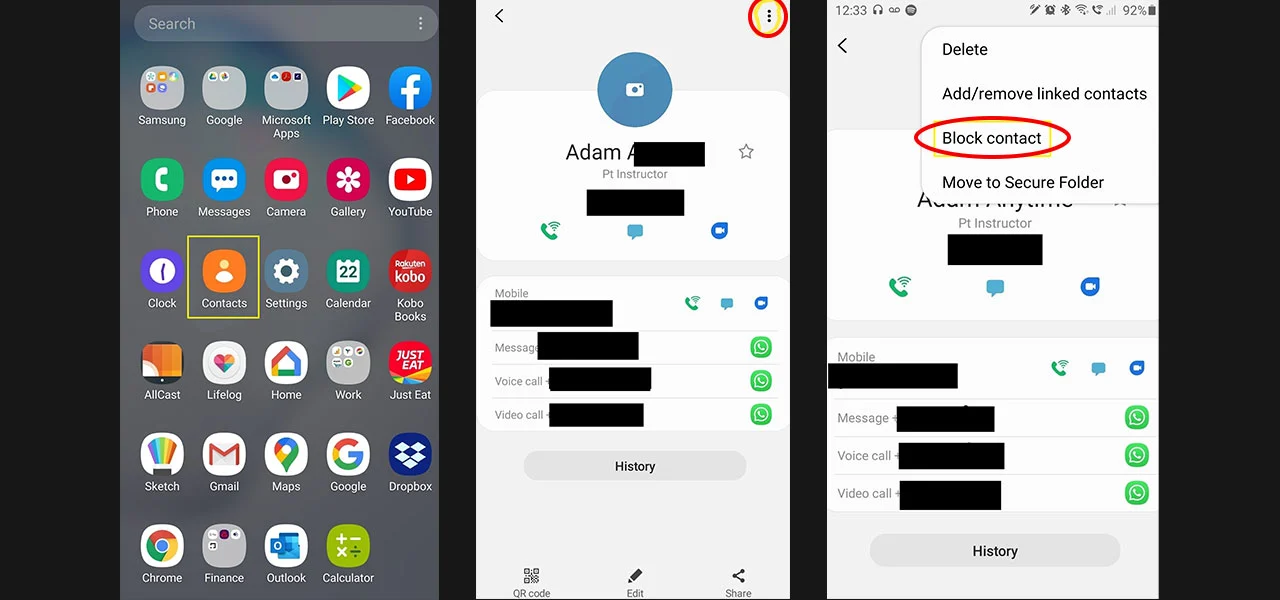
To view the list of blocked numbers on your Android device, follow these steps:
- Open The Phone App: First, open the phone app on your Android device.
- Access Settings: Tap on the three dots (…) located in the top right corner of the screen to access settings.
- Block Numbers: Scroll down and select “Blocked numbers” from the list of options.
- View Blocked Contacts: In this section, you will find a list of all the numbers that have been blocked on your device.
How to Unblock Numbers Blocked on Android
To unblock a number that has been previously blocked on your Android device, follow these steps:
- Open The Phone App: First, open the phone app on your Android device.
- Access Settings: Tap on the three dots (…) located in the top right corner of the screen to access settings.
- Block Numbers: Scroll down and select “Blocked numbers” from the list of options.
- Find The Number to Unblock: Locate the number you want to unblock from the list.
- Unblock Contact: Tap on the number and then tap on the ” Unblock” option.
Alternative Methods: Using Third-party Apps
If you’re not satisfied with the built-in method, there are third-party apps available that can help you block unwanted calls and view blocked numbers. Some popular options include:
- Truecaller
- Should I Answer
- Hiya: Block and ID Chiamante
These apps offer additional features such as blocking spam calls, identifying unknown callers, and providing detailed information about blocked numbers.
Using Third-party Apps to Block Numbers on Android
To block a number using one of these third-party apps, follow these steps:
- Download The App: Download and install the app of your choice from the Google Play Store.
- Configure The App: Follow the in-app instructions to configure the app and link it with your phone’s contact list.
- Block a Number: Tap on the “Block” option within the app to block a specific number.
Additional Features: Unblocking Numbers Blocked on Android
Some third-party apps, like Truecaller, also offer additional features such as unblocking numbers that have been previously blocked. To unblock a number using one of these apps, follow these steps:
- Open The App: Open the app you’ve chosen to use.
- Access Blocked Numbers: Locate the “Blocked numbers” section within the app.
- Find The Number to Unblock: Identify the number you want to unblock from the list.
- Unblock Contact: Tap on the “Unblock” option next to the number.
The Importance of Blocking Unwanted Calls
Blocking unwanted calls is an essential aspect of maintaining your digital safety and security. By taking control of who can contact you, you can prevent harassment, spamming, and other forms of cyber threats.
Conclusion
In conclusion, viewing blocked numbers on Android devices is a straightforward process that requires access to the phone app’s settings menu. Additionally, using third-party apps can provide additional features such as blocking spam calls, identifying unknown callers, and unblocking previously blocked numbers. By taking control of your digital safety and security, you can ensure a more peaceful and enjoyable mobile experience.
Frequently Asked Questions (FAQs)
- How do I See The List of Blocked Numbers on my Android Device?
To view the list of blocked numbers, open the phone app, access settings, and select “Blocked numbers” from the list. - Can I Unblock a Number That Was Previously Blocked on my Android Device?
Yes, you can unblock a number by accessing the phone app’s settings menu, selecting “Blocked numbers,” locating the number to unblock, and tapping on the “Unblock” option. - What Are Some Third-party Apps Available For Blocking Unwanted Calls on Android Devices?
Some popular options include Truecaller, Should I Answer, and Hiya: Block and ID Chiamante. - Can I Use Third-party Apps to Block Numbers That Have Been Previously Blocked on my Android Device?
Yes, many third-party apps offer the ability to unblock numbers that were previously blocked. - How do I Configure a Third-party App to Block Unwanted Calls on my Android Device?
To configure an app, download and install it from the Google Play Store, follow the in-app instructions, and link it with your phone’s contact list. -
What Features Should I Look For When Choosing a Third-party App to Block Unwanted Calls on my Android Device?
When selecting an app, consider factors such as spam call blocking, unknown caller identification, detailed information about blocked numbers, and unblocking capabilities. -
Can the phone manufacturer help me in case of any issues with the blocked list?
Yes, you can contact your phone’s manufacturer or visit their official website for assistance. -
Are there any free apps available that I can use to block unwanted calls on my Android device?
Yes, many third-party apps offer free versions or trials. -
How do I ensure that all blocked numbers are removed from the list when I upgrade my phone?
To avoid losing data, back up your phone’s contact list and settings before upgrading.


