
How to See Your Security Cameras on The Internet: A Step-by-step Guide
Are you looking for a way to monitor your security cameras remotely? Look no further! In this article, we will guide you through the process of configuring and viewing your IP cameras online.
What You Need to Know Before Getting Started
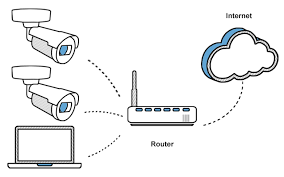
Before we dive into the step-by-step instructions, it’s essential to understand that there are two types of security cameras: IP cameras and surveillance cameras with a DVR or NVR. IP cameras can be connected directly to the internet using Wi-Fi, while surveillance cameras require a DVR or NVR to access the internet.
Operations Preliminary
To view your security cameras online, you need to configure them first. Here are the preliminary steps:
- Configure Your IP Camera: If you have an IP camera, follow these steps:
- Position the camera and connect it to power.
- Connect the camera to your Wi-Fi network.
- Access the camera’s configuration panel using a web browser.
- Set up the camera’s access credentials, including username, password, and CID (unique identifier).
- Configure Your Dvr or Nvr: If you have a surveillance system with a DVR or NVR, follow these steps:
- Position the cameras and connect them to the DVR or NVR using cables.
- Connect the DVR or NVR to your router and internet.
- Configure the DVR or NVR’s access credentials, including username, password, and IP address.
Software Programs For Viewing IP Cameras
There are several software programs available that allow you to view your IP cameras online. Here are some popular options:
- Athome Chamber: This program is compatible with Windows and allows you to view up to 8 IP cameras at a time.
- Download the program from the official website.
- Install the program on your computer.
- Configure the program by adding the camera’s CID, username, and password.
- Periscope Pro: This program is compatible with Mac and allows you to view up to 4 IP cameras at a time.
- Download the program from the official website.
- Install the program on your computer.
- Configure the program by adding the camera’s CID, username, and password.
Mobile Apps For Viewing IP Cameras
There are also mobile apps available that allow you to view your IP cameras online. Here are some popular options:
- Athome Chamber Mobile: This app is compatible with Android and iOS devices.
- Download the app from the official website.
- Install the app on your device.
- Configure the app by adding the camera’s CID, username, and password.
Alternatives to Athome Chamber
If you’re not satisfied with AtHome Chamber or Periscope Pro, here are some alternative software programs:
- Tebocam: This program is compatible with Windows and allows you to view up to 4 IP cameras at a time.
- Download the program from the official website.
- Install the program on your computer.
- Configure the program by adding the camera’s CID, username, and password.
How to Access a Dvr or Nvr System Remotely
If you have a surveillance system with a DVR or NVR, here’s how you can access it remotely:
- Download The Partner Program: Download the partner program from your DVR or NVR manufacturer’s website.
- Configure The Program: Configure the program by adding the DVR or NVR’s IP address, username, and password.
- Access The System Remotely: Access the system remotely using a web browser.
Conclusion
In this article, we have guided you through the process of configuring and viewing your security cameras online. Whether you have an IP camera or a surveillance system with a DVR or NVR, there are software programs and mobile apps available that can help you achieve this goal.
Faqs
- Q: What is The Difference Between an IP Camera And a Surveillance Camera?
A: An IP camera can be connected directly to the internet using Wi-Fi, while a surveillance camera requires a DVR or NVR to access the internet. - Q: How Many Cameras Can I View at a Time With Athome Chamber?
A: You can view up to 8 IP cameras at a time with AtHome Chamber. - Q: Is Periscope Pro Compatible With Windows?
A: No, Periscope Pro is only compatible with Mac devices. - Q: How do I Access my Dvr or Nvr System Remotely?
A: You can download the partner program from your manufacturer’s website and configure it to access your DVR or NVR system remotely. - Q: What Are Some Alternative Software Programs to Athome Chamber?
A: Some alternative software programs include TeboCam, AirBeam Video Surveillance, and MEye. - Q: Can I View my IP Cameras on a Mobile Device?
A: Yes, you can view your IP cameras using the AtHome Chamber Mobile app or other similar apps. - Q: How do I Configure my IP Camera to Access it Remotely?
A: You need to configure your IP camera’s access credentials, including username, password, and CID (unique identifier). - Q: Can I View Multiple IP Cameras at a Time Using Athome Chamber?
A: Yes, you can view up to 8 IP cameras at a time using AtHome Chamber.


