How to See Coordinates on Minecraft: A Comprehensive Guide
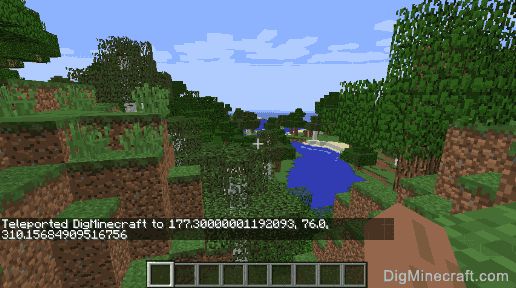
As a Minecraft enthusiast, you might have found yourself wondering how to see the coordinates on your game. This can be especially useful when trying to find specific locations or share them with friends. In this article, we will explore how to see coordinates on various versions of Minecraft, including Java Edition, Bedrock Edition, Pocket Edition, Nintendo Switch, and PS4.
Why See Coordinates on Minecraft?
Before we dive into the details, let’s quickly discuss why seeing coordinates on Minecraft can be helpful. By viewing your current location’s coordinates, you can:
- Find specific locations or buildings in a new world
- Share coordinates with friends to meet up in-game
- Use online tools or apps to find the exact location of structures like castles, villages, or other features
Minecraft Java Edition: How to See Coordinates
If you’re playing Minecraft on PC using the Java Edition, seeing coordinates is a straightforward process. Here’s how:
- Open Minecraft and select the world where you want to see coordinates.
- Press the
F3key to toggle the debug screen. This will display various information about your game, including your current location’s coordinates. - Look for the “XYZ” coordinates in the top-left corner of the debug screen.
Minecraft Bedrock Edition: How to See Coordinates
On the other hand, if you’re playing Minecraft on a console or mobile device using the Bedrock Edition, seeing coordinates is just as easy:
- Open Minecraft and select the world where you want to see coordinates.
- Press the
Playbutton to enter the game. - Select the “Create New” option from the main menu.
- In the advanced settings, toggle on the “Display Coords” option.
Alternatively, if you’re already in-game, follow these steps:
- Open the game’s settings by pressing the
Settingsbutton. - Toggle on the “Display Coords” option.
Minecraft Pocket Edition: How to See Coordinates
Unfortunately, the Minecraft Pocket Edition is no longer available for download and has been replaced by the Bedrock Edition. However, if you have an existing copy of the game, you can follow the same steps as above to see coordinates:
- Open Minecraft and select the world where you want to see coordinates.
- Press the
Playbutton to enter the game. - Select the “Create New” option from the main menu.
- In the advanced settings, toggle on the “Display Coords” option.
Minecraft Nintendo Switch: How to See Coordinates
If you’re playing Minecraft on a Nintendo Switch, follow these steps:
- Open Minecraft and select the world where you want to see coordinates.
- Press the
Playbutton to enter the game. - Select the “Create New” option from the main menu.
- In the advanced settings, toggle on the “Display Coords” option.
Minecraft Ps4: How to See Coordinates
If you’re playing Minecraft on a PS4 using the Bedrock Edition, follow these steps:
- Open Minecraft and select the world where you want to see coordinates.
- Press the
Playbutton to enter the game. - Select the “Create New” option from the main menu.
- In the advanced settings, toggle on the “Display Coords” option.
Alternatively, if you’re playing using the Legacy Edition, follow these steps:
- Open Minecraft and select the world where you want to see coordinates.
- Use a map to display your current location’s coordinates.
Tips And Tricks
Here are some additional tips and tricks for seeing coordinates on Minecraft:
- To find specific locations or buildings, use online tools or apps that can help you locate them based on their coordinates.
- Share coordinates with friends to meet up in-game or plan collaborative projects.
- Use the “Display Coords” option to see your current location’s coordinates at any time.
Conclusion
In conclusion, seeing coordinates on Minecraft is a simple process across various versions of the game. Whether you’re playing on PC, console, or mobile device, following these steps will help you view your current location’s coordinates and unlock new possibilities for exploration and collaboration.
Frequently Asked Questions (FAQs)
- How do I See Coordinates on Minecraft Java Edition?
To see coordinates on Minecraft Java Edition, press the F3 key to toggle the debug screen.
- How do I See Coordinates on Minecraft Bedrock Edition?
On the Minecraft Bedrock Edition, follow these steps: Select the “Create New” option from the main menu and toggle on the “Display Coords” option in the advanced settings.
- Can I See Coordinates on my Ps4 Using The Legacy Edition?
Yes, you can see coordinates on your PS4 using the Legacy Edition by using a map to display your current location’s coordinates.
- How do I Find Specific Locations or Buildings in Minecraft?
Use online tools or apps that can help you locate them based on their coordinates.
- Can I Share Coordinates With Friends in Minecraft?
Yes, you can share coordinates with friends to meet up in-game or plan collaborative projects.
- Why is The Minecraft Pocket Edition no Longer Available For Download?
The Minecraft Pocket Edition has been replaced by the Bedrock Edition, which offers improved features and performance.