
How To See Iphone Chronology: A Step-by-step Guide
Are you tired of wondering how to see your iPhone chronology? Look no further! In this article, we’ll take you through a step-by-step guide on how to view the chronology of various apps and features on your iPhone.
What is Iphone Chronology?
IPhone chronology refers to the record of activities, calls, messages, and other events that have taken place on your device. This information can be accessed from within individual apps or through the Settings menu.
How To See Safari Chronology on Iphone
If you’re interested in seeing the chronology of Safari on your iPhone, follow these steps:
- Take your iPhone and unblock it.
- Access the home screen and/or the Bookshop app.
- Tap on the icon of Safari (with the compass).
- On the leading screen, tap on the book icon at the bottom of the display.
- Select the clock symbol in the menu that appears.
- You’ll see a partial list of saved websites in the chronology.
How To See Call Chronology on Iphone
If you’re interested in seeing the chronology of calls on your iPhone, follow these steps:
- Take your iPhone and unblock it.
- Access the home screen and/or the Bookshop app.
- Tap on the icon of the Phone app (with the green background and white cornetta).
- On the successive screen, select the Recent voice at the bottom.
- You’ll see a list of called numbers.
How To See Message Chronology on Iphone
If you’re interested in seeing the chronology of messages on your iPhone, follow these steps:
- Take your iPhone and unblock it.
- Access the home screen and/or the Bookshop app.
- Tap on the icon of the Messages app (with the green background and white comic strip).
- On the leading screen, you’ll see a list of contacts and numbers with which you’ve exchanged messages.
- If necessary, swipe to the top or bottom of the display and type in the keyword of reference in the search bar.
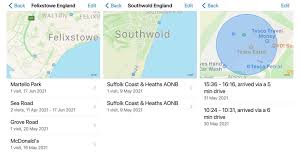
How To See Maps Chronology on Iphone
If you’re interested in seeing the chronology of Maps on your iPhone, follow these steps:
- Take your iPhone and unblock it.
- Access the home screen and/or the Bookshop app.
- Tap on the icon of the Maps app (with the geographic map).
- On the leading screen, swipe to the top or bottom of the display.
- You’ll see a list of all places for which you’ve created an itinerary.
How To See Shopping Chronology on Iphone
If you’re interested in seeing the chronology of shopping on your iPhone, follow these steps:
- Take your iPhone and unblock it.
- Access the home screen and/or the Bookshop app.
- Tap on the icon of the Wallet app (with the black background and portfolio with cards).
- Select the card of credit or debit card reference.
- In the Last section, you’ll see a list of all purchases.
How To See Notification Chronology on Iphone
If you’re interested in seeing the chronology of notifications on your iPhone, follow these steps:
- Take your iPhone and unblock it.
- Access the home screen and/or the Bookshop app.
- Swipe to the top or bottom of the display (depending on whether the lock screen is visible).
- You’ll see a list of recent notifications.
How To See Youtube Chronology on Iphone
If you’re interested in seeing the chronology of YouTube on your iPhone, follow these steps:
- Take your iPhone and unblock it.
- Access the home screen and/or the Bookshop app.
- Tap on the icon of the YouTube app (with the white background and red Play button).
- On the leading screen, select the Collected voice at the bottom right.
- Select the #Visualise all option in the menu.
How To See Google Chronology on Iphone
If you’re interested in seeing the chronology of Google on your iPhone, follow these steps:
- Take your iPhone and unblock it.
- Access the home screen and/or the Bookshop app.
- Open Safari or another browser app.
- Select the page to manage Google account settings.
- Tap on the Activity that have performed and places that have toured option.
How To See Whatsapp Chronology on Iphone
If you’re interested in seeing the chronology of WhatsApp on your iPhone, follow these steps:
- Take your iPhone and unblock it.
- Access the home screen and/or the Bookshop app.
- Tap on the icon of the WhatsApp app (with the green background and white cornetta).
- On the leading screen, select the Chat voice at the bottom.
- Select the conversation of interest.
Conclusion
In this article, we’ve taken you through a step-by-step guide on how to see the chronology of various apps and features on your iPhone. Whether it’s Safari, calls, messages, Maps, shopping, notifications, YouTube, Google, or WhatsApp, we hope this guide has been helpful in understanding how to access these records.
Faqs
Q: How do I see my iPhone chronology?
A: To see your iPhone chronology, follow the steps outlined in each section of this article.
Q: What is the purpose of the chronology on iPhone?
A: The chronology on iPhone serves as a record of activities, calls, messages, and other events that have taken place on your device.
Q: How do I delete an entry from the chronology?
A: To delete an entry from the chronology, follow the steps outlined in each section of this article.
Q: Can I view specific entries within the chronology?
A: Yes, you can view specific entries within the chronology by using the search bar or filtering options.
Q: How do I erase the entire chronology?
A: To erase the entire chronology, follow the steps outlined in each section of this article.
Q: What is the difference between deleting and erasing a record from the chronology?
A: Deleting a record removes it from view, while erasing a record removes it permanently.
Q: How do I manage my iPhone settings to control what appears in the chronology?
A: To manage your iPhone settings, follow the steps outlined in each section of this article.


