
How to See What Memory Has Your Phone: A Comprehensive Guide
Are you curious about how much memory your smartphone has? Perhaps you’re wondering how to check the storage capacity of your device or what RAM is available on your phone. If so, this guide will help you understand how to see what memory has your phone, whether it’s an Android or iPhone.
Understanding Phone Memory And Ram
Before we dive into the steps, let’s clarify what we mean by “phone memory” and “RAM”. The inner memory of a smartphone is used for storing data such as photos, videos, documents, and apps. On the other hand, RAM (Random Access Memory) is responsible for temporarily storing data from applications running on your device.
For Android Phones
To see what memory has your Android phone:
- Check The Packaging: If you still have the original packaging or box of your phone, check the label or sticker on it. It should indicate the storage capacity (ROM) and RAM (RMA) of your device.
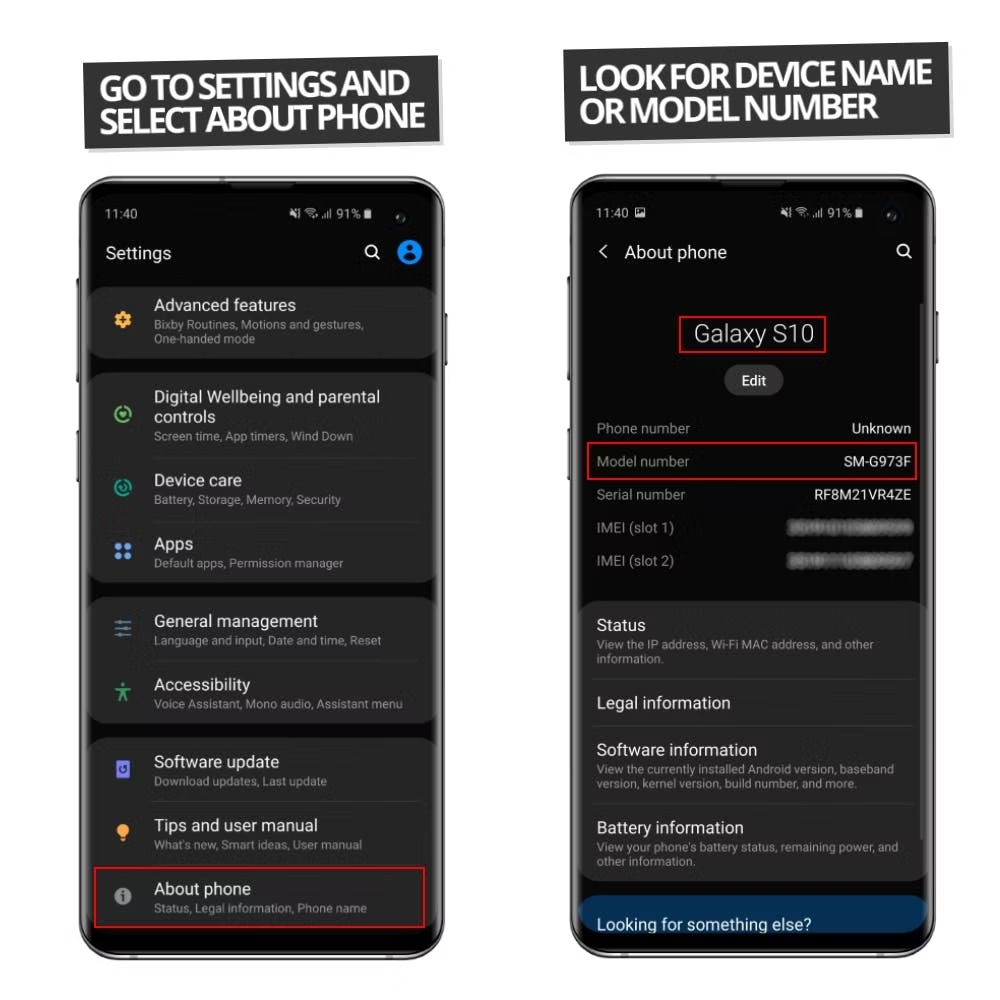
- Access Settings: On most Android devices, you can access the settings menu by tapping on the icon resembling a gear in the top right corner of your screen. Scroll down to find the “About phone” or “Info” section, then select it. You should see information about your phone’s storage capacity and RAM.
- Use Built-in Features: Some Android devices have a dedicated app for monitoring memory usage. For example, on Samsung phones, you can access this feature by going to Settings > Storage.
- Third-party Apps: There are various third-party apps available that can help you monitor your phone’s memory usage. These include Device Info, DevCheck, and CPU Info.
For Iphone
To see what memory has your iPhone:
- Check The Packaging: Similar to Android phones, check the original packaging or box of your iPhone for information on storage capacity and RAM.
- Access Settings: Go to Settings > General > About, where you’ll find details about your phone’s model, capacity (storage), and RAM.
- Use Built-in Features: On newer iPhones, you can access the “About” menu by going to Settings > General > About. You’ll see information on storage capacity and available memory.
Third-party Apps For Iphone
If you want more detailed insights into your iPhone’s memory usage, consider using third-party apps such as:
- G-CPU: This app provides detailed information about your phone’s hardware, including memory usage.
- Device Monitor²: Another useful tool that offers a comprehensive overview of your device’s status.
Discharging The Memory of Your Phone
Once you’ve checked the memory capacity and RAM on your smartphone, it might be time to free up some space. Follow our guides on how to discharge the RAM on mobile phones and how to discharge the memory of the mobile for more information.
Conclusion
In conclusion, understanding what memory has your phone is a straightforward process that can be achieved through various methods. Whether you have an Android or iPhone, we’ve provided steps to check storage capacity and RAM. Additionally, consider using third-party apps for more detailed insights into your device’s performance.
Frequently Asked Questions (FAQs)
- Q: What is The Difference Between Phone Memory And Ram?
A: Phone memory (ROM) refers to the inner storage used for storing data like photos, videos, documents, and apps, whereas RAM (RMA) temporarily stores data from applications running on your device. - Q: How Can I Check my Iphone’s Storage Capacity?
A: Go to Settings > General > About on your iPhone, where you’ll find details about your phone’s model, capacity (storage), and RAM. - Q: Can I Use Third-party Apps to Monitor my Smartphone’s Memory Usage?
A: Yes, there are various third-party apps available for both Android and iPhone that can help you monitor your device’s memory usage. - Q: How Often Should I Check my Phone’s Memory Capacity?
A: It’s a good idea to regularly review your phone’s storage capacity and RAM usage to ensure smooth performance and avoid running out of space.
We hope this guide has helped you understand how to see what memory has your phone. If you have any further questions or concerns, feel free to ask!


